How to Create Digital Planner Video Ads: Build an English Ad with Real Product Screens
A step-by-step guide to creating English video ads with real planner screens, without filming a creator. Start with a weekly planning scene, then connect the customer’s situation, product demonstration, and purchase prompt.
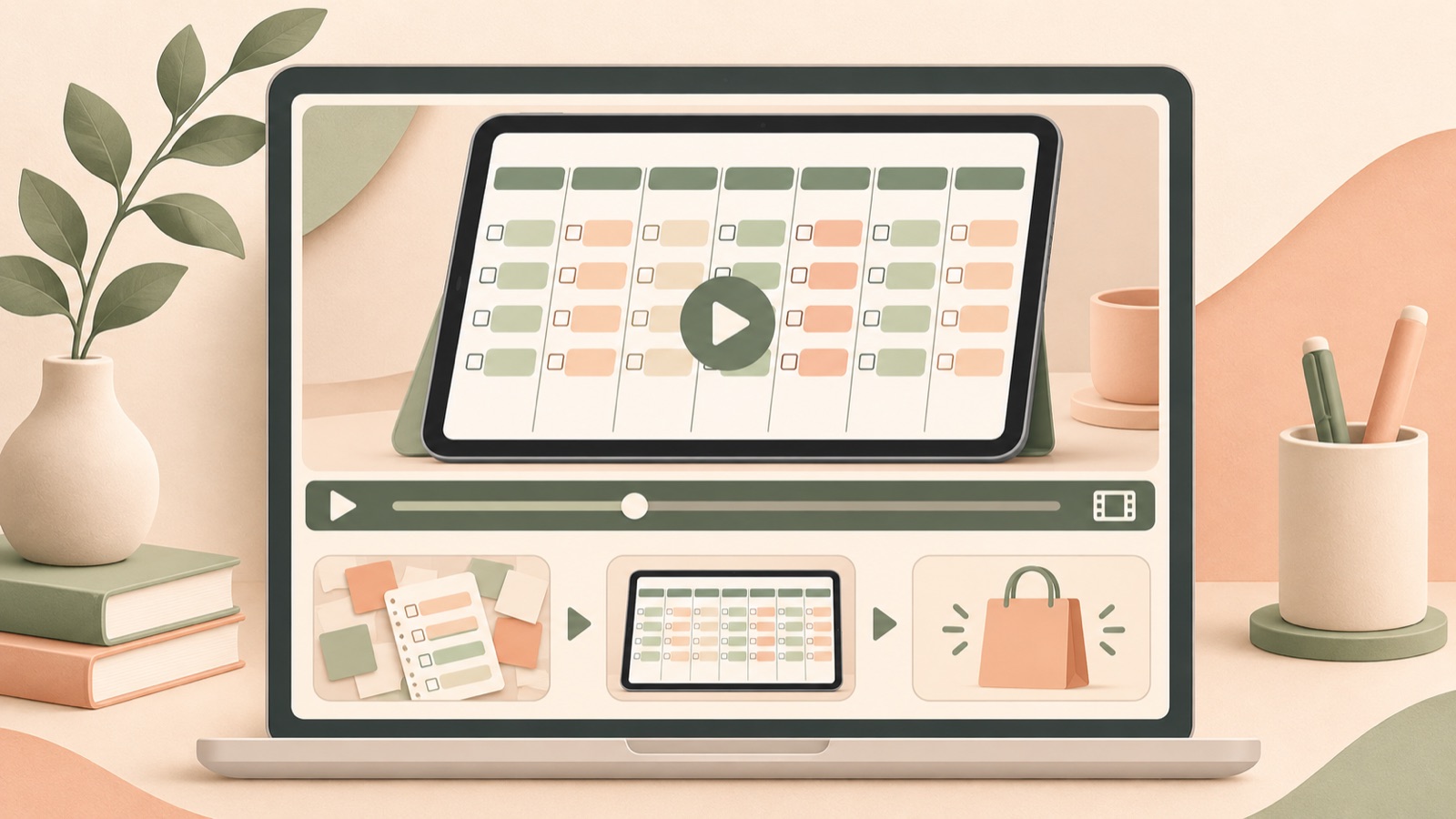
When creating digital planner video ads, start by showing when someone opens the planner and what they organize, rather than listing features. Real pages and screen recordings can connect the customer’s situation, product demonstration, and purchase prompt without adding creator footage. This guide walks you through using weekly planning as your first creative, turning it into an English video in AdForge, and then expanding into a habit-tracking creative.
Choose the moment a customer opens the planner instead of focusing on features
For your first ad, focus on the question “Why would someone open this planner to organize their week?” rather than “How many page types does it have?” In one real example, a digital planner seller targeting English-speaking customers asked what to do after making videos that showcased features and mentioned the burden of UGC production costs. However, this example alone cannot establish whether the creative caused the ad results.1
Here, we’ll use “Gather scattered to-dos on a weekly page before Monday” as a hypothetical example. The reason to buy is “See this week’s tasks on one screen.” Apply this only if the actual product includes a weekly page. Even if it also supports habit tracking, saving that for a separate creative instead of including it in the first video makes the use case each ad explains clearer.
Prepare ad assets showing the actual PDF in use
First, check the planner’s page layouts against their intended uses. Official Goodnotes resources also introduce the layouts and uses of various digital planners. Use these as a reference when choosing pages to show in your ad, rather than as evidence of your own product’s features. If you’re talking about weekly planning, open the weekly page in the actual file you sell and check whether that screen demonstrates the stated reason to buy.2
The assets for this hypothetical example are a blank weekly page, a screen recording of entering tasks, and the completed page. Make the recording yourself in the environment customers will actually use, and enter only fictional schedule items such as “Client call” and “Grocery run.” Prepare screenshots and screen recordings without assuming AdForge converts PDFs directly. If a separate app is required, accurately explain the relationship between the planner file and the app in your product description.
- Choose a weekly page that is actually included in the product.
- Prepare the before-entry and completed screens at the same zoom level.
- Check that the recording does not show personal appointments, notifications, or account information.
Connect the customer’s situation and product screens with a short English script
Structure the video around the customer’s situation, product demonstration, and purchase prompt, in that order. Official TikTok resources present a hook, body, and close structure, along with calls to action, as creative principles. When creating for TikTok, also account for the vertical format and the space occupied by the platform’s UI. Do not extend these principles into claims about Meta’s official guidance; check videos intended for Facebook separately in the preview for the relevant placement.3
The hypothetical script opens with “What needs to happen this week?” Next, show “Put your weekly tasks on one page.” while entering tasks on the actual weekly page. End with “Explore the digital planner.” and a product screen. This structure is intended to make the on-screen actions substantiate the wording. Describe the usage viewers can actually see, instead of making performance promises such as “Double your productivity.”
Choose references in AdForge and create an English video
Search AdForge’s Meta and TikTok ad library for ads related to planners or schedule organization. Save ads you like, then examine the opening hook, pacing, cuts, and caption structure in the analysis results. Treat the number of days an ad has run as reference information only, rather than evidence of profitability. For these assets, assess whether a format centered on screen demonstrations rather than on-camera appearances, connecting the before and after, is a good fit.
At the product information step, populate the information using the product page address, then check that it matches the actual file contents. Add your prepared screenshots and screen recordings, along with the selling point “Organize your weekly tasks on one page,” and proceed with video creation. In the generated script and storyboard, check the sequence of customer situation, task entry, and completed page, and revise the English wording. Review the result, including English narration, captions, and background music, and regenerate only the scenes that are off.
- Use the reference’s hook and narrative structure as a guide without copying its wording.
- Check that the script has not added features absent from the screens.
- Review your rights to use the uploaded assets and the accuracy of the final screens.
Download the first video and expand into a habit-tracking creative
Listen to the English narration in the finished video, and check whether the customer’s situation and usage are understandable with the sound off. If the planner’s small text is unreadable, revise the scenes to show the key input area instead of holding on the entire page for a long time. Also avoid visuals that could make a PDF product look like a physical notebook. Download a result that matches the product description, then upload it to your ad account yourself. Handle campaign setup and performance tracking in your existing ad management tools.
For the follow-up creative, reuse the same cover and purchase prompt while changing the use case. If the actual product includes a habit-tracking page, prepare the line “Keep your reading habit in view.” and a screen showing a reading log as a hypothetical example. Add those assets and the selling point to AdForge, then review the script and storyboard again. Uploading the weekly planning and habit-tracking creatives separately gives you a basis for comparing which use case audiences responded to in your existing ad management tools.
Key takeaways
Create digital planner ads by connecting one situation in which a customer opens the planner with real screens showing it in use. Finish one English video using weekly planning screens, then expand into follow-up creatives using the habit-tracking pages included in the product.
FAQ
Can I create a video ad right away with just a PDF file?
For this workflow, capture screenshots or recordings of the PDF in use yourself. It does not assume that AdForge converts PDFs directly. Preparing a blank page, the entry process, and the completed screen makes it easier to connect the script and scenes.
Does a creator have to appear in ads for English-speaking audiences?
This guide explains use cases through real planner screens. You can show what users enter and how they organize it without anyone appearing on camera. However, there is no guarantee that this will deliver the same results as creatives featuring a creator.
Can I include weekly planning and habit tracking in one video?
We recommend narrowing the first creative to one situation. Show tasks coming together for weekly planning, and ongoing logging for habit tracking, in separate creatives. Use only pages actually included in the product.
Can videos created in AdForge run automatically as Facebook ads?
Automatic ad delivery through your ad account is not available yet. You need to download the finished creative and upload it yourself. Video creation requires a paid plan, and campaign setup, ad delivery, and performance tracking take place in your existing ad management tools.
Related reading
Make your next ad with AdForge
AdForge (ad-forge.io) is an ad remake app: pick an ad you like and rebuild it as a video or image ad for your own product. Find references in the Meta and TikTok ad libraries, let AdForge write the script, AI narration and captions, then review and download. Every account starts with 12 free image ads.