How to Create Meta Ad Creative: From Reference Ad to Your First Finished Asset
Have an ad you want to recreate but don't know where to start? Separate the structure you want to use from your own product information. This guide walks you through preparing your materials, creating and revising ads in AdForge, and downloading your first finished creative.
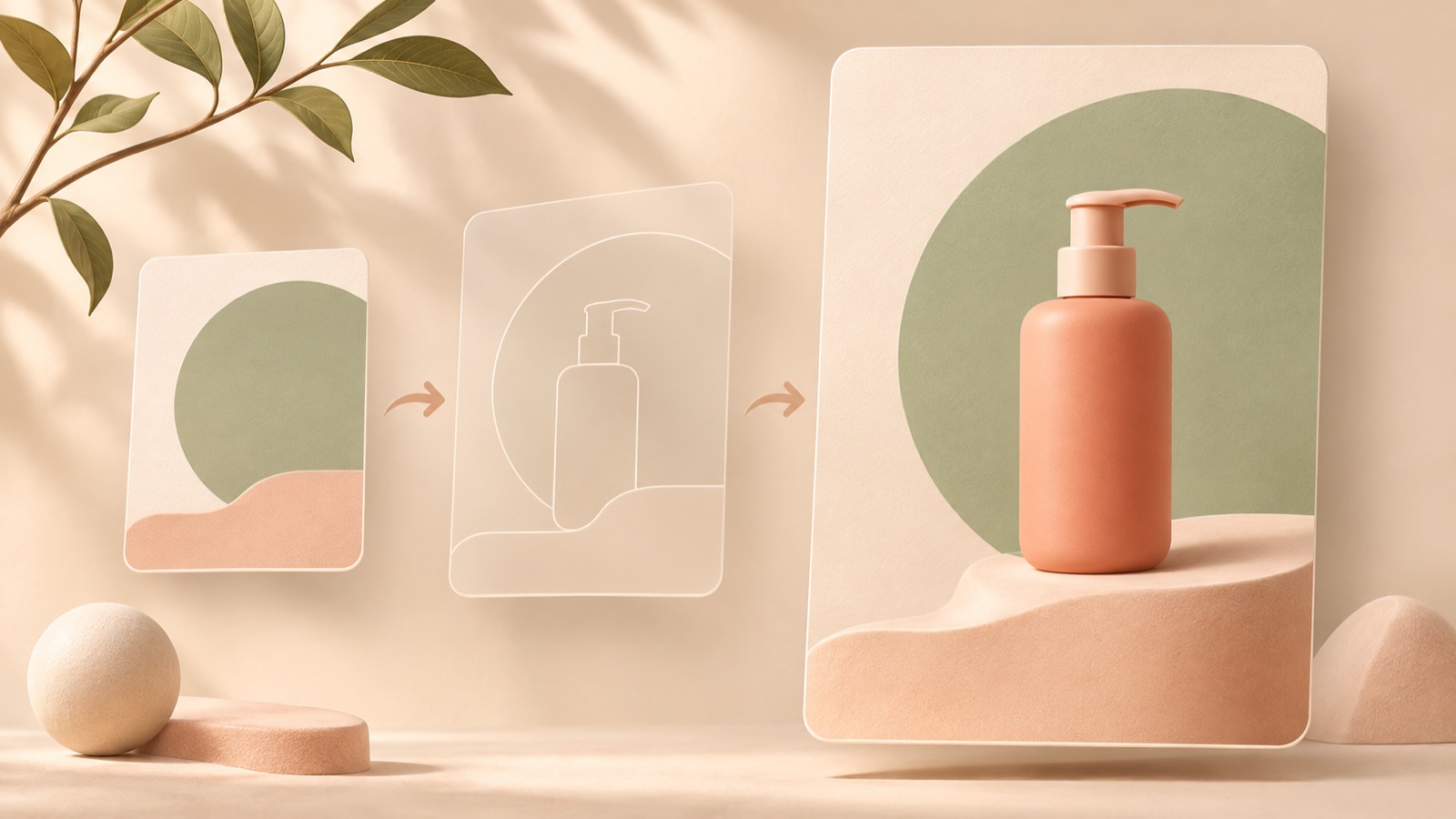
If you're unsure how to create Meta ad creative, start by making one finished asset with a single reference ad and your product materials. Separating the structure you want to use from the content you need to replace makes it clear which photos and messages you'll need. This article walks you through preparing materials, creating image and video ads, making revisions, and downloading the results using AdForge, our ad remake app.
Choose one reference ad and your first creative format
Even with plenty of reference ads, it's hard to start creating if you haven't decided what to make first. In an actual public question, someone with references they wanted to recreate asked how to get started and where to learn the full ad creation process.1 For your first project, choose one ad instead of gathering more candidates. Writing down which scenes in that ad could work for your product gives you a basis for choosing.
If you need fresh references, you can search for ads currently running in the Meta Ad Library.2 Choose an ad whose core message you can convey with the materials you already have. We recommend starting with an image ad if product photos are your main assets, or a video ad if you have footage showing how to use the product or screen recordings of your app. Your first goal is one finished creative that clearly communicates your product and a reason to buy it.
Separate the structure you'll use from the content you'll replace
Write down the role of the reference ad's opening scene, explanation sequence, layout, and final call to action. Beside each, note what you'll replace with your own product photos and information. A USP-based ad planning guide also outlines a process of identifying strengths, researching references, defining the core message, and selecting channels and formats before production.3 Start by applying this preparation process to just one ad.
As a hypothetical example, let's say you're advertising a folding laptop stand. If the reference video follows the sequence “inconvenient situation → product introduction → product in use → learn more,” you can use that sequence. Replace the opening with a scene of someone working at a cramped desk, and use actual materials showing your stand for the product scenes. Leave out the reference ad's testimonials and discount copy, and make one verified feature of your own product the core message.
- Structure to use: the role of the opening scene, the explanation sequence, and the placement of the product and copy
- Content to replace: product materials, use case, selling points, and verified sales terms
- Final action: one thing viewers should do after seeing the ad
Prepare your product photos and reason to buy as one set
Prepare photos showing the whole product and materials that demonstrate the feature you want to highlight. If you're explaining the stand's folding design, you'll need to show it both open and folded. For video, first check whether your existing materials can convey the scenes you've planned. For an app ad, prepare screenshots or screen recordings to upload yourself. Even if you have plenty of materials, selecting those that explain this ad's reason to buy will make the results easier to review.
Write your input message so it makes clear who would choose the product, in what situation, and for which feature. A hypothetical example would be “A laptop stand that folds away for people who work at different desks.” Confirm that the actual product folds before using this message. In AdForge, you can paste a product page address to fill in product information automatically. Check the populated description yourself to make sure it matches the actual product.
Choose a reference in AdForge and create your first ad
Find and save a Meta ad to use as a reference in AdForge's ad search screen. In the saved ad's analysis, review elements such as an image's layout and colors, or a video's hook, pacing, cuts, and captions. If its structure can communicate the reason to buy you identified earlier, choose it as your remake reference. You can also see how many days it has been running, but don't draw conclusions about performance from that duration alone. Assess whether you can recreate the content with your own materials.
On the product information screen, paste a product page address or enter your product information and selling points, then upload photos and videos. Image creation produces three concepts that follow the reference layout using actual product photos. On the results screen, compare whether the product is clearly visible and the key copy stands out. Every account starts with 12 free image ads, with no card required, and the free allowance does not replenish.
Video creation is available on paid plans. Check the product's introduction sequence and explanations in the AI-generated script and storyboard, and manually revise any unverified claims or scenes that don't match your materials. Create the video with a Korean script, narration, and captions, then review the product name and the meaning of each sentence. After checking the result with AI narration, word-level synchronized captions, and background music, you can regenerate an individual scene if it feels awkward.
Review the finished creative and download the file for your ad account
Check that the product and copy are easy to recognize on a phone as well. For images, make sure the photos and copy don't obscure each other. For video, check that the words and visuals align from the opening scene through the final call to action. Also confirm that the product's shape, included items, price, and app screens match reality. Review your rights to use the uploaded materials, and if you find a problem, identify a specific revision such as “replace the product photo” or “shorten the description.”
Once the creative communicates what you're introducing, why it's worth choosing, and what to do next, treat it as your first finished asset. Download the result from AdForge and upload it to your Meta ad account yourself. Use your existing ad management tools to set up campaigns, run ads, and check performance. For your next creative, keep the same product and message while changing either the opening scene or the layout. Using your first finished asset as a baseline makes the differences to compare in your next production clear.
Key takeaways
Start your first Meta ad creative with one reference ad and one reason to buy. Separate the structure from the product information, then add your actual photos, videos, and message to AdForge to create it. Review and download the result to prepare your first finished asset for upload to your ad account.
FAQ
Do I need to learn design and video editing first?
You don't need to learn every editing skill before making your first creative. In AdForge, you can create images or videos by providing a reference, product materials, and a message. You're responsible for checking the accuracy of the product information and reviewing the results.
How much can I take from a reference ad?
Use its structural framework as a reference, such as the role of the opening scene, the explanation sequence, and the layout. Create fresh copy and visuals using your own product information and materials. Don't copy another product's testimonials, discounts, or performance claims.
Can I start with just product photos?
You can start by making an image ad with product photos. AdForge creates three concepts that follow the reference layout using actual product photos. If the way the product is used is central to your message, also prepare materials that show that process.
Does AdForge run the finished ads directly?
AdForge does not yet offer automatic ad delivery through your ad account. Download the finished creative and upload it to your ad account yourself, then use your existing ad management tools to set up campaigns, run ads, and check performance.
Related reading
- 5 Tools and Workflows for Creating Hospital Reels: Veo, Vrew, and AdForge Compared
- 5 Tools and Workflows for Organizing Ad References: From Analysis to Image Creation
Make your next ad with AdForge
AdForge (ad-forge.io) is an ad remake app: pick an ad you like and rebuild it as a video or image ad for your own product. Find references in the Meta and TikTok ad libraries, let AdForge write the script, AI narration and captions, then review and download. Every account starts with 12 free image ads.