5 Restaurant Facebook Image Ad Examples: Menus, Prices, and English Copy
From signature dishes and lunch specials to new menu items, pickup orders, and limited-time offerings, explore five hypothetical ad concepts that pair real food photos with prices and English ordering copy.
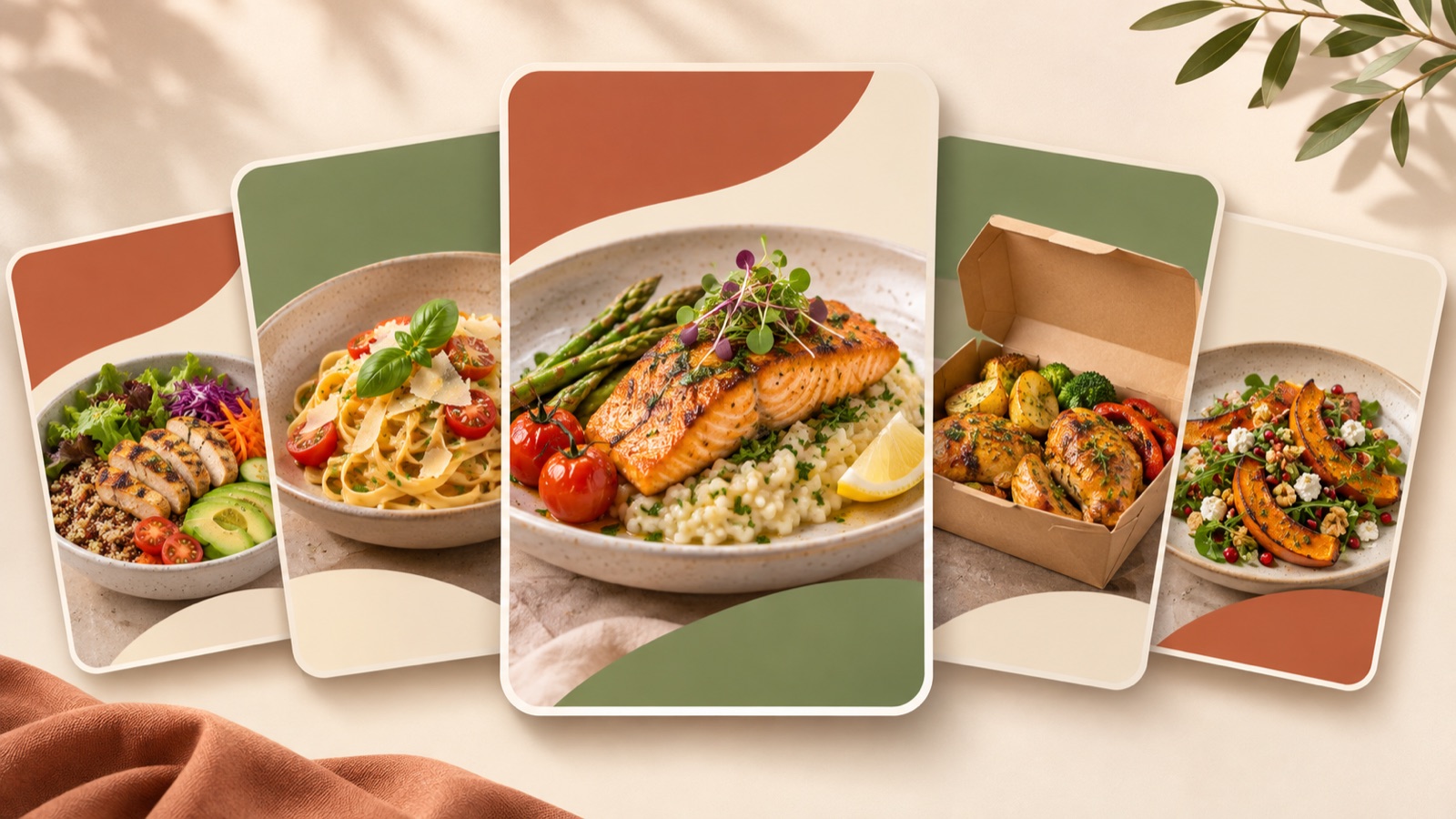
If you’re looking for restaurant Facebook image ad examples, start by choosing one menu item to sell and one ordering occasion. For a signature dish, you could feature a large food photo; for a lunch special, show the contents and price together; for pickup orders, show the packaging and collection instructions. All five examples below are hypothetical, and the menu names, prices, and sales conditions are for illustration. Replace them with your own real food photos and confirmed sales information to prepare concepts for Facebook and Instagram.
1. Signature Dish — Put the Food First
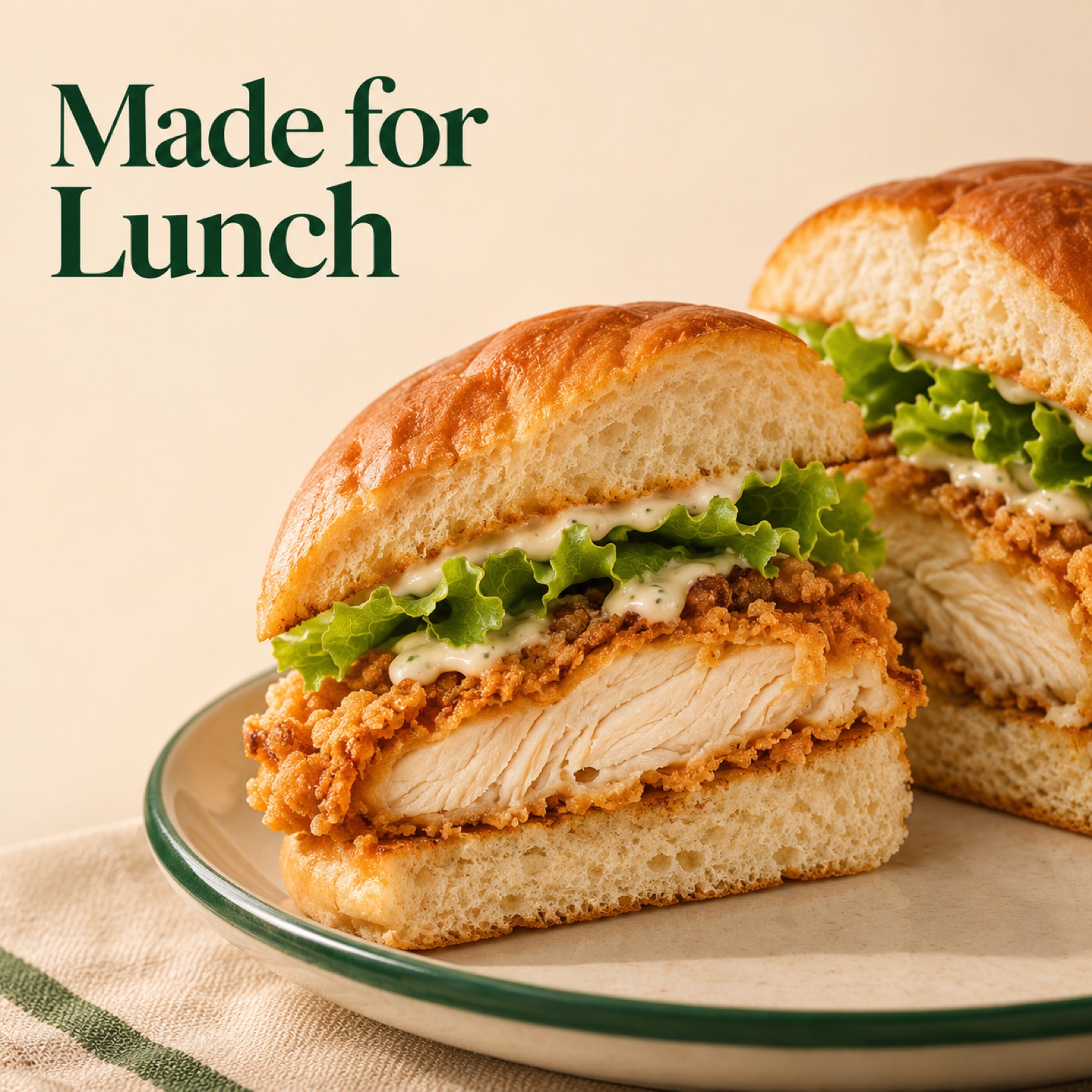
This hypothetical example is a chicken sandwich ad. Place a large cross-section photo of the sandwich you actually sell across the center and right side of the image, with “Meet Your Next Lunch” in the upper left. Group the menu name, “Crispy Chicken Sandwich,” and the à la carte price, “$12,” underneath, then place “View Menu” at the bottom. A photo that clearly shows the ingredients communicates what makes the dish distinctive, while the copy gives people who want to explore the menu a next step.
In AdForge, use the Meta Ad Library search to select and save an image ad with a large photo and a separate copy area. Review the saved ad’s layout and color analysis, then upload your own food photo in the image ad creation tool and enter the menu name, price, and message. Once three concepts based on the reference layout are generated, check that the cross-section and ingredients match the actual menu item and that the text does not cover the food, then download them. Also confirm that you have the rights to use the uploaded photo.
2. Lunch Special — Show the Combo and Price at a Glance
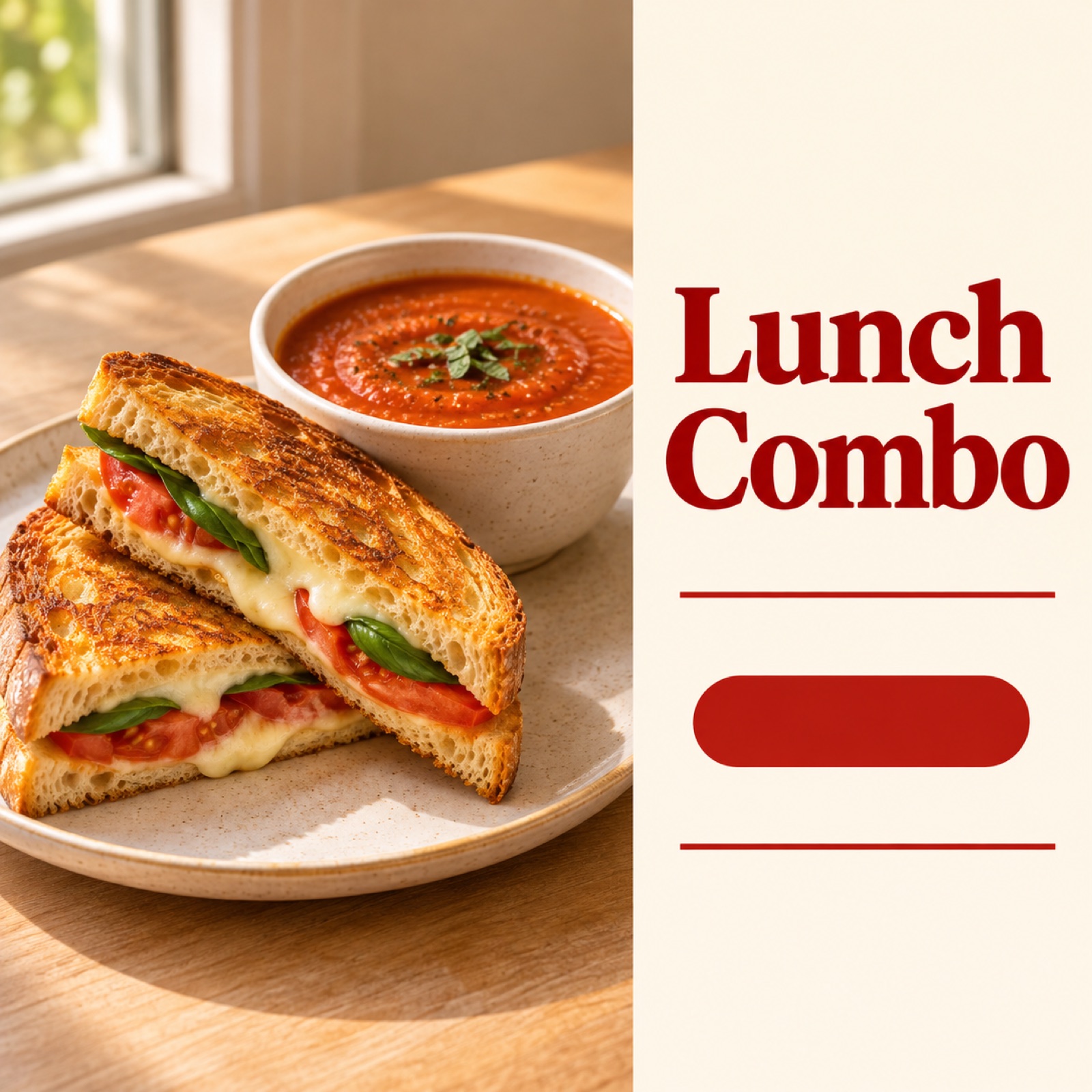
This hypothetical example is a lunch special combining a sandwich and soup. Place a real photo showing both items on the left, then arrange “Lunch Combo,” “Sandwich + Soup,” and “$14” in that order in a cream-colored area on the right. Underneath, add the hypothetical offer terms, “Mon–Fri, 11 AM–2 PM,” and “Order Lunch.” Official U.S. restaurant promotion pages also offer references for presenting food images, combo contents, prices, ordering copy, and offer conditions together.1
The aim of this layout is to help people quickly understand what they can eat and how much it costs. When adapting it to your own menu, first decide whether any drinks or sides shown in the photo are included in the price. Remove items that are not included from the photo or clearly label them as separate. In AdForge, choose a reference with separate photo and information areas, then enter your actual combo photo and confirmed hours and price. When comparing the three generated concepts, check that the combo contents and conditions are accurately connected before considering the size of the price.
3. New Menu Item — Show What’s Different Before the Name
This hypothetical example features a newly launched lemon herb chicken bowl. Place a real overhead photo of the bowl in the center and add “New: Lemon Herb Chicken Bowl” at the top, clear of the food. Below it, briefly describe the actual ingredients with copy such as “Roasted chicken. Lemon herb dressing.” Place “$15” and “Try It Today” at the bottom. Rather than embellishing an unfamiliar menu name, this layout uses the photo and ingredient description together to help people understand what they will receive.
When applying this to your own new menu item, explain just one ingredient or preparation method that differs from your existing dishes. There is no need to add unverified claims about popularity or customer reactions. In AdForge, choose a reference that places the product in the center, then enter a real photo of your new dish and an English description to create concepts. Some local consumer discussions include negative reactions to generated images that differ from the actual food, which can serve as a reason to check that the ingredients, portions, and colors in the finished image match the dish you serve.3
4. Pickup Orders — Show the Food and How to Collect It
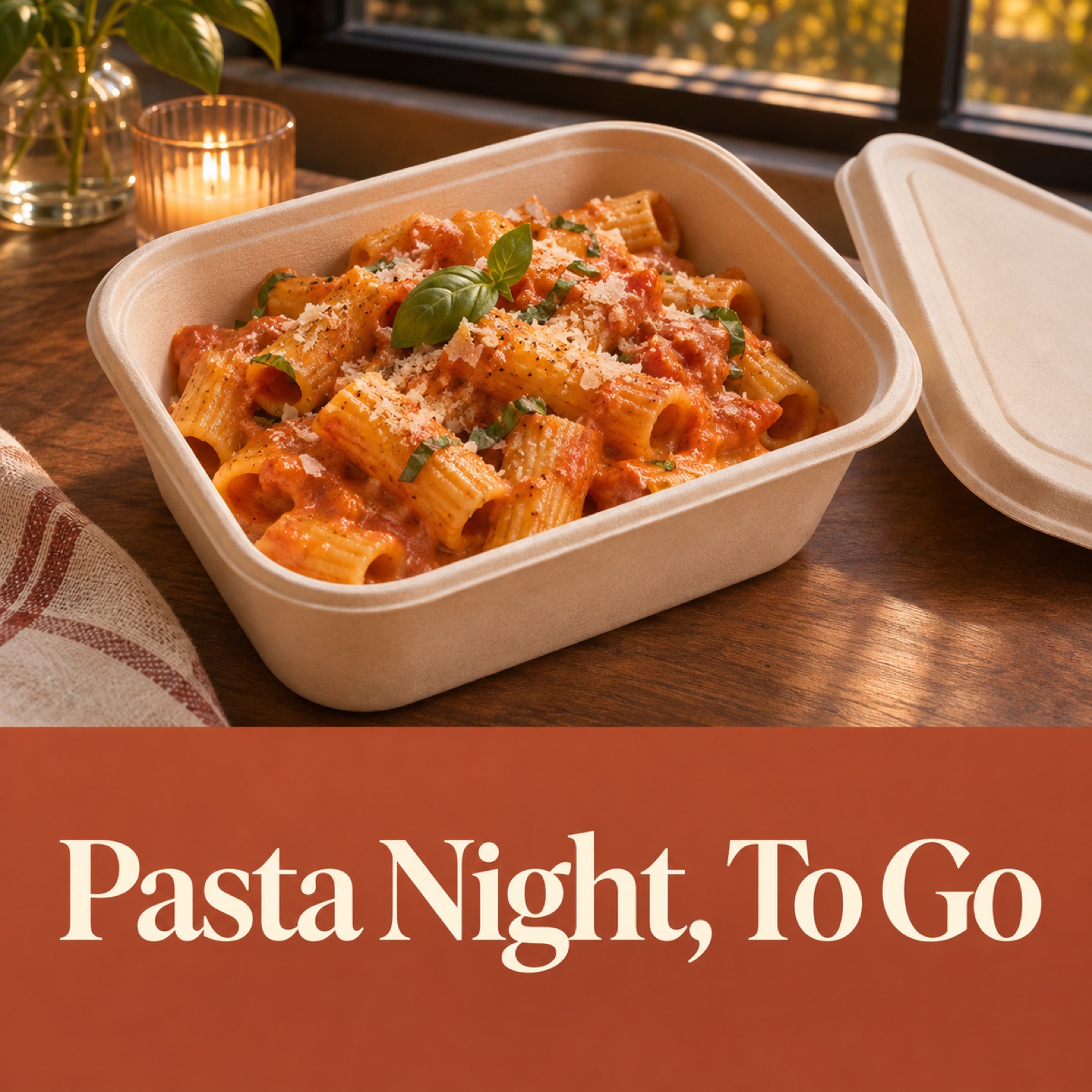
This hypothetical example is a pasta ad for pickup. Photograph the pasta in the container your restaurant actually uses, with the lid placed beside it so the food is visible. Place the photo prominently in the upper part of the image, then add “Pasta Night, To Go,” the menu name, and “$16” in a solid-colored area below. Use “Order for Pickup” as the final line. Showing the actual packaging instead of a plated meal helps people who want takeout understand how their food will arrive.
When adapting this to your restaurant, first confirm how customers will place pickup orders and where they will collect them. If only pickup is available, avoid wording that suggests delivery, and make sure the ordering method described in the ad matches the actual ordering screen. In AdForge, select a reference with an information area at the bottom and enter your packaged food photo, menu item, price, and pickup instructions. Review and download the result, then upload it directly to your ad account. Handle campaign setup, delivery, and performance checks in your existing ad management tool.
5. Limited-Time Menu Item — Connect the Season to the End Date
This hypothetical example is an ad for a fall-only roasted squash bowl. Place a large photo of the actual dish on the right, with “Fall Bowl,” “$15,” and “Available Through Nov 30” on a muted orange background on the left. Use “View Seasonal Menu” as the call to action at the bottom. This layout shows both the seasonal context and the sales period. Restaurant image ad resources also feature seasonal menu creative, but that alone does not establish that this layout delivers results.2
When creating a version for your own menu, include a date only if the end date is confirmed. If stock levels or sales plans change, update the ad copy as well. In AdForge, choose a reference with a background that complements the food’s colors and a separate, easy-to-read date area, then enter your actual menu photo and sales information. If you select one of the three concepts and create follow-up creative, define a question to compare—for example, by keeping the photo and price the same and changing only the seasonal copy. Check actual responses in your ad management tool after the campaign runs.
Key takeaways
Build each layout around its key information: the photo for a signature dish, contents and price for a lunch special, ingredient differences for a new menu item, packaging and pickup instructions for takeout, and the sales period for a limited-time dish. Enter real food photos and finalized English copy into AdForge and review three concepts to prepare your first ad candidates.
FAQ
Can I create an image ad with just one food photo?
If you are introducing one signature dish, you can start with a single real food photo. Prepare the menu name, price, and ordering information, choose a reference in AdForge with a suitable photo layout, then generate and review three image concepts.
Do I have to include the price in the ad image?
For a lunch special where price is central to the decision, we recommend showing it alongside the combo contents. For a signature dish or new menu item, you can lead with the food’s characteristics. If you include a price, make clear whether it is for an individual item or a combo and which items in the photo are included.
How should I choose English ordering copy?
Use wording that describes an action people can take on the destination screen, such as “View Menu” to encourage menu browsing or “Order for Pickup” to direct them to pickup ordering. Use “Try It Today” for a new menu item only when it is actually available.
Can I use the three AdForge concepts in an ad test right away?
First review the food’s appearance and portion size, menu name, price, sales conditions, and photo usage rights. The three concepts are candidates for review. Choose and download the creative you want to test, upload it directly to your ad account, then define the elements to compare and the metrics to check before running the campaign.
Related reading
Make your next ad with AdForge
AdForge (ad-forge.io) is an ad remake app: pick an ad you like and rebuild it as a video or image ad for your own product. Find references in the Meta and TikTok ad libraries, let AdForge write the script, AI narration and captions, then review and download. Every account starts with 12 free image ads.