How to Fix Overlapping Images and Text in Ad Banners: Separate Japanese Copy from Your Product
If your product photo and Japanese copy obscure each other, start with the layout. Learn how to distinguish overlap from contrast issues and create new concepts using reference ads with separate image and text areas.
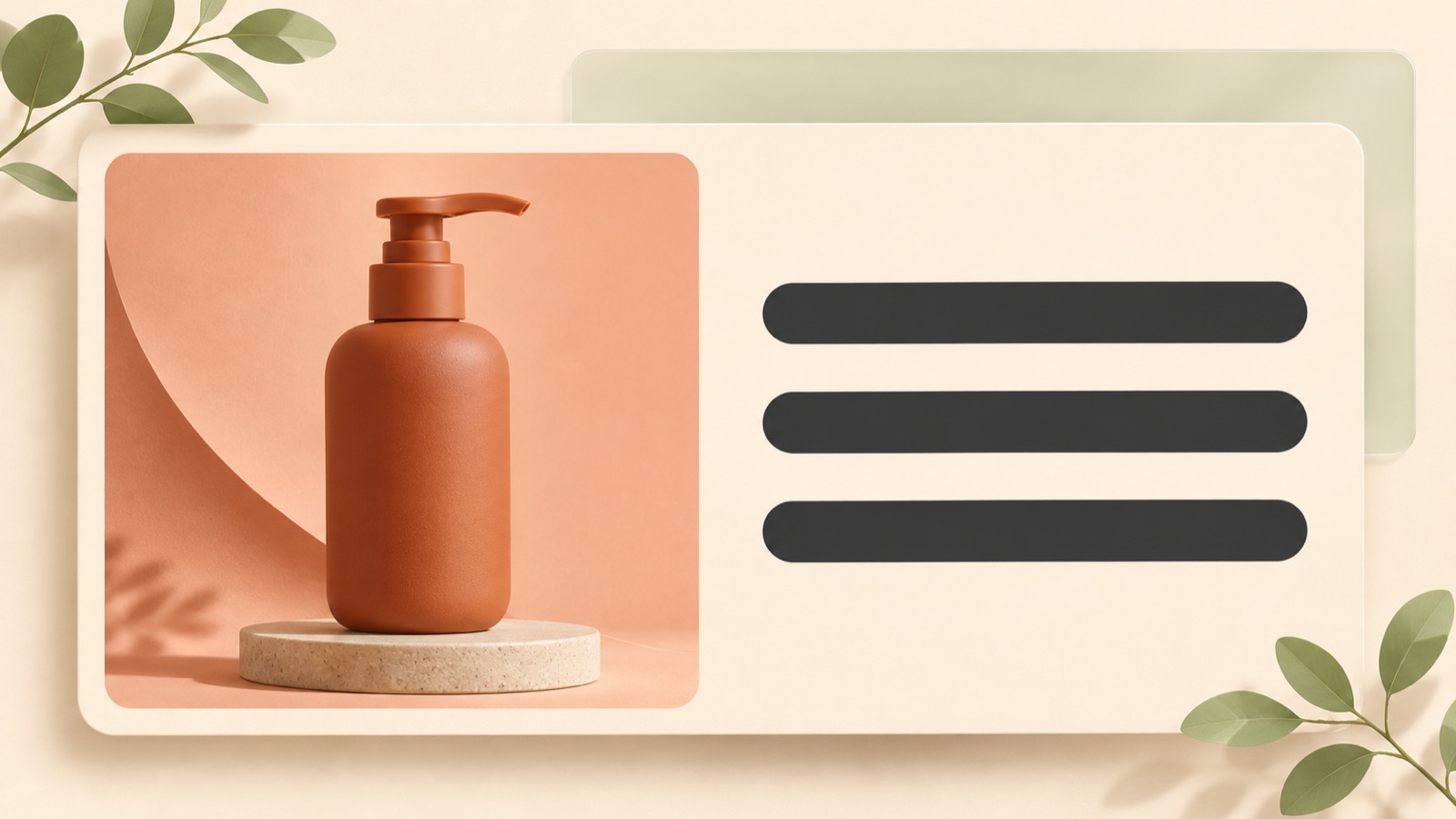
To fix overlapping images and text in an ad banner, start by separating the product area from the copy area. If the text blends into the background, adjust the contrast as well. Before you keep shortening the Japanese copy, identify what is being obscured. This article explains how to choose a reference ad with separate image and text areas, create new concepts in AdForge, and compare them at their actual display size.
Identify overlap and contrast issues separately
First, decide what customers need to recognize in the current banner. Be specific: the product’s shape, the name on the packaging, or the product in use. Then check whether the Japanese copy covers that detail. Overlap between people and text, uneven spacing, and copy colors that resemble the background are layout issues to examine separately. Labeling everything as “cluttered” makes it difficult to decide what to change.2
If the product is clearly visible but the copy is hard to read, check the contrast between the background and the text. Thin, light-colored text over a bright photo can blend in even after you move it. Adobe explains how to address this by ensuring sufficient contrast and using text size, weight, and a background strip behind the text. Write “covers the product” and “blends into the background” separately beside your current banner to clarify what the new concepts need to fix.1
- Check whether the copy covers the product’s outline or features you need to show.
- Check whether the text is visible over both the light and dark parts of the photo.
- Check the spacing between the photo and the copy, and the margins around the banner’s edges, separately.
Decide where the Japanese copy will go first
Consider a hypothetical ad for a portable pouch. If “毎日の小物を、ひとまとめに。” runs across a pouch placed in the center, it obscures the opening and the way the pouch holds items. Start by sketching a layout with the copy on the left and the product on the right. You could also put the product on the left. The key criterion is whether the pouch’s features remain visible while space is reserved for the copy.
Prepare a draft with line breaks at meaningful phrase boundaries. For the same hypothetical copy, you could try placing “毎日の小物を、” and “ひとまとめに。” on two lines. Compare a version that places the call to action, “詳しく見る,” away from the descriptive copy. This does not mean that layout is the correct answer. It is a proposed design for checking whether Japanese readers can understand the message naturally and whether the product photo and copy compete for space.
Choose references with separate photo and copy areas
When reviewing reference ads, look at where the photo sits before considering attractive colors. If your product is a tall bottle, you need a product area that can accommodate the entire bottle. If it is a wide pouch, layouts with horizontally spread-out space are easier to compare. Collect ads with copy in a solid-color area outside the photo, or with descriptive copy at the top and the product below. These are criteria for choosing a layout that suits the shape of the photos you have.
In AdForge, you can search for and save active ads from the Meta and TikTok ad libraries. Review the layout and color analysis of saved image ads to see how their photos and copy are separated. Mark layouts with uneven spacing or overlapping people and text separately for comparison. Looking at these issues before and after improvements can help you assess differences in placement.2
Create new concepts in AdForge using your product photo
AdForge is our service, and we run this blog. In the ad search screen, choose and save an image ad with separate product and copy areas. Check the layout and colors in the saved ad’s analysis, then select it as the reference for your remake. When entering product information, you can paste in a product page address to populate the details. Read the populated information to make sure it matches the actual product in this ad, and check that you have permission to use the product photo.
During image ad creation, add your actual product photo and new message. Use the Japanese key message and call to action you prepared earlier, but do not assume your input alone will reproduce the exact line breaks and positions you want. AdForge follows the reference layout to create three concepts using your product photo. On the results screen, check in order whether the product is obscured, whether the Japanese conveys the meaning you entered, and whether space remains between the photo and the copy. Then download the result you want to use.
- Search for and save an image ad with separate image and text areas.
- Review the layout and color analysis, then choose a reference.
- Prepare and enter the product information, actual product photo, and Japanese message.
- Check how the product and copy appear in the three generated concepts.
- Download the result you want to use.
Decide on the next design at the actual display size
Do not review the results only at a large magnification. Scale them down to the size you expect people to see and compare them there. First, check whether you can recognize the type of product, then read the Japanese key message. If the text blends into the photo, reconsider layouts that use differences in brightness, heavier text, or a background strip behind the text. Contrast and text styling need to be reviewed together because separating their positions can still leave the copy hard to read if its color is similar to the background.1
For the hypothetical pouch ad, keep a version that shows the pouch’s opening and reads naturally across two lines of Japanese as the basis for the next design. Make your notes specific, such as “Keep the product area on the right and reserve the left side for copy.” If overlap remains in all three concepts, create another set using a reference with more room for the photo. Upload the downloaded creative directly to your ad account, and check campaign results in your existing ad management tool. Continue assessing the layout’s visual clarity separately from actual ad performance.
Key takeaways
Review photo and copy overlap, contrast between the background and text, and spacing between areas separately. Choose a reference with separate image and text areas that suits your product’s shape, create new concepts in AdForge, and select one that keeps both the product and Japanese message visible at the actual display size.
FAQ
Should I reduce the text size first if the photo and text overlap?
First, make room for the product and copy separately. Even after you reduce the text size, it can still be hard to read if its color is similar to the background. Consider size, weight, contrast, and a background strip behind the text together.1
What if the Japanese copy is too long to fit in its separate area?
Prepare shorter copy that preserves the core meaning and a draft with line breaks at meaningful phrase boundaries. If the copy must stay as it is, choose a reference with a larger text area. Check the Japanese wording and actual line breaks again in the final concept.
Can I use AdForge to move only the text in an existing banner with precision?
The method in this article creates a new image ad by adding your product photo and message to a reference with separate image and text areas. It is not presented as a way to precisely adjust text coordinates in an existing banner.
Will choosing the most readable of the three concepts also improve performance?
Readability is a design review criterion and does not guarantee performance. Download your chosen creative, upload it directly to your ad account, and check actual campaign results in the ad management tool you use.
Related reading
Make your next ad with AdForge
AdForge (ad-forge.io) is an ad remake app: pick an ad you like and rebuild it as a video or image ad for your own product. Find references in the Meta and TikTok ad libraries, let AdForge write the script, AI narration and captions, then review and download. Every account starts with 12 free image ads.