How to Create a Mini Session Image Ad: Family Photos and English Booking Copy
Make the date, location, price, and number of included photos easy to read on a single family photo. This guide walks you through choosing a reference layout and creating three English ad concepts in AdForge.
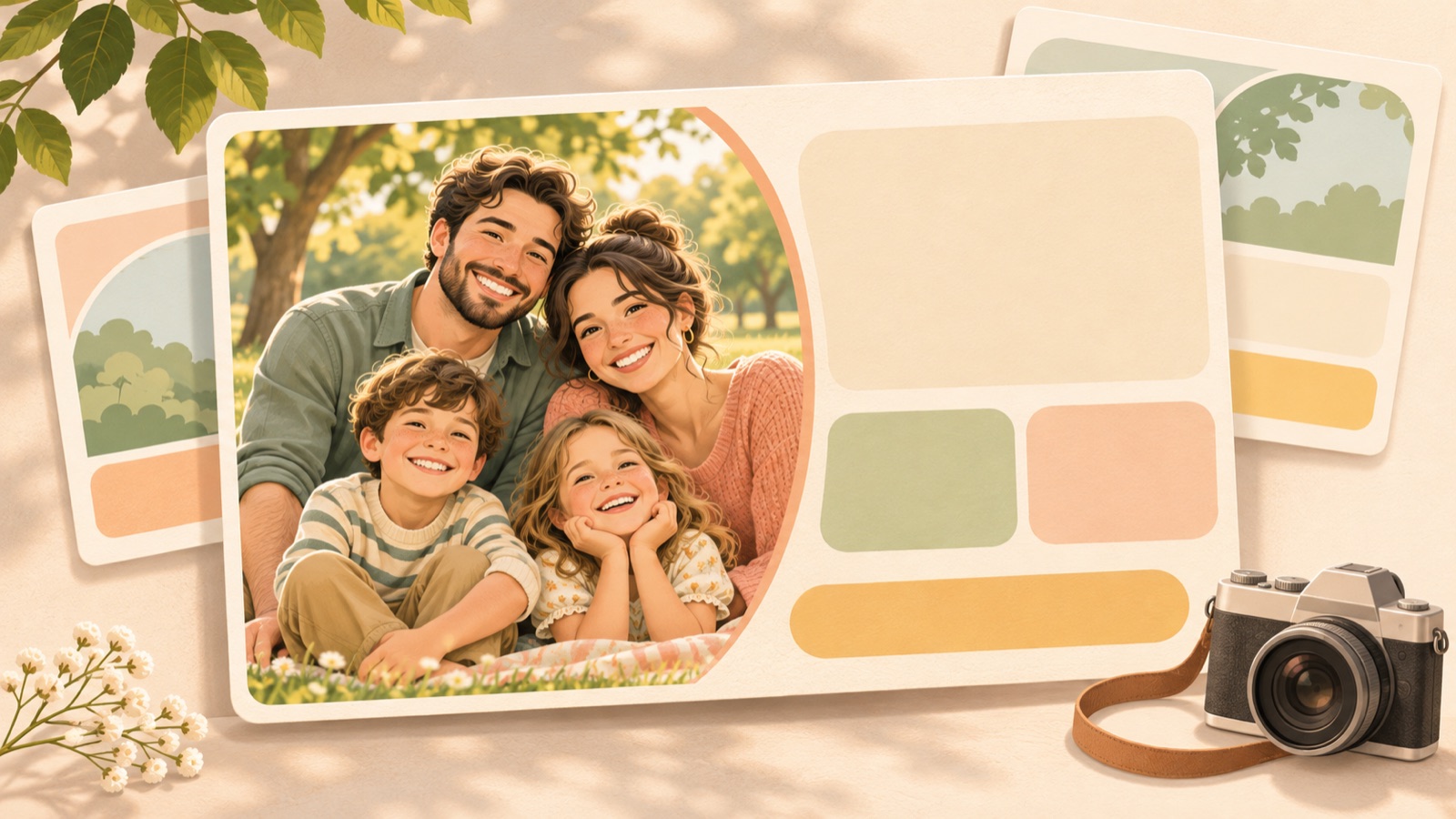
Start creating your mini session image ad by organizing one main photo and the information people need to book. Use the photo to show the feel of the session, group the date, location, price, and number of included photos together, then add a booking call to action. Follow the steps below to choose a photo-focused, price-focused, or schedule-focused layout, then use your actual photography in AdForge to create and review three English ad concepts.
Finalize the session details before choosing a photo
First, describe the photography package you want people to book through this ad in one sentence. Decide whether it is a family or individual portrait session, and set the date and location. In a photography community discussion about promoting photography services, mini session offers and creating flyers were discussed together. These are individual suggestions, not evidence of advertising effectiveness.1 For this project, focus on clearly presenting the details of one package with a set date rather than introducing your photography services broadly.
This article uses a hypothetical example: a family mini session on December 5, 2026, at the fictional Maple Meadow Park. The package includes a 15-minute session and 5 edited digital photos for a total price of $150. In your actual ad, replace these five details with confirmed information. If a separate booking deposit applies, distinguish it clearly from the total price, and clarify whether the included photo count covers unedited files or prints. Only mention remaining spots or a booking deadline if they have been confirmed.
- Define who the session is for and give it a name.
- Confirm the session date, location, and duration.
- List the total price and number of included photos separately.
- Match the booking call to action to the actual booking process.
Choose a reference layout that fits the open space in your main photo
Choose a main photo that conveys the feel of the photography you will offer in this session. For an outdoor family session, start with a photo that shows both the family’s expressions and the surrounding scenery. Existing mini session ad templates also combine seasonal photography with booking information.3 When choosing a photo, look at the space available for text as well as the subjects’ faces. Text is easier to read over relatively simple areas such as sky, grass, or a wall than a price placed over someone’s face.
Choose a photo-focused layout when you want to showcase your photography style first. This layout gives the photo plenty of room and places a light-colored information strip at the bottom. A price-focused layout works well when you want to explain the package by placing $150 close to what is included. Use a schedule-focused layout when you are looking for people who can attend on a specific date. Place the date and area directly below the headline. When choosing a reference ad in AdForge, assess whether its spacing and amount of information fit your photo, rather than focusing on decorative elements. Do not copy another ad’s price or booking terms.
Divide the English copy into a headline, session details, and booking action
Prepare the English copy in three blocks instead of writing a long sentence describing the photo. For the hypothetical example, you could use ‘Family Mini Sessions’ as the headline, with ‘December 5, 2026 · Maple Meadow Park’ and ‘15-minute session · 5 edited digital photos · $150’ for the details. Place the date and location below the headline, and group the session duration and included photo count beside the price. If you scatter these details in small type, people will have to search again to find out what $150 includes. In limited space, prioritize the details people need to decide whether to book over descriptive language about the mood.
Choose just one booking action that matches how you actually take reservations. Use ‘Book Your Session’ if you plan to link to a booking page, or ‘Message to Book’ if you arrange session times through messages. A button drawn into an image does not itself enable bookings, so the wording must match the destination you connect when setting up the ad. There is also a discussion in which someone managing ads for a photographer considered hooks alongside offers such as mini sessions, but it cannot be treated as a verified example of a particular phrase performing well.2 For your own ad, finalize the actual offer details before working on emotional copy.
Create three concepts in AdForge using a reference image and your photography
AdForge is an ad remake app that uses the structure of reference ads to create new video and image ads. First, choose and save an image ad to use as a reference. AdForge analyzes the layout and colors of the saved image ad, so check which of the photo-focused, price-focused, or schedule-focused layouts it most closely resembles. Then, on the image ad creation screen, upload an actual photo that you have confirmed you have permission to use. In the product information and message fields, enter who the session is for, its date, location, duration, price, and number of included photos, along with the English copy you want to use.
For the hypothetical example, describe the layout specifically: ‘Make the family photo large without covering faces, place the date and location at the bottom, and show the 15-minute session and 5 edited digital photos beside $150.’ Image ad creation follows the reference layout and uses your uploaded actual photo to produce three concepts at once. After generation, check that the English copy and information in each concept match your input. Compare the faces in the photo, date, price, and photo count separately, then download the result you want to use. Make your selection based on the finished images rather than assuming the requested layout was reproduced exactly.
- Choose and save a reference image ad, then review its layout and colors.
- Upload a photo you have permission to use on the image ad creation screen.
- Enter the confirmed session details, English copy, and desired information layout.
- Compare the three generated concepts against the original photo and session information.
- Check the result you want to use, then download it.
Check readability on mobile and choose your first booking ad
Open the finished images on your phone at a size people are likely to see them. Check first whether the type of photography is clear, then whether you can read the date, location, price, and what is included. Make sure ‘5 edited digital photos’ in the hypothetical example clearly communicates that five photos are included, and check that the session duration has not been omitted. If faces are cropped or the photo’s colors differ substantially from the original, reassess whether it accurately represents your photography style. A concept that requires zooming in to read key details is difficult to choose as your first booking ad.
Of the three concepts, start with the one that communicates the offer details most accurately while showing the main photo clearly. If you later want to compare responses to photo-focused and schedule-focused layouts, keep the photo and offer details the same so the effect of the layout is easier to assess. Download the finished creative and upload it directly to your ad account. AdForge does not automatically run ads through ad accounts; campaign setup, delivery, and performance checks take place in your existing ad management tools. The goal of your first ad is to give people enough information to understand the session details and proceed to the booking destination.
Key takeaways
Prepare your main photo and confirmed session details, then choose a reference layout that fits the photo’s open space. Enter the English headline, session details, and booking call to action separately in AdForge, then check the three concepts for information accuracy and mobile readability to complete your first booking ad.
FAQ
Can I start with just one photo?
Start with one main photo and confirmed session information. A reference layout that places copy in the photo’s open space or uses an information area below the photo is a good fit. Check that the result does not obscure faces or important elements that convey the feel of the session.
Should the price or the date be larger?
If people need to decide first whether they are available on the session date, place the date close to the headline. If you want to explain the package, emphasize the price and included items together. In either case, do not shrink the remaining details so much that they become difficult to read.
Can I use an existing client’s family photo in an ad?
Taking a photo does not, by itself, confirm that you have permission to use it in advertising. Before uploading it, check your rights to use the photo in ads and the scope of the consent provided. If anything is unclear, prepare other material that you have confirmed you have permission to use.
Can I try creating image ads in AdForge for free?
Every account starts with 12 free image ads made with your own product photos. No card is required, and the free allowance does not replenish. You must review the session date, price, and included items in the generated results yourself.
Related reading
Make your next ad with AdForge
AdForge (ad-forge.io) is an ad remake app: pick an ad you like and rebuild it as a video or image ad for your own product. Find references in the Meta and TikTok ad libraries, let AdForge write the script, AI narration and captions, then review and download. Every account starts with 12 free image ads.