5 New Arrival Ad Examples for Menswear: Create Launch Ads Without Filming
You can prepare launch ads using product and model photos, even without video footage of your new arrivals. Explore five approaches that work with the photos you have, plus the steps for creating image ad concepts and follow-up videos in AdForge.
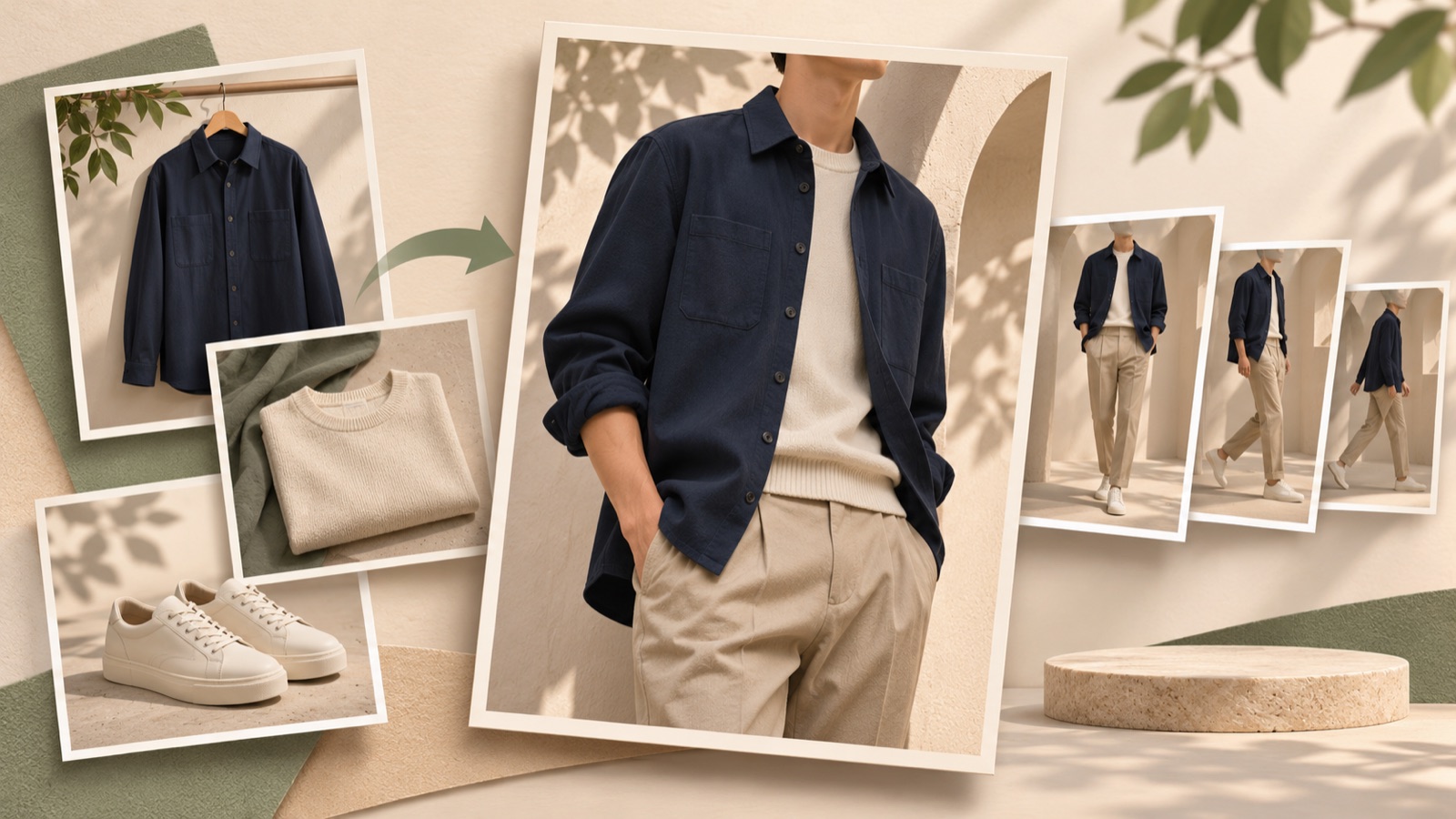
If you’re looking for new arrival ad examples for menswear, start by choosing a buying question your existing photos can answer. Product photos alone can announce a launch, while model photos can show when to wear an item and what its silhouette looks like. A public listing includes a question from a menswear seller considering image ads because their new arrival video was delayed. However, that question does not demonstrate the performance of image ads.1 All examples below are hypothetical. Choose one that suits your existing photos, create an image ad in Korean first, then prepare a follow-up video with the same message.
1. New Arrival Reveal — Announce a Launch with One Product Photo
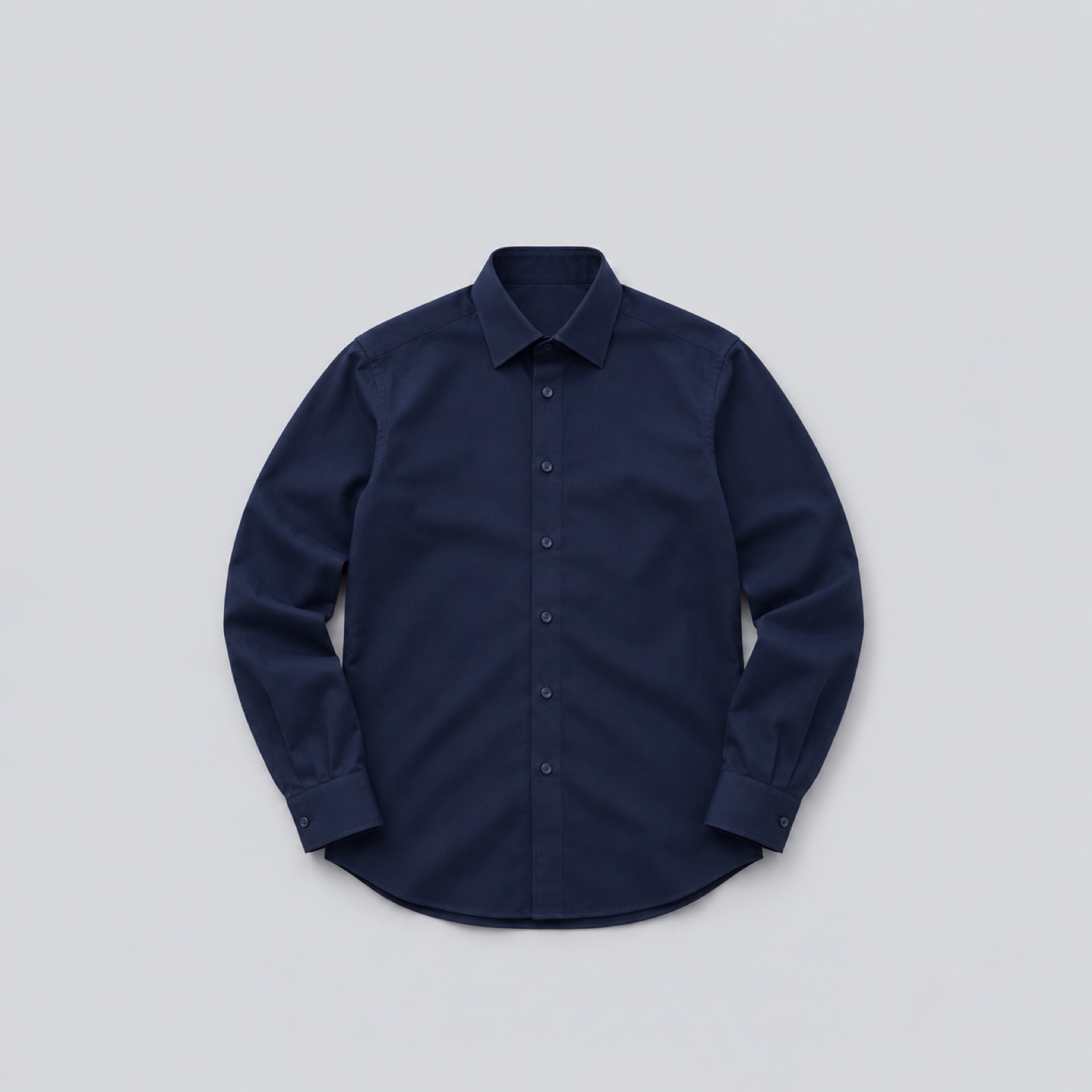
This is a hypothetical example. Suppose you only have a front-facing product photo of a navy shirt being revealed today. Place a large image of the shirt in the center of a light gray background, with “Navy shirt revealed today” above it and “Explore the new arrival” below. This layout makes it immediately clear what’s new, rather than adding discounts or feature claims. Choose it when you lack material to explain how the item feels or moves when worn. To adapt it to your product, use the actual color name and reveal timing, then choose wording that leads to the live product page.
In AdForge, choose an image ad reference centered on a single product from the reference selection screen. At the product information step, paste the product page address to populate the details, then add the actual shirt photo and launch message. Generate three concepts with the image ad creation feature, check the color, buttons, pockets, and copy in the results, then download. Also check that you have the rights to use the photo. To prepare a follow-up video, choose a video reference, add the same materials, and edit the generated script and storyboard to follow “New arrival reveal → Product introduction → Explore the details.”
2. Work Outfit — Use a Model Photo to Show When to Wear It
This is a hypothetical example. If you have a full-body photo of someone wearing new charcoal pants with a shirt, add the line “Your Monday work outfit, sorted.” Keep the pants visible from waist to hem, and use the product name as a short supporting line. This approach shows both the shape of the pants and what to pair them with, helping shoppers decide how to style them. For your own product, choose just one occasion, such as “work” or “weekend plans,” that matches the actual outfit in the photo. Do not claim comfort or wrinkle resistance that cannot be verified from the photo alone.
In AdForge, choose a reference that puts the outfit first, then add your model photo and product information. Write the message around the chosen occasion rather than simply saying “New pants.” Review the image output to check that the proportions and hems match the original. When moving on to video, adjust the generated storyboard to introduce the full outfit, show your existing product photos, and direct viewers to the product, in that order. If you don’t have footage of someone walking, leave out script claims that demonstrate walking or ease of movement. Instead, use Korean narration and captions to describe the style shown in the photo.
3. Product Details — Answer Pre-Launch Questions with Photos
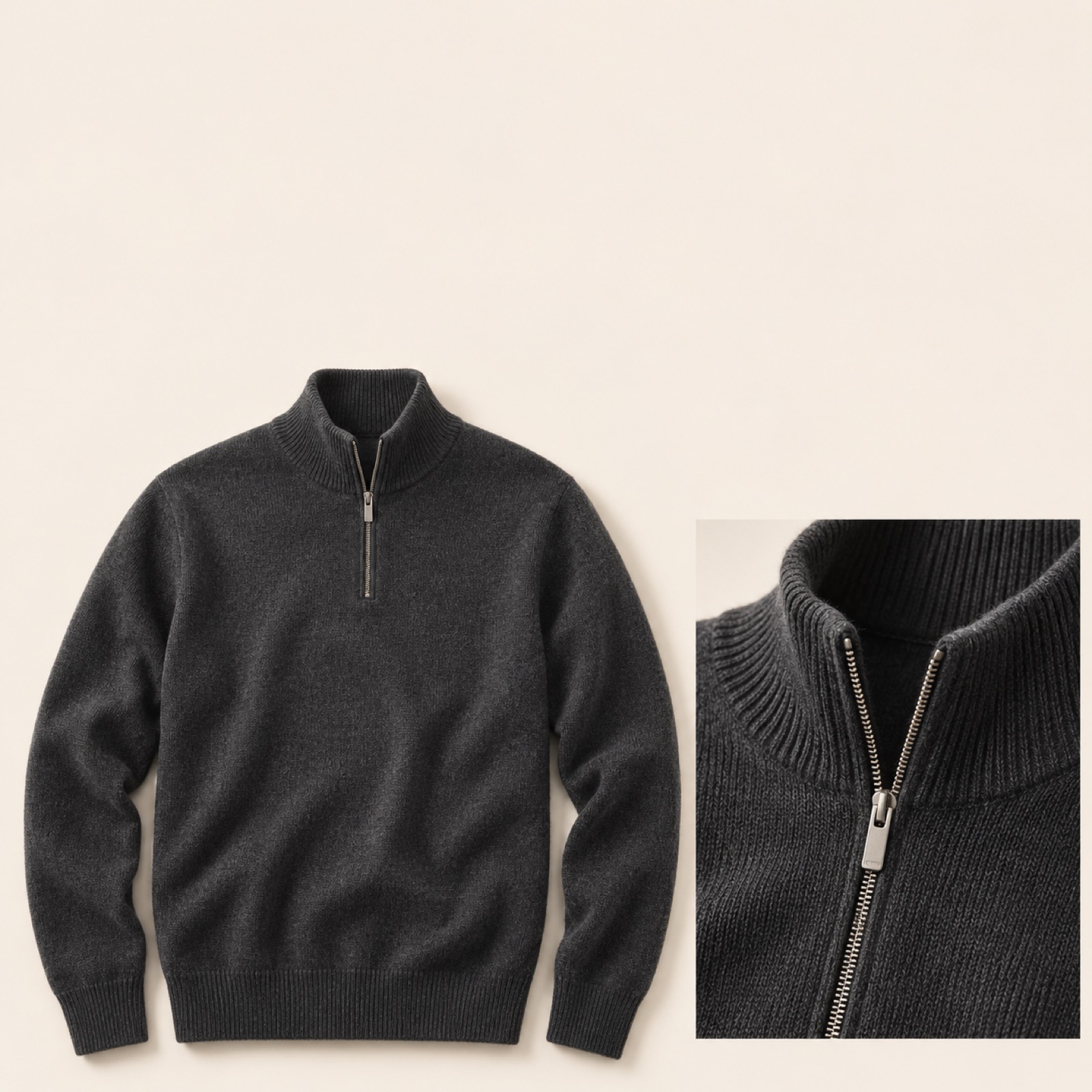
This is a hypothetical example. If you have a full product photo of a new knit top and a close-up of its zipper, start with “Here’s what the neckline looks like.” Show the half-zip design in the opening frame, then explain the appearance of the zipper and neckline. This approach helps people understand the design when seeing the new product for the first time. Google’s display ad guidance on highlighting specific product features and benefits can serve as a reference.2 For your own product, pair the close-up photos you actually have with verified product descriptions. Do not invent numerical warmth claims based only on a photo of the knit structure.
In AdForge, choose a reference that clearly shows product details, then enter the full product photo, close-ups, and verified features. Check whether the image concepts make it clear where the close-up detail sits on the product. For video, review the AI-written script and storyboard, editing them to introduce the overall shape before explaining the details. Also check that the Korean narration and captions describe the same features. If a scene depicts the zipper or knit structure differently from the actual product, regenerate just that scene, compare it with the original photo, then download.
4. Fit Check — Explain the Silhouette with Front and Side Model Photos
This is a hypothetical example. Use front and side photos of someone wearing a new jacket. Open with “See the side view before you choose.” Use the front view to show the shoulders and overall length, and the side view to show room through the body and where the hem falls. This lets two photos answer different buying questions. When adapting it to your product, first confirm that both photos show the same item in the same size. Do not present photos taken from different angles as a before-and-after comparison, or promise the same fit for every body type based on how the item looks on one person.
In AdForge, choose a video reference centered on full-body outfit shots and upload the front and side photos. Check that the generated script and storyboard introduce the front view before explaining the side view. Edit captions to describe what the photos show, such as “Front silhouette” and “Check the length from the side.” Review the output to see whether the jacket length and shoulder line match the original. If you’re preparing an image ad first, use the most informative model photo to create three concepts and save the other angle for follow-up creative. This keeps the launch-day message clear.
5. Color Choices — Show the New Arrival’s Options One by One
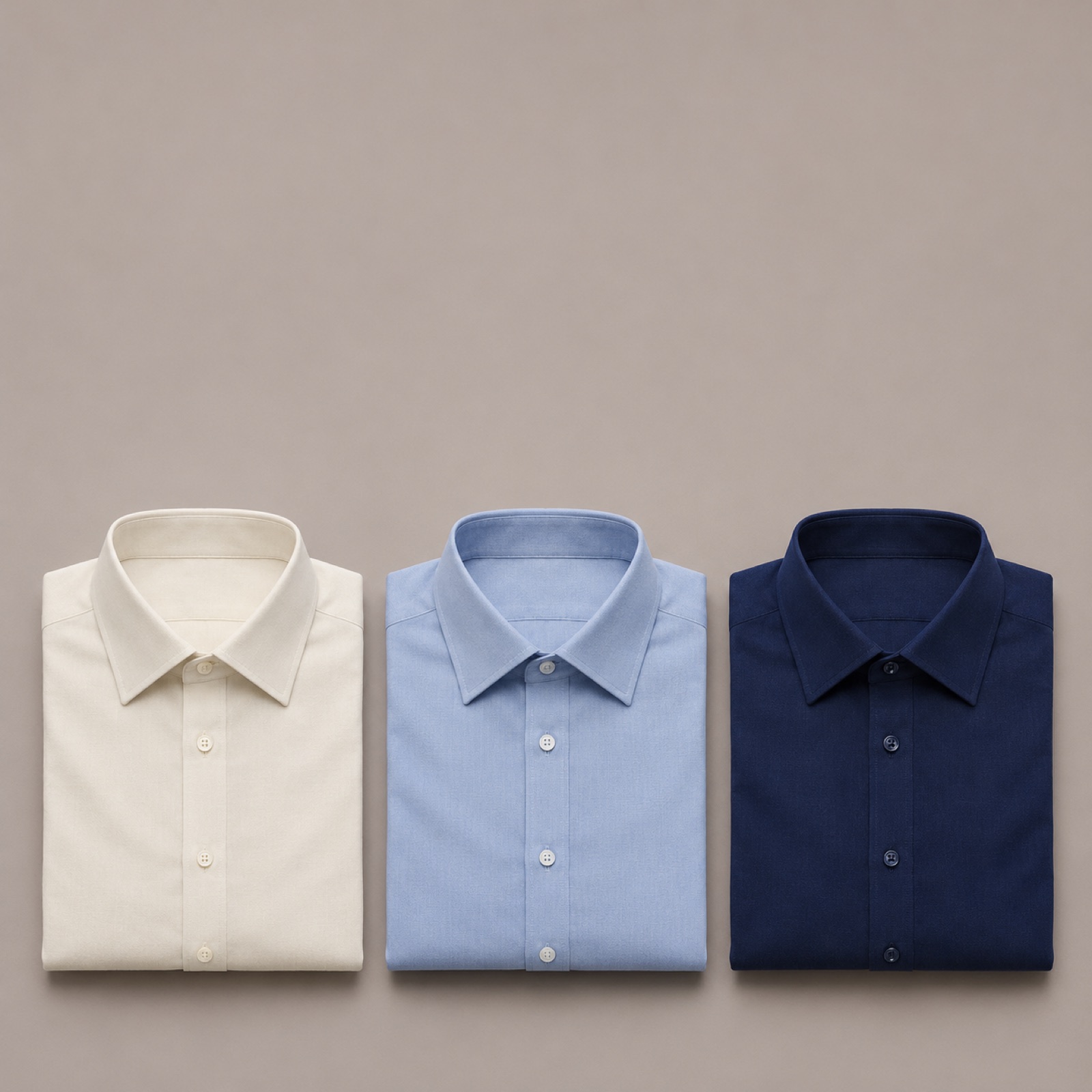
This is a hypothetical example. If you have product photos of the same shirt in ivory, blue, and navy, start with “Which color will you choose for this new arrival?” Show all three colors together in the image ad. In the video, introduce each color individually, then show the full selection again. This works when choosing a color is the main question, rather than discovering that the product exists. For your own product, match each photo to an actual color you sell and keep color names consistent. Preparing actual photos of each color, rather than arbitrarily recoloring a single photo, also makes the results easier to review.
In AdForge, refer to the layout of a reference that shows multiple product photos, then enter the photos for each color and accurate product information. Check the image output to confirm that the photos match the colors you actually sell. For the follow-up video, adjust the color introduction order in the storyboard and review the color names in the Korean captions. When testing, you can use the same photos with different opening lines, such as “Three colors revealed today” and “Which color will you choose?” Draw on the guidance to experiment with different designs, but do not interpret it as a guarantee of any particular result.2 Run the downloaded creative and check its performance in your existing ad management tools.
Key takeaways
When launch day arrives without video footage, start with a buying question your existing photos can answer. Product photos can reveal new arrivals and present color choices, while model photos can explain occasions and fit. Prepare image concepts in AdForge using your chosen approach, then carry the reviewed message into a script and storyboard to create a follow-up video.
FAQ
Can image ads work on Meta?
The provided sources do not establish how well menswear image ads perform. A public listing includes a question from a seller considering image ads because their video preparation was delayed.1 If photos can communicate your launch news and product features, prepare image creative and check the actual results in your ad management tools.
Which example should I start with if I only have one product photo?
Start with the new arrival reveal. Build it around the product name, actual color, and one launch message. Focus on information your existing photo can show, rather than basing your explanation on model shots you don’t have.
Can I use photos to create a video in AdForge?
You can create a new video ad by adding product photos and a message, using a video reference’s structure as a guide. You can edit the AI-written script and storyboard yourself, and the video includes narration, captions, and background music. Video ads require a paid plan. Review the product’s appearance and description before downloading.
Do I need to finish both image and video ads on launch day?
First, prepare image creative around the one question your existing photos answer best. Then review a video script and storyboard that develop the same message. If shoppers need to see movement that the photos cannot verify, obtain that footage before incorporating it into follow-up creative.
Related reading
Make your next ad with AdForge
AdForge (ad-forge.io) is an ad remake app: pick an ad you like and rebuild it as a video or image ad for your own product. Find references in the Meta and TikTok ad libraries, let AdForge write the script, AI narration and captions, then review and download. Every account starts with 12 free image ads.