5 Card-Style Ad Examples: How to Arrange Product Photos and Copy
Fit your product explanation into a single image with five layouts, including questions, checklists, and problem–solution formats. Learn where to place photos and copy, then follow the steps to create three image concepts with AdForge.
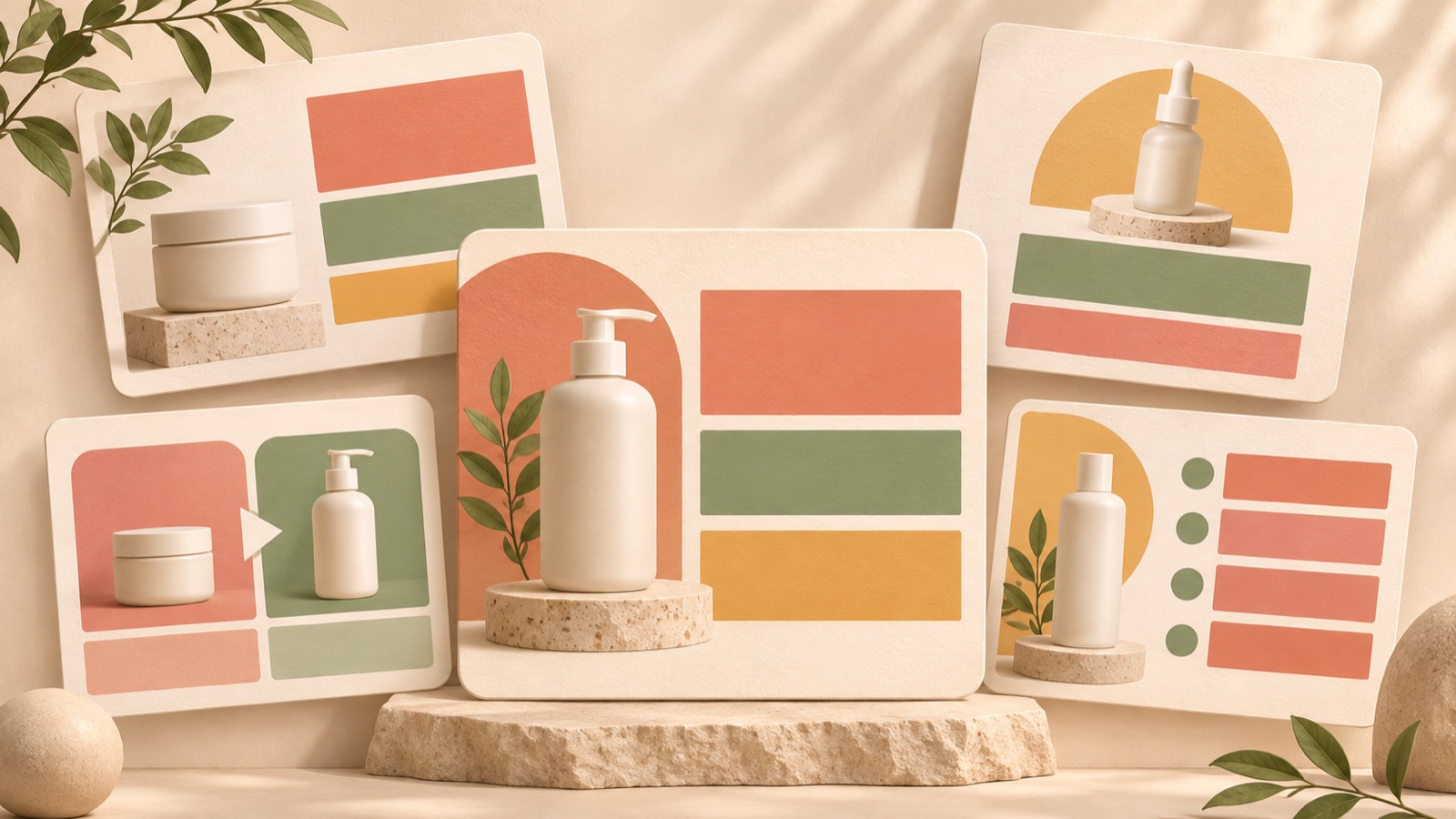
If you are looking for card-style ad examples, start by choosing one question to answer in a single image. For a question layout, you can place the question at the top and the product below; for a checklist layout, put the selection criteria on the left and the product on the right. Questions, lists, and stories are useful reference formats for structuring card-style content.2 All five examples below are hypothetical and focus on creating a single-image ad or the first card in a series. They also explain how to adapt each layout using real product photos and verified benefits.
1. Question Layout: A Tumbler Ad That Starts with a Customer Concern
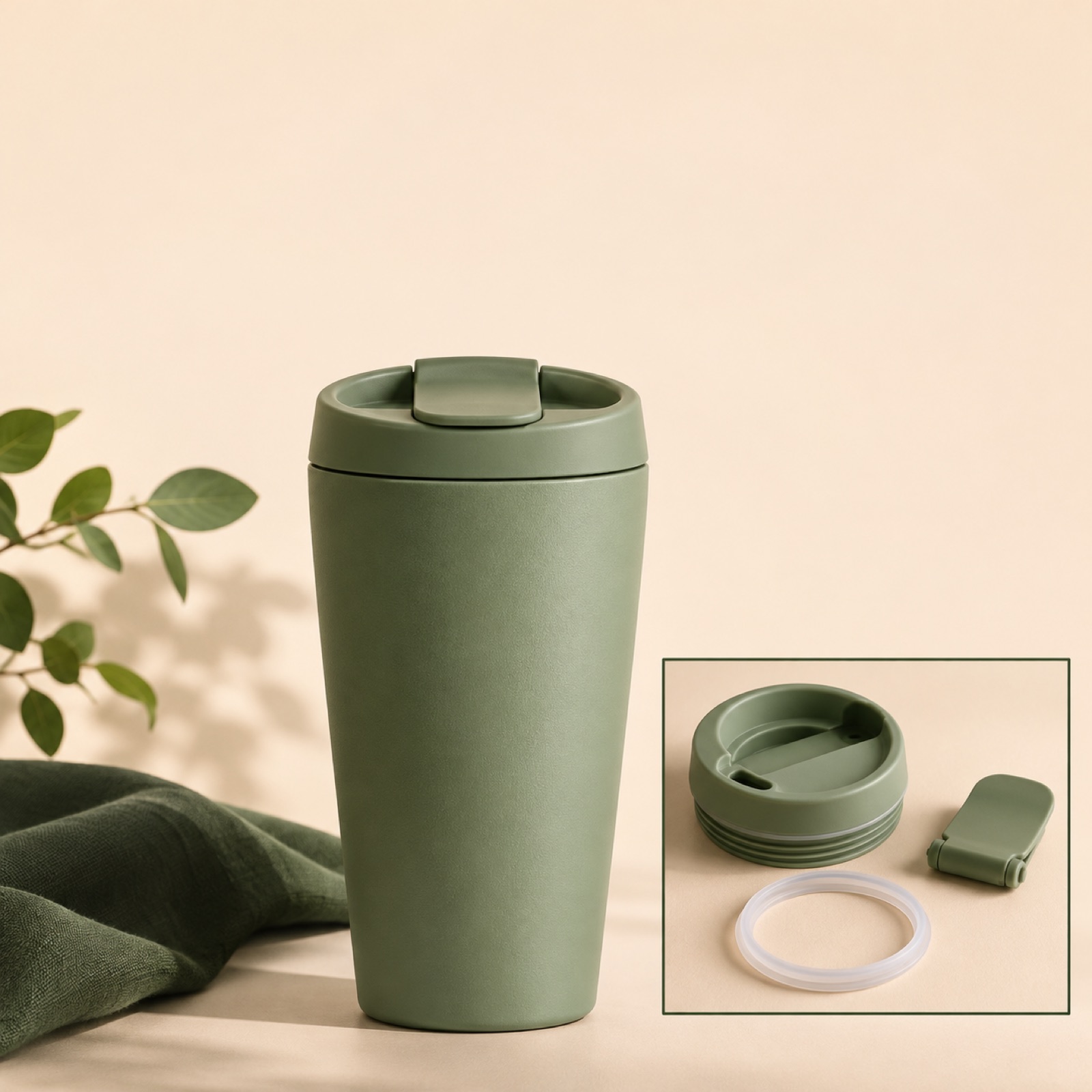
This is a hypothetical example. Place “A tumbler for your bag—have you checked the lid?” in large type at the top of a cream background. Below it, add a full product photo of the tumbler, with a smaller detail photo beside it showing the lid taken apart. Use one line of supporting copy, “A lid that comes apart for cleaning,” and the call to action “Explore the lid design” at the bottom. The photo directly below answers the curiosity sparked by the question. Use this approach when your product materials confirm that the design makes cleaning easier.
To adapt this to your product, choose a part shoppers should check before buying instead of asking a vague question. For a pouch, show the opening; for a lunch box, show the dividers. In AdForge, choose an image reference with a question at the top and a product below, then add full and detail photos of your product along with a verified description of its design. Review the three generated concepts to make sure the question and detail photo address the same point. If the photo cannot answer the question, revise the copy first.
2. Checklist Layout: A Laptop Sleeve Ad That Organizes Buying Criteria
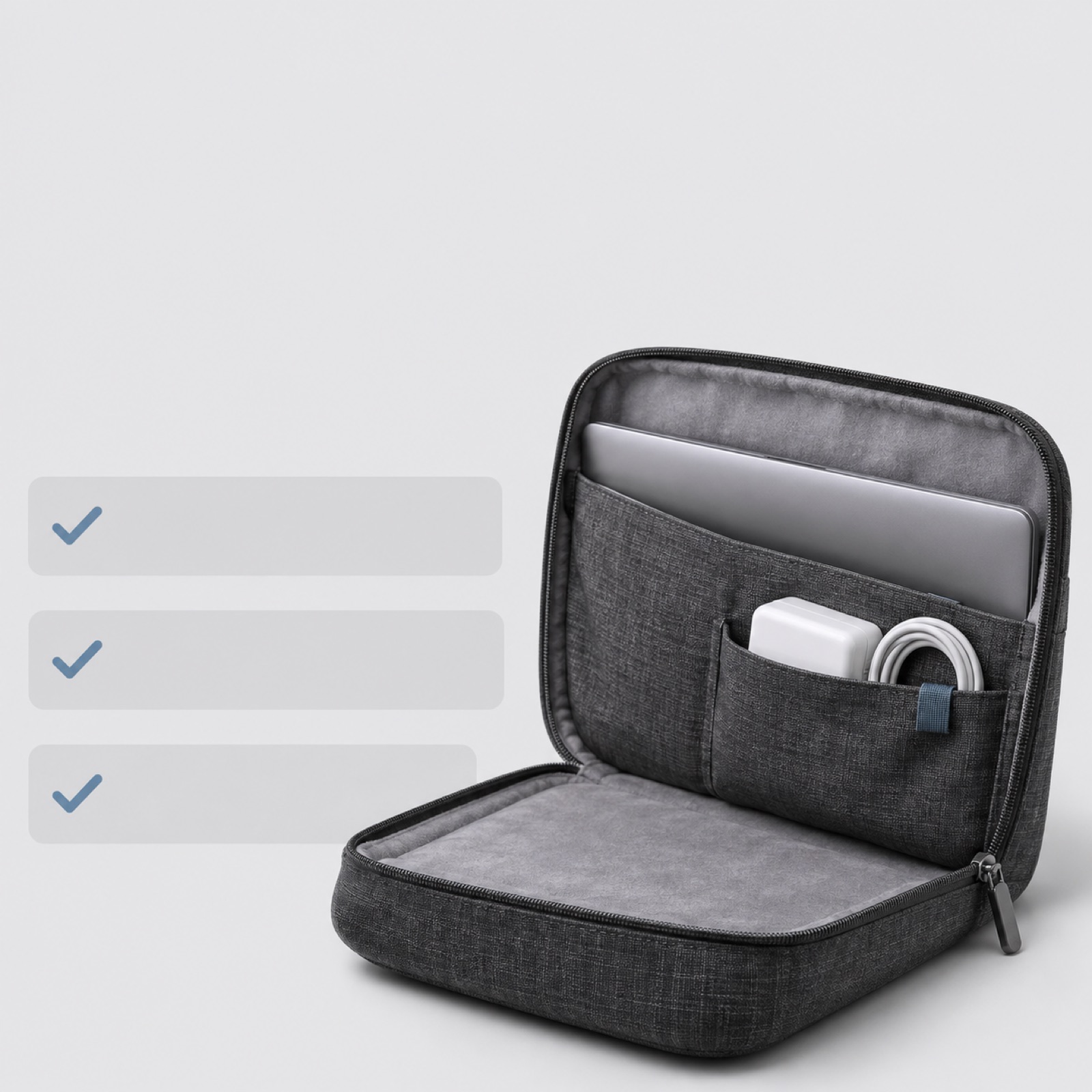
This is a hypothetical example. On the left side of a light gray image, place the heading “What to check when choosing a laptop sleeve” followed by three lines: “Interior dimensions that fit your device,” “Storage for your charger,” and “How the opening fastens.” On the right, place a large photo of the actual product with the sleeve open. Use check marks to distinguish buying criteria, without making them look like certification that the product meets every requirement. This layout helps readers first understand what to look for.
For your own product, keep only the criteria you can substantiate. If the interior dimensions have not been verified, do not add a claim such as “Fits most laptops.” In AdForge, select an image reference that separates the list from the product photo, then add a photo of the open product and verified dimensions and storage information to create your concepts. Check the results for criteria cut off by line breaks and make sure the copy matches the storage compartments shown in the photo. Choose the three criteria needed for a purchase decision instead of adding more items.
3. Problem–Solution Layout: A Cable Organizer Ad That Connects a Frustration to the Product’s Role
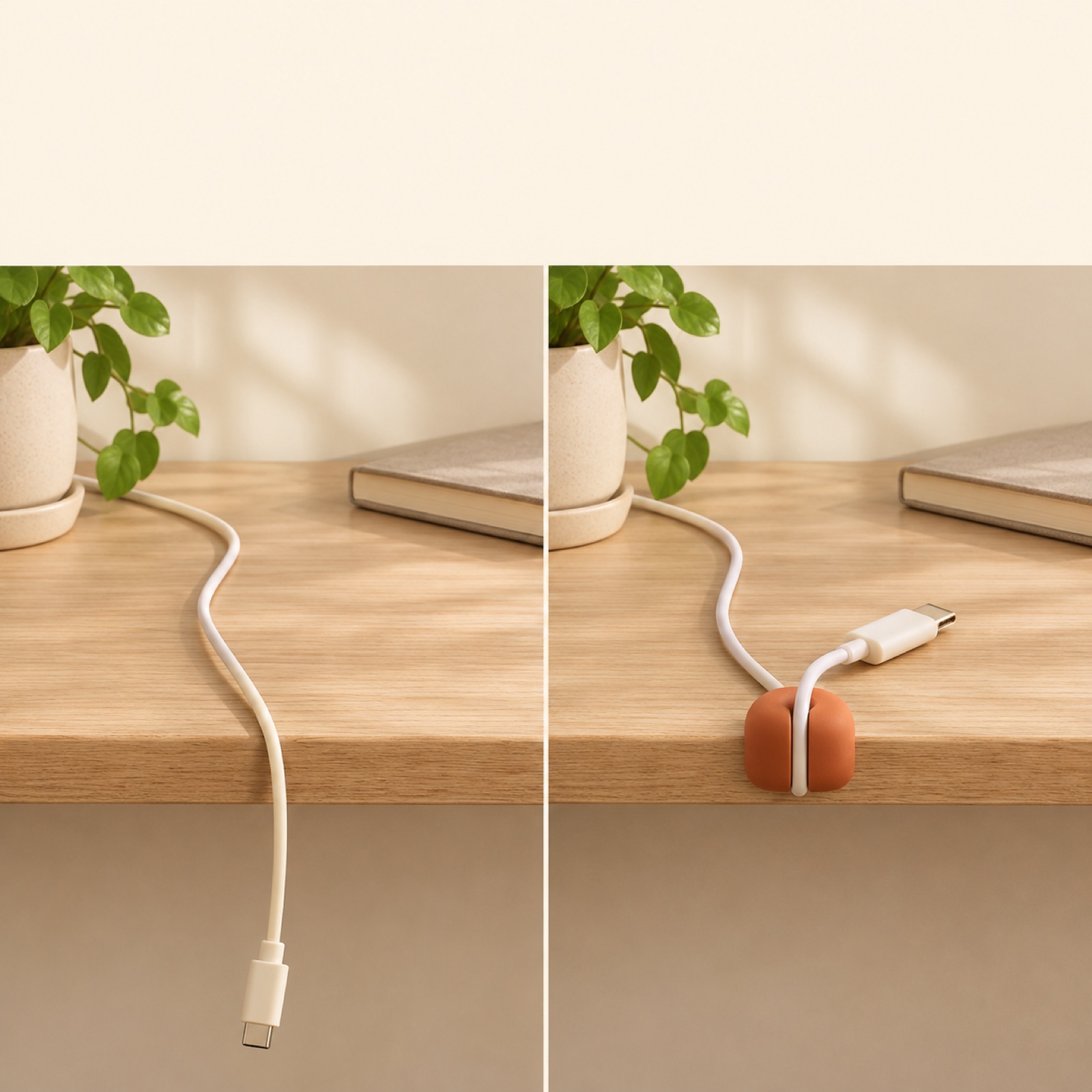
This is a hypothetical example. On the left, place a photo showing a cable end hanging down over the edge of a desk. On the right, place a product photo showing the cable secured in a cable holder. Use “Always looking for your charging cable on the floor?” at the top, and write “A holder that keeps cables at the edge of your desk” below the right-hand photo. Prepare both photos using the same desk and similar angles. This arrangement visually connects the product to the role it serves; do not include unverified time-saving figures.
To apply this to your product, choose an action you can show in a photo instead of making a broad promise to eliminate a frustration. Pick one action: securing, separating, or taking something out. In AdForge, choose a side-by-side split image reference, then add your own situation photo, an actual usage photo, and a product description. When reviewing the three concepts, check that the number of cables and the shape of the holder still match your materials. If a result misrepresents how the product works, review the input materials and description again before downloading and using it.
4. Selection Guide Layout: A Storage Bin Ad That Helps Shoppers Choose by Use
This is a hypothetical example. Place a low and a tall storage bin from the same series side by side on a pale mint background. Use the heading “Inside a drawer or on a shelf?” Below the respective photos, write “Low profile” and “Tall profile,” and add the actual exterior dimensions. At the bottom, add “Check the height of your space first.” This layout encourages shoppers to picture where they will put the product instead of claiming that one option is better. If your product comes in several types, narrow the reason to choose to a single factor.
Follow this example to try the workflow in AdForge. Find and save an image ad in the ad library that shows two products side by side, then examine its layout and colors. Select that reference in image ad creation, paste the product page address into the product information step, and check the automatically populated information. Add actual photos and dimensions for both products, along with the question above, to create three concepts. Review whether each product’s dimensions match its photo and check the text size, then download the concept you want to use.
5. Short Story Layout: A Coffee Dripper Ad That Shows the Steps of Use
This is a hypothetical example. On a warm beige background, place the heading “Three moments in making your afternoon coffee.” In the center, arrange three small photos in sequence: placing the filter, adding ground coffee, and pouring water. At the bottom, add a photo of the dripper on its own and “See how to use it.” This approach explains the product’s use through a short sequence. Stories are a reference format for card-style content, but responses to a post should not be interpreted as evidence of paid ad performance.2
For your own product, choose three scenes showing the first actions someone will take after buying it. Do not invent steps that are not part of the actual instructions or describe preparation as quick without verification. In AdForge, select an image reference with several small photos in one image, then add your own step-by-step photos and sequence description to create your concepts. Check the results for steps appearing out of order or changes to the product’s shape. Official training materials also treat product ad images and card-style content for ad campaigns as separate deliverables.3 What you are creating here is a single-image concept, rather than a series of cards.
Key takeaways
Start a card-style image ad with one customer question and a product photo that answers it. Choose a question, checklist, problem–solution, selection guide, or usage sequence layout. Add actual photos and verified information to AdForge, create three concepts, and choose the layout that communicates most clearly.
FAQ
Do card-style ads need a lot of explanatory copy?
Start with the question one image should answer, before deciding how much copy to include. For a question layout, keep the question and the photo that answers it. For a checklist layout, keep the buying criteria and product photos that let shoppers check them. Further details can continue on the linked product page.
Which AI should I use to create ad images?
Choose based on the materials you have prepared and the output you need. Practitioners do ask about tools and costs for creating ad images.1 To adapt an ad layout you like using actual product photos and a new message, you can create three image concepts with AdForge. You still need to review the results.
Does AdForge automatically assemble a series of cards?
The workflow covered in this article is for creating individual image ads or first-card concepts. AdForge follows the reference layout to create three image concepts using actual product photos. This should not be understood as a feature that automatically assembles an entire card series.
Which of the five layouts should I try first?
Start with the problem–solution layout if customers do not understand what the product is for, or the selection guide layout if they struggle to choose between types. Once you choose a layout, prepare options with different headlines while keeping the product photos and key information the same so you can review the differences more easily. Run the ads and check performance in your existing ad management tools.
Related reading
- 5 Webinar Ad Banner Tools and Workflows: A Comparison for Japanese-Language Banners
- 5 Tools and Workflows for Creating Hospital Reels: Veo, Vrew, and AdForge Compared
Make your next ad with AdForge
AdForge (ad-forge.io) is an ad remake app: pick an ad you like and rebuild it as a video or image ad for your own product. Find references in the Meta and TikTok ad libraries, let AdForge write the script, AI narration and captions, then review and download. Every account starts with 12 free image ads.