5 Webinar Ad Banner Tools and Workflows: A Comparison for Japanese-Language Banners
Updating a banner’s date calls for a different workflow than creating an ad with a new layout. Compare templates, Figma components, AdForge remakes, and a combined workflow for running webinars in Japan.
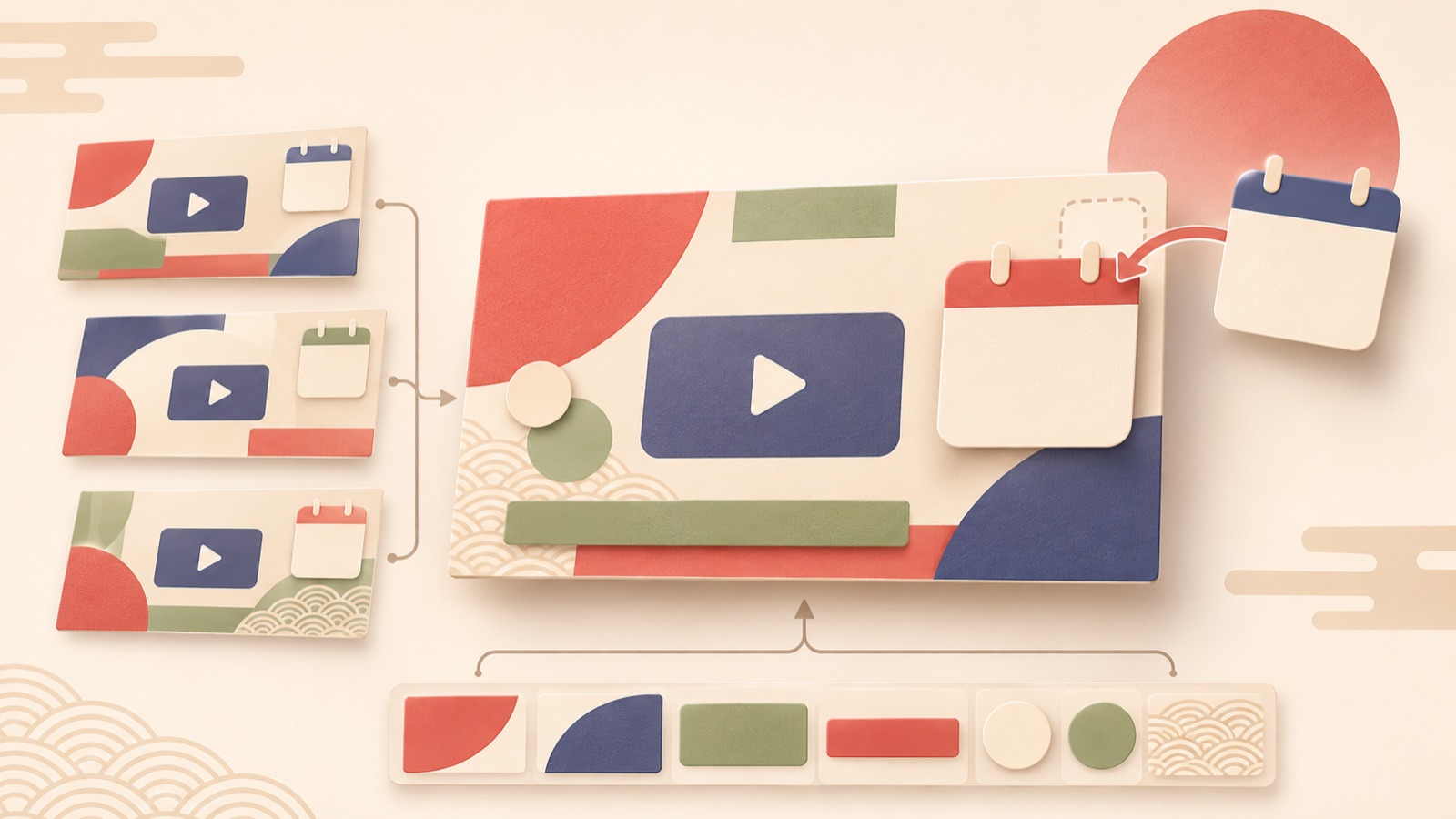
Before creating your own Japanese-language webinar ad banner, look at what is changing for this session. The selection criteria are which task each option suits: updating information in an existing design, reusing a recurring layout, or creating new ad concepts. If only the date and speakers need changing, consider templates or Figma. If you want to compare new layouts, consider AdForge’s ad remake workflow. The list below compares four tools or resources and one combined workflow. AdForge appears first because of this blog’s editorial policy; this is not a ranking based on measured performance.
1. AdForge — Create New Layout Concepts from a Reference Ad
AdForge is our service, and we run this blog. It is an ad remake app that uses the layout of an ad you like as a reference and creates new image ads from the product information, selling points, and materials you upload. For image ads, it uses actual product photos to generate three concepts at once. For a webinar, this workflow can involve preparing event information materials and existing images you have permission to use, then deciding which layout to reference. It suits marketers who want to explore new arrangements more than those who need to replace only the date on an existing banner precisely.
Start by selecting a reference ad on the reference selection screen. Review the layout and color analysis of the image ad you saved. At the step for entering your product information and materials, add the webinar topic, intended audience, what attendees will learn, and your existing images. Prepare finalized Japanese copy for the event name, schedule, and registration message. Review the three concepts generated through image ad creation, check that the event name, date, and speaker information match your copy, and then download them. The advantage is that you can prepare alternative layouts to compare. However, do not assume it is an editing tool for precisely replacing specific text. Uploading the finished creative to an ad platform and checking performance must be done in your existing ad management tools.
2. Adobe Express — Choose a Template to Create Your First Banner
Adobe Express offers a workflow for choosing and editing seminar banner templates. It is an option worth considering if you need a design to work from but do not have time to start by choosing a reference ad or designing reusable components. The comparison here is based on the template selection and editing workflow confirmed in official materials. This article does not assume capabilities beyond that scope, such as automatic translation or bulk creation.4
As a hypothetical example, imagine you need space for a Japanese-language online seminar’s title, date and time, and speaker introductions. We recommend first choosing a template that fits the length of your copy and the number of speakers, then replacing the content. The advantage is that it reduces the burden of arranging a layout on a blank canvas. The limitation is that long titles or information about multiple speakers must fit the selected structure. Before forcing your copy to be shorter, consider another template. If you want to compare entirely new layouts, keep AdForge’s ad remake workflow as a separate option.
3. Figma — Manage Recurring Elements with Components
Figma lets you turn reusable elements into components and apply changes to their linked instances. Within instances, you can individually change text, fills, size, and other properties. It is worth considering for a workflow where the event name and schedule change for each session while shared information areas stay the same. The advantage is that you can manage recurring elements from a single source while using different information for each session.5
A Japanese case study on seminar banner production describes an approach that varies color schemes and layouts by topic and the number of instructor photos, while turning recurring elements into components.2 To apply this approach, first prepare layouts for one speaker and two speakers, and distinguish the copy that changes from the shared areas. This preparation can be useful for teams that hold events regularly. However, it takes work to design the initial structure and establish editing rules. If the person responsible changes elements inconsistently each time, the benefits of reuse also diminish, so it is best to define the scope of the workflow starting with simple tasks such as replacing dates.
4. PowerPoint Seminar Templates — Use a Fixed Layout for Your Speaker Count
Materials published by Sairu provide PowerPoint templates with one-speaker and two-speaker layouts intended for Facebook ads, along with instructions for exporting them as images.3 Teams that prepare event materials in PowerPoint can consider these templates. The advantage is having a starting layout that matches the number of speakers. However, this recommendation concerns a specific set of seminar templates; it is not a comparison of all PowerPoint features for ad creation.
As a hypothetical example, for a seminar on improving work processes with two speakers, you could use the two-speaker template, fill in the finalized event name, schedule, and speaker introductions, and export it as an image. Follow the supplied materials for export instructions.3 This option suits situations where you need to fill in an established layout without omissions. The limitation is that the published template’s layout must accommodate the amount of information for your event. If speaker introductions are long or you have several messages to communicate, choose one reason to attend that the ad should communicate first, rather than including everything.
5. Figma and AdForge — Separate Recurring Banners from New Ad Concepts
This entry is a workflow that assigns different tasks to two tools, rather than a separate service. In Figma, you can manage recurring elements with components and instances.5 In AdForge, you create new image ad concepts based on a reference ad’s layout and the materials you provide. If your team needs both a schedule announcement banner for every session and new ad layouts for the same event, consider assigning these as separate tasks.
As a hypothetical example, update the title, date, and speaker information for a recurring webinar’s standard banner in Figma. Separately, choose one thing attendees will learn, enter the same finalized copy and existing images into AdForge, and compare new layouts. The advantage is that you can use a suitable approach for both recurring updates and new creative development. The limitation is that you need to ensure the same information is entered accurately in both workflows. Use one set of event copy as the source, and assess the finished versions separately for whether the schedule is easy to see and whether the reason to attend is clear. This combination does not assume automatic integration.
Key takeaways
If the main task is replacing dates and speakers, consider existing templates. For regular, recurring production, consider Figma components. To compare new ad layouts, you can prepare concepts with AdForge. Create one finalized set of Japanese copy for your next webinar, then decide whether you need an information update or a new layout concept. That will make the choice easier.
FAQ
Do I need a new tool just to change the date for the next session?
If you already have an editable source file, first consider updating it in the tool you use. A published case study from a Japanese seminar operations team also discusses the difficulties in a request workflow where non-designers cannot easily edit source files.1 Before changing tools, check whether the person responsible has an editable source file and working rules that let them make changes directly.
Which tool should I choose if the Japanese title is long?
Before choosing a tool, separate the title that needs to appear in the ad from the detailed information. As a hypothetical example, you could use an ad title such as ‘営業資料の改善ポイント’ and put the detailed agenda on the event information page. Choose a template that accommodates the finalized copy, or prepare a separate layout for long titles if you produce banners regularly.
Does AdForge automatically translate Japanese image ad copy?
The facts provided do not support a promise of automatic translation for image ad copy. The confirmed support for eight languages covers scripts, narration, and subtitles. For Japanese-language image ads, prepare finalized Japanese copy and manually review the event name, schedule, and wording in the generated results.
Which of the three concepts should I use in an ad first?
First, choose a version with accurate event information that clearly communicates the intended audience and what attendees will learn. If you then want to compare layouts, keep the event copy the same and record the layout changes. Download AdForge’s output and upload it to your ad account yourself. Run campaigns and check performance in your existing ad management tools.
Related reading
- 5 Tools and Workflows for Creating Hospital Reels: Veo, Vrew, and AdForge Compared
- Competitor Ad Remake Tools Compared: 5 Options by Production Workflow
Make your next ad with AdForge
AdForge (ad-forge.io) is an ad remake app: pick an ad you like and rebuild it as a video or image ad for your own product. Find references in the Meta and TikTok ad libraries, let AdForge write the script, AI narration and captions, then review and download. Every account starts with 12 free image ads.