How to Create Osechi Preorder Ad Banners: Food Photos and Japanese Copy
Learn how to decide whether to lead with food photos or highlight pricing and preorder offers. Then follow the steps to create and review three image concepts using actual osechi product photos and reference ads.
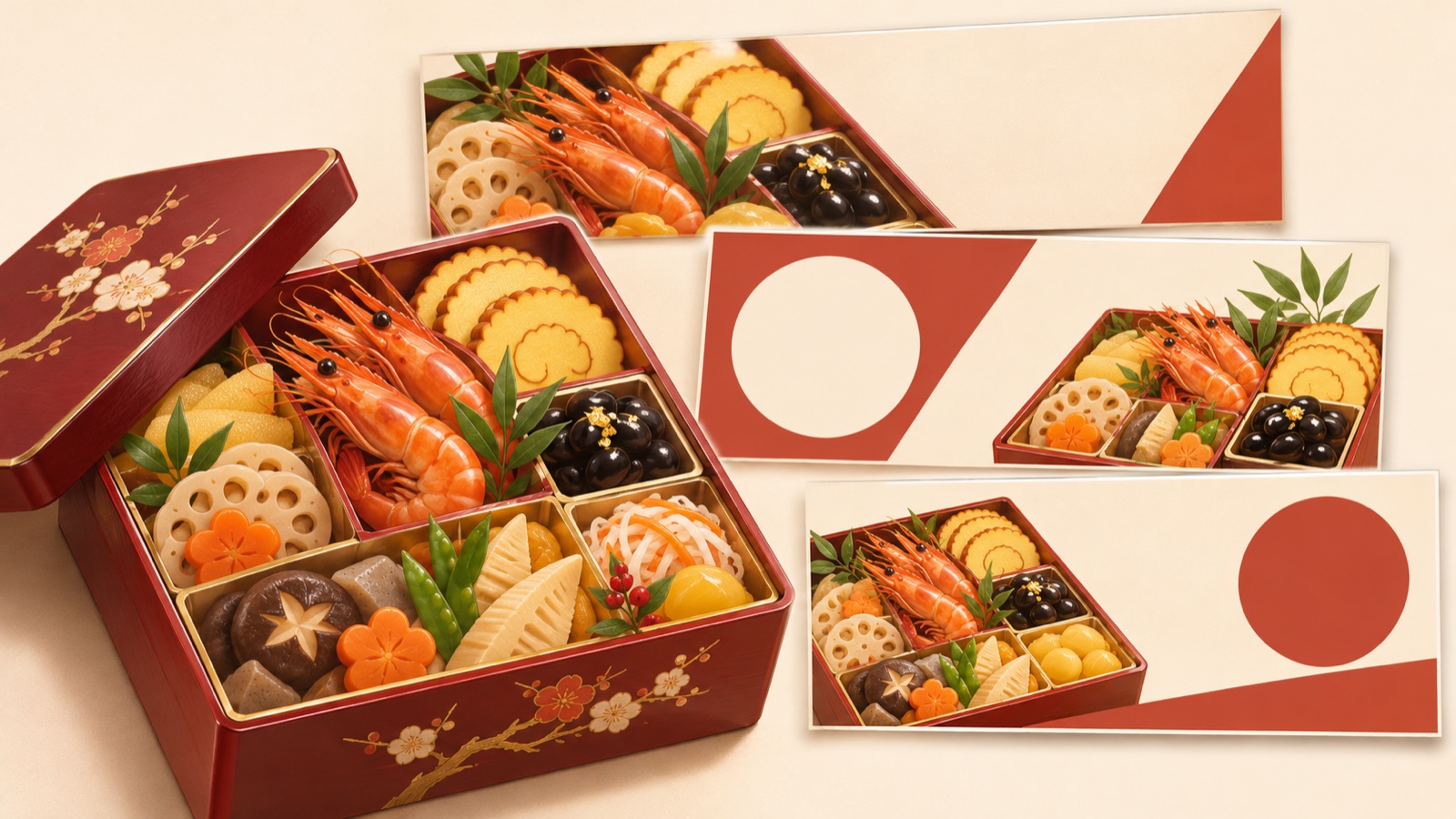
Start your osechi preorder ad banner with a layout that helps customers recognize the product through its photo and choose through its serving size and price. If a preorder offer is the main reason to buy, lead with the offer while keeping its conditions readable alongside it. This article explains how to organize sales information for each product, choose a reference ad layout, and create three image concepts with Japanese messaging in AdForge.
Decide whether the photo, serving size, or price should come first
For your first banner, start with a photo showing the full osechi assortment in the largest area, with the serving size and price grouped beside it. The photo tells customers what you sell, the serving size helps them decide whether it suits their family, and the price tells them whether it fits their budget. Instead of giving everything equal prominence, emphasize the one question customers need answered first.
You can change that order when promoting preorders to customers who already know the product. Make a confirmed preorder offer the headline, then place the photo, serving size, and price below it. This is a guideline for choosing a creative direction, rather than a formula with proven performance. An osechi banner design journal also identifies headline emphasis, deciding which information to include, and spacing between photos and copy as practical production challenges.1
- When introducing the product assortment for the first time: make the food photo the focal point.
- When helping customers choose between products: keep the serving size and price close together.
- When promoting a preorder offer: show the offer and its deadline together.
Prepare a set of Japanese sales copy for each product
Before production, put together one set of information for each product. Gather the product name, number of servings, tiered box configuration, selling price, preorder deadline, delivery or pickup details, and preorder offer with its conditions. An actual osechi banner design exercise also supplies serving sizes, price ranges, preorder offers, and delivery information together. However, do not use the exercise’s prices and dates as the sales terms for your own product.2
For a hypothetical family osechi product, you could prepare Japanese copy such as ‘家族で囲むおせち’, ‘[confirmed number of servings]人前’, ‘税込[confirmed price]円’, and ‘ご予約は[confirmed date]まで’. Replace the bracketed placeholders with actual information before production. Match the tax inclusion and shipping fee conditions to the sales page, and list the preorder deadline and delivery date separately to reduce confusion.
- Check that the product name and tiered box configuration in the copy match the product in the photo.
- Keep each preorder offer together with its eligible products and conditions.
- Do not present unconfirmed prices, dates, or offers as finalized information.
Choose a reference banner layout that works with your photo
When searching for layouts with ‘おせち バナー 参考’, look at the space available for the photo before considering the color palette. For an overhead photo of tiered osechi boxes, a layout with a large photo area and a separate copy area is a useful starting point. Overlaying a large headline on a photo where the product already fills the frame can make the food and text compete for attention. When choosing a reference banner, assess whether there will still be room for readable serving size and pricing information after you add your own photo.
Use colors and small decorative elements around the food photo to add a New Year feel. Adobe’s guide to New Year design covers seasonal motifs and the use of color.3 For a hypothetical example, you could use a light background with a deep red headline area and a few gold accents. Choose the background based on the food colors in your actual product photo, and replace the reference ad’s brand name, product name, and sales terms with your new copy.
Create three concepts in AdForge using actual product photos
Start by browsing and saving reference ads in AdForge. You can search for ads in the Meta and TikTok ad libraries, and AdForge analyzes the layouts and colors of saved image ads. Look for osechi reference ads, and when you find a suitable one, check how its photo and information areas are arranged. You can also see how many days an ad has been running, but a long run alone does not mean that its layout will perform well for your product.
On the image ad creation screen, use your selected reference and add your actual osechi product photo, product information, and prepared Japanese preorder message. Pasting a product page URL can automatically fill in the product information, so check the populated price and sales terms first. Image ad creation produces three concepts at once using your actual product photo and the reference layout. Review the Japanese text and product appearance on the results screen, then download the versions you want to use.
- Prepare product photos and reference materials that you have permission to use.
- Enter the serving size, price, and preorder message for the product shown in the photo.
- Check all three results against the same sales information.
Choose a concept that helps customers decide about preordering, even at a small size
Do not review the finished banner only at a large zoom level; shrink it to something close to its actual display size. Check, in order, whether customers can recognize the food, read the serving size and price together, and distinguish the preorder deadline from the delivery date. When reviewing the photo, also check the number of box tiers, the food assortment, and whether any props that are not included could be mistaken for part of the product. Even an attractive concept is difficult to use if it does not match what you actually sell.
Of the three concepts, choose the one that most clearly answers the question you identified at the start. For customers looking for a family-sized product, prioritize a version that clearly shows the serving size and full assortment. When promoting a preorder offer, prioritize one where the offer and deadline are readable together. Upload the downloaded creative directly to your ad account. Use your existing ad management tools to set up and run the campaign and review performance, then use what you observe to adjust whether the next creative emphasizes the photo or the offer.
Key takeaways
Use food photos to show the product in your osechi preorder banner, and use serving sizes, prices, and preorder terms to help customers choose. With verified Japanese copy and actual product photos ready, you can create three concepts based on a reference layout in AdForge and choose the result that makes the information needed for a preorder decision easiest to read.
FAQ
Should the food photo or price be larger on an osechi banner?
When introducing a product for the first time, make the food photo large and place the serving size and price close together. If the price or preorder offer itself is the main message, you can also create a version that gives that copy more prominence. Base the decision on what customers need to know first.
Should the banner include both the preorder deadline and the delivery date?
A banner designed to drive preorders needs a clear preorder deadline. If the delivery or pickup schedule also matters to the purchase decision, include it as separate copy. When showing both dates, distinguish their roles with labels such as ‘予約締切’ and ‘お届け’, and check them against the actual sales terms.
How should I prepare and add Japanese preorder copy in AdForge?
Prepare verified Japanese copy covering the product name, serving size, price, preorder deadline, and offer conditions, then enter it as the image ad message. In the generated results, check the kanji, numbers, dates, and tax notation against your copy again.
Can I try creating osechi image ads for free?
Every AdForge account starts with 12 free image ads made using your own product photos, with no card required. The free allowance does not replenish. Review and download the results, then upload them directly to your ad account.
Related reading
Make your next ad with AdForge
AdForge (ad-forge.io) is an ad remake app: pick an ad you like and rebuild it as a video or image ad for your own product. Find references in the Meta and TikTok ad libraries, let AdForge write the script, AI narration and captions, then review and download. Every account starts with 12 free image ads.