How to Create Event Banners with AI: Adapt a Reference Layout for Your Promotion
Want to create an event banner like your reference image? Start by deciding where the product, offer, and dates will go. This guide covers sample prompts and the steps for creating concepts in AdForge with actual product photos.
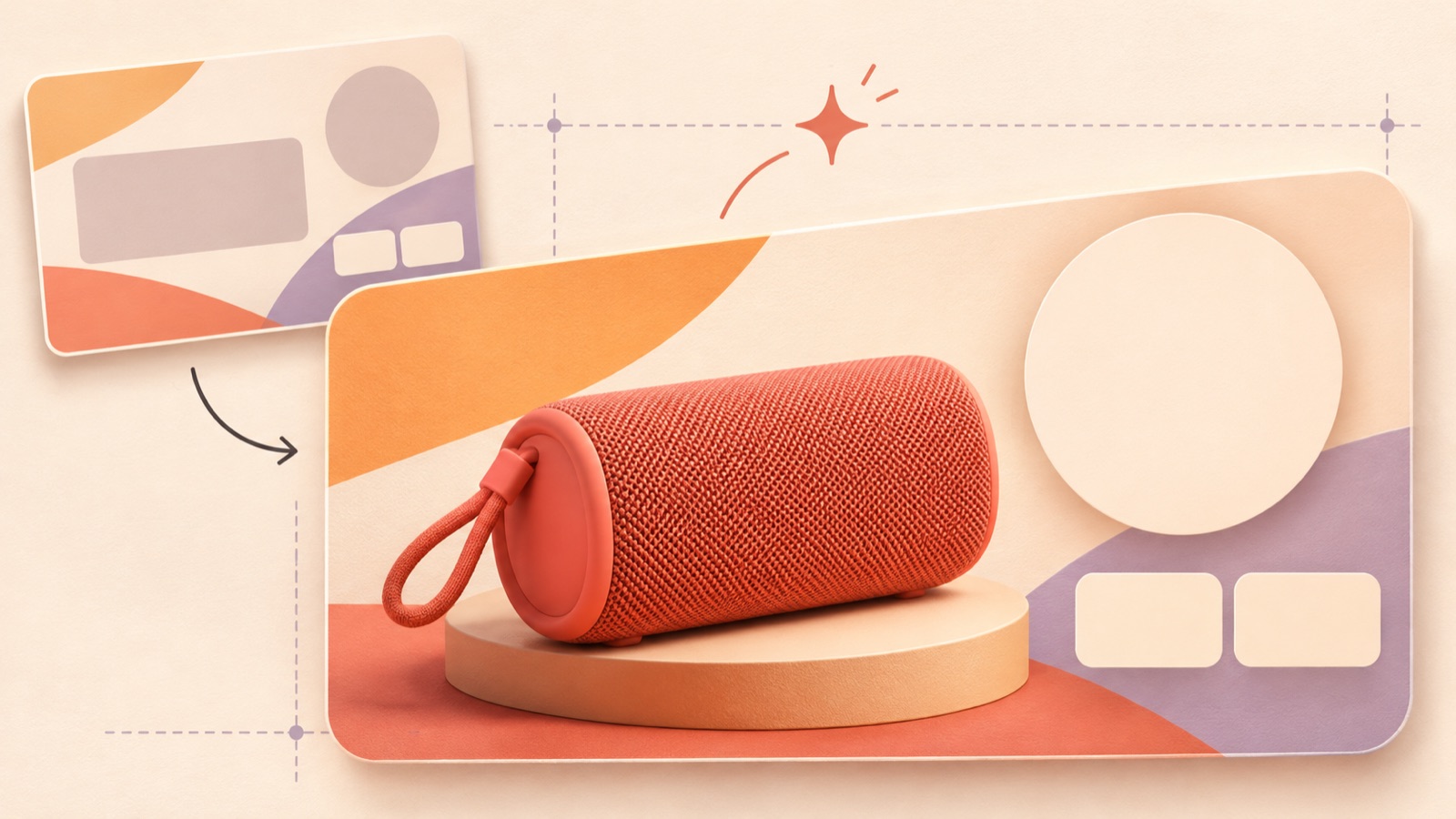
To create an event banner with AI, start by adapting the layout of your reference image to your product and promotion terms, rather than writing a long prompt. Deciding where the product goes, which offer to emphasize, and what dates to display makes your creative brief more specific. For online store owners who already have a reference image, this article explains how to describe the layout and create concepts in AdForge using actual product photos. Follow a hypothetical pouch sale to organize the inputs for your own promotion.
If You Have a Reference Image, Choose Your Creation Method First
If you have a banner in mind, first decide whether to create a new design based on its layout or edit an existing template yourself. Canva is an alternative for creating banners by directly editing templates.1 MangoBoard’s AI Designer introduces AI design and image creation features.2 When choosing, look beyond the tool’s name and consider how you will use your reference image and product photos.
AdForge is our service, and we run this blog. It is an ad remake app that follows the layout of a reference ad to create three image ad concepts using actual product photos. You can use it when you have an ad layout in mind and want to adapt it to your own product and message. You will still need to review the generated results. If your priority is to adjust text spacing or element positions precisely by hand, consider editing a template as well.
Break the Reference Banner into Spaces for the Product, Offer, and Dates
Instead of trying to bring over every element you like in the reference image, write down the order in which the viewer’s eye moves through it. As a hypothetical example, imagine a layout with discount copy at the top, a pouch in the center, and the promotion dates at the bottom. What you want to borrow is the placement of those three elements. Replace the reference image’s brand name, discount percentage, and product description with your own promotion details. You can decide on background colors and decorations afterward.
If the reference image includes a gift box, identify its role too. The photos and copy you need will differ depending on whether it holds a gift set for sale, is a free gift, or is simply background decoration. For this hypothetical pouch promotion, let’s assume that no gift packaging or free gifts are offered. In that case, removing the box decoration and placing the product photo in the center communicates the promotion more clearly. Include this distinction in your image generation request as well.
Write Your Prompt as a Layout Description and Finalized Copy
Let’s set the hypothetical promotion terms as “20% off all travel pouches, November 12–18, coupon required.” You could write the creative brief like this: “Place the supplied pouch product photo prominently in the center against a cream background. Put the discount offer at the top so it is read first, and place the dates and coupon requirement at the bottom. Keep decorations minimal and do not include a gift box.” This request describes the position and role of each element rather than the mood.
Next, list the actual copy separately. Distinguishing finalized wording such as “20% off all travel pouches,” “November 12–18,” and “With coupon” gives you a basis for reviewing the results. This description is a general example of a creative brief, not a prompt guaranteed to produce the same result in a particular tool. Because AdForge uses a reference ad and actual product photos, focus on preparing accurate product information and promotion messaging rather than describing the background at length.
- Prepare product photos that clearly show the actual colors and shapes of the items you sell.
- Finalize which products qualify, the discount percentage, and how the discount is applied.
- Match the promotion dates and any additional terms to the information on the sales page.
- Check that you have permission to use the photos and materials you upload.
Combine Your Reference Ad and Product Materials in AdForge
Open AdForge’s ad search screen and browse active ads from the Meta and TikTok ad libraries. Choose and save an image ad with a similar number of products, offer placement, and space for copy to your prepared reference image. Check the layout and colors in the saved image ad’s analysis. For the hypothetical pouch promotion, choose a layout that features one product prominently and has room for discount copy. Look for an ad with space for your photos and information, rather than one that simply resembles the mood of your reference image.
On the image ad creation screen, add your product photos and message to the selected reference. Pasting the product page address automatically fills in the product information, so review it and add the terms for this promotion. Enter all the details from the hypothetical example: the discount percentage, dates, and coupon requirement. AdForge follows the reference layout to create three concepts using actual product photos. Open the results, check the product’s appearance and the copy, and download the concept you want to use.
Choose Your Finished Banner in the Order a Shopper Reads It
Compare concepts in this order: “Can shoppers recognize the product? Can they understand the offer? Can they find the conditions?” For the hypothetical pouch promotion, the promotion details are incomplete if the 20% figure stands out but the coupon requirement is unreadable. Compare the product’s zipper, handle, and color against the original photo too. Scaling the banner down to its actual display size makes it easier to see whether the product and copy obscure one another.
Once you have chosen a concept, record your reason in one sentence. For example: “I chose this version because the product’s shape is clear and the coupon requirement is close to the discount copy.” For the next round, keep that criterion and choose one element to change, such as the background color, so the purpose of the comparison is clear. Upload the downloaded creative directly to your ad account. Set up and run campaigns and check performance in your existing ad management tools, and do not predict ad performance simply because a concept looks good.
Key takeaways
Identify the spaces for the product, offer, and dates in your reference image, then replace them with your own product photos and finalized promotion copy. Select a reference in AdForge, generate concepts, and choose a result that accurately communicates the actual product and offer conditions.
FAQ
Is asking only for a “premium-looking event banner” too vague?
It is too vague to communicate the layout you want. Also describe the background color, product placement, the copy that should appear largest, and where the dates should go. If you have a reference image, it also helps to note the role of each element.
Can I use a photo showing several products together?
First, check that the products in the photo match the products included in the promotion. If only some products are discounted, prepare your materials and copy so the photo does not make every product appear eligible. Check the product types and quantities in the generated results too.
What if my promotion copy is a different length from the reference banner’s?
Keep the wording needed to understand the offer first. If the layout only works when you remove the conditions, it is better to choose another reference. Start by tightening wording that can be shortened without changing the meaning of the promotion.
Can I start creating image banners in AdForge for free?
Every account starts with 12 free image ads made with your own product photos. No card is required, and the free allowance does not replenish.
Related reading
Make your next ad with AdForge
AdForge (ad-forge.io) is an ad remake app: pick an ad you like and rebuild it as a video or image ad for your own product. Find references in the Meta and TikTok ad libraries, let AdForge write the script, AI narration and captions, then review and download. Every account starts with 12 free image ads.