5 App Install Image Ad Examples: Layouts That Show Real Screens and Benefits
If your app ads feel awkwardly styled like physical product ads, start by connecting real screens to what people use the app for. These five fictional app examples explain screen selection, English copy, and how to use reference ads.
If you are looking for app install image ad examples, start with a layout that shows what people can do after installing, before choosing a phone mockup. A scheduling app might show an organized day; a language app might show a conversation to practice. All the examples below are fictional. We compare layouts centered on real screens, usage scenarios, and core benefits, then explain how to find reference ads in AdForge and decide on a creative direction.
1. Show Today's Schedule at a Glance
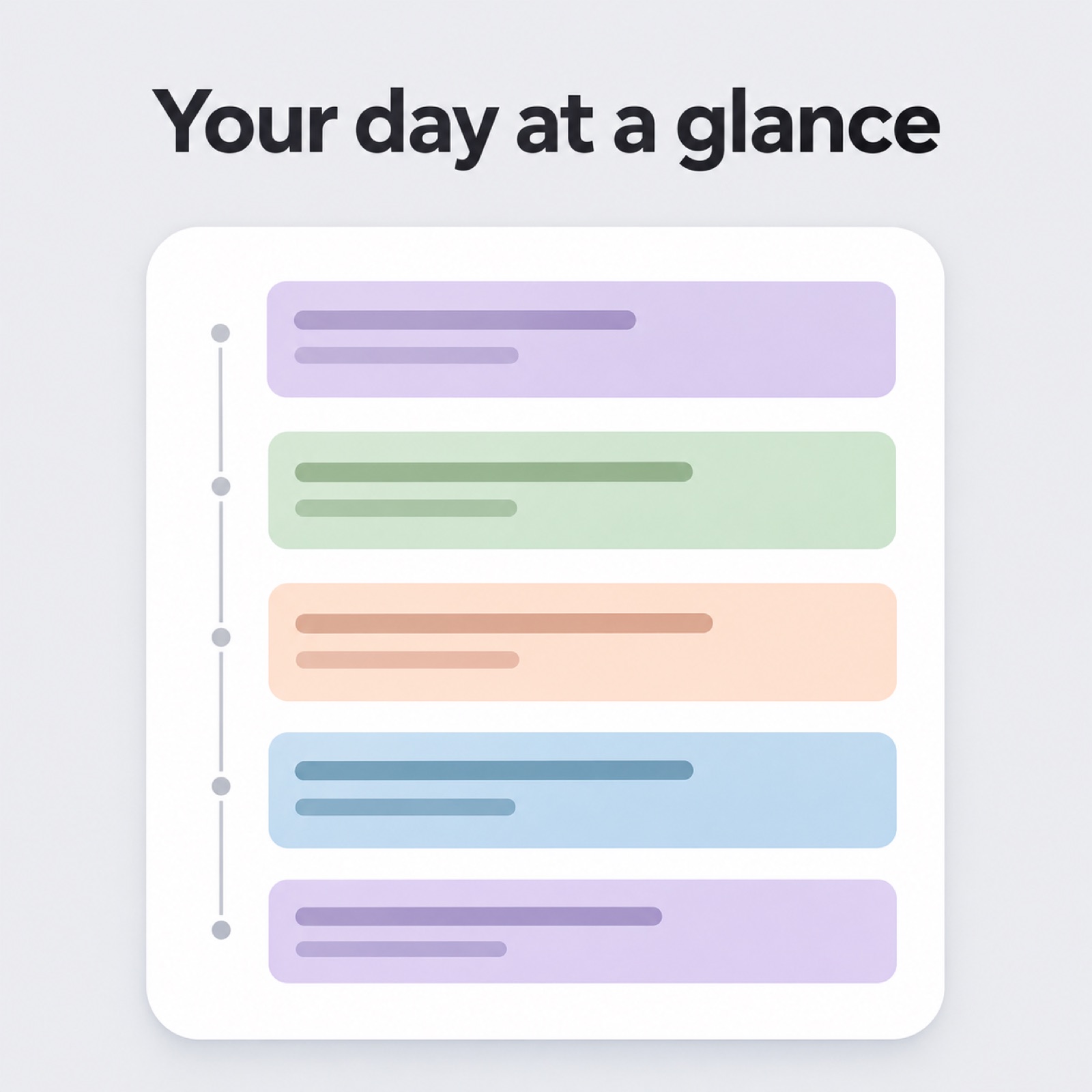
This is an ad for a fictional scheduling app. Place a large, real screen from the app showing a day's schedule in the center of a light gray background. Put “See your day at a glance” at the top and a small call to action, “Plan your day,” at the bottom. Skip the monthly calendar and settings screens, and choose a screen that shows times alongside tasks. Community comments discussing how to create app banners also describe using real screenshots and short copy.1
The intent behind this layout is to let users immediately compare the ad copy with what appears on screen. It works well for scheduling, note-taking, and household budgeting apps whose functionality is visible on screen. To apply it to your app, prepare a screen showing a completed core task rather than an attractive opening screen. Search for app image ads in AdForge, save them, and review the layout and color analysis. Choose a reference layout that gives the screen plenty of space, then describe the benefit you want to show in the product information and selling points, such as “See today's tasks on one screen.”
2. Connect the Moment Before Use to the App Screen
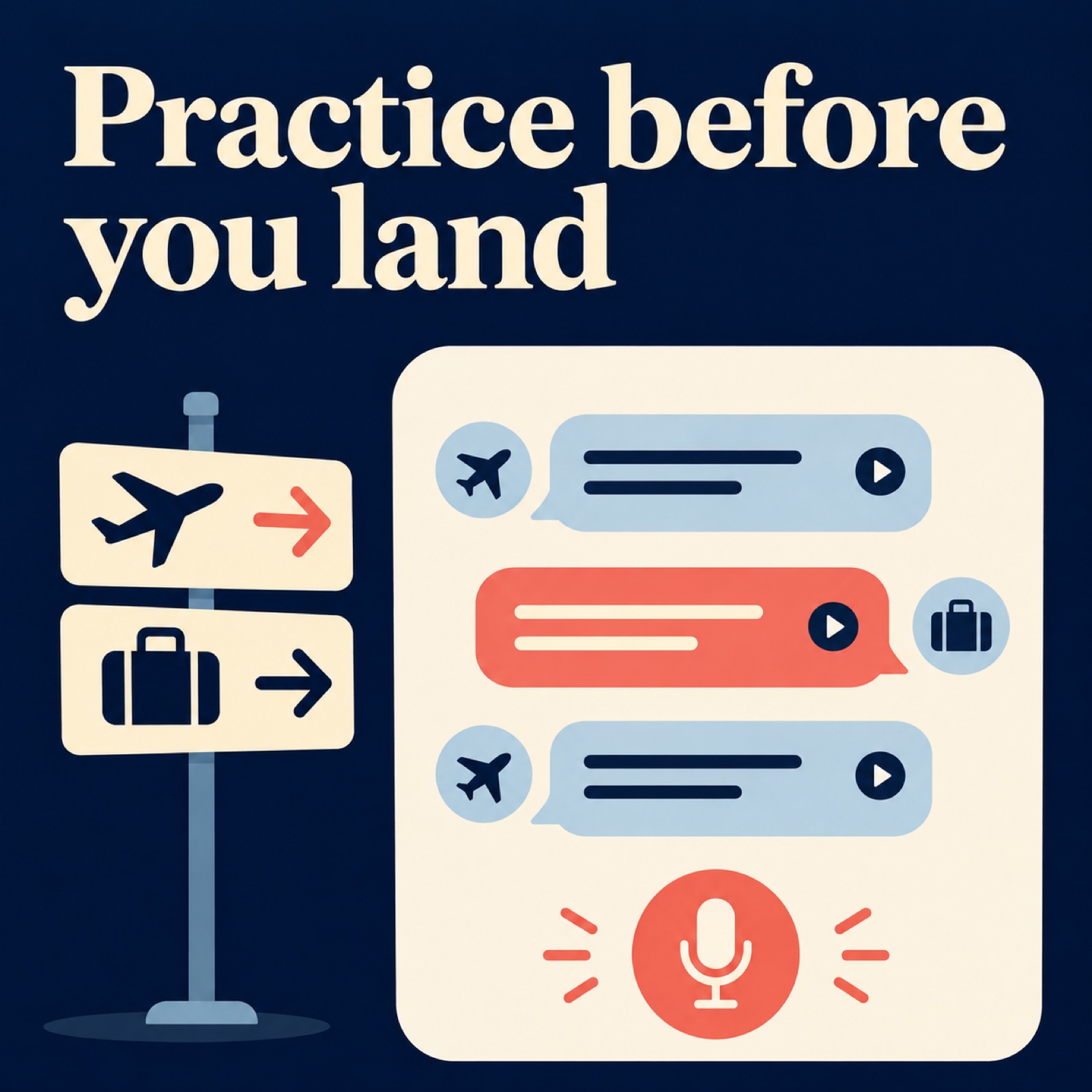
This is an ad for a fictional travel conversation app. Place a simple illustration of an airport sign on the left and a real app screen containing English phrases for asking directions on the right. Use a dark navy background with a light cream area around the screen to distinguish the two. Keep the copy to a single line: “Practice before you land.” This fictional example focuses on the moment of practicing useful phrases before arrival, rather than explaining the whole experience of enjoying a trip.
This layout connects the app's functionality to an everyday need. It suits conversation practice, travel preparation, and everyday assistance apps whose purpose may be hard to understand from the screen alone. To adapt it to your app, replace the airport with an actual usage scenario, such as commuting or grocery shopping, and prepare a screen that matches. Save and analyze references in AdForge that separate the scenario image from the information area, then enter the moment of use and the necessary functionality in the product information. Check the generated result to see whether the scenario draws more attention than the app.
3. Highlight One Core Benefit and Enlarge Part of the Screen
This is an ad for a fictional meal planning app. Place “Dinner, decided.” in large type on a pale mint background, then enlarge part of a real app screen below it showing tonight's dinner selection. Do not spread out multiple food photos or stand a phone on a dining table like a physical product. Showing the menu name and its selected state is enough. Google advises considering image quality and use of the frame in App campaigns, and avoiding excessive text or logo overlays.2
This fictional example aims to communicate one benefit—deciding what to eat today—rather than a list of features. It is worth considering for apps whose text becomes too small when the entire screen is scaled down. For your app, select and crop an area that demonstrates the promised benefit, while preserving the meaning of the screen. Choose an AdForge reference with a short headline and a large visual element, and enter a single selling point. Because the image feature is described as using real product photos, compare the result with the original screen rather than assuming it will reproduce the app UI accurately.
4. Show Input and Results Side by Side
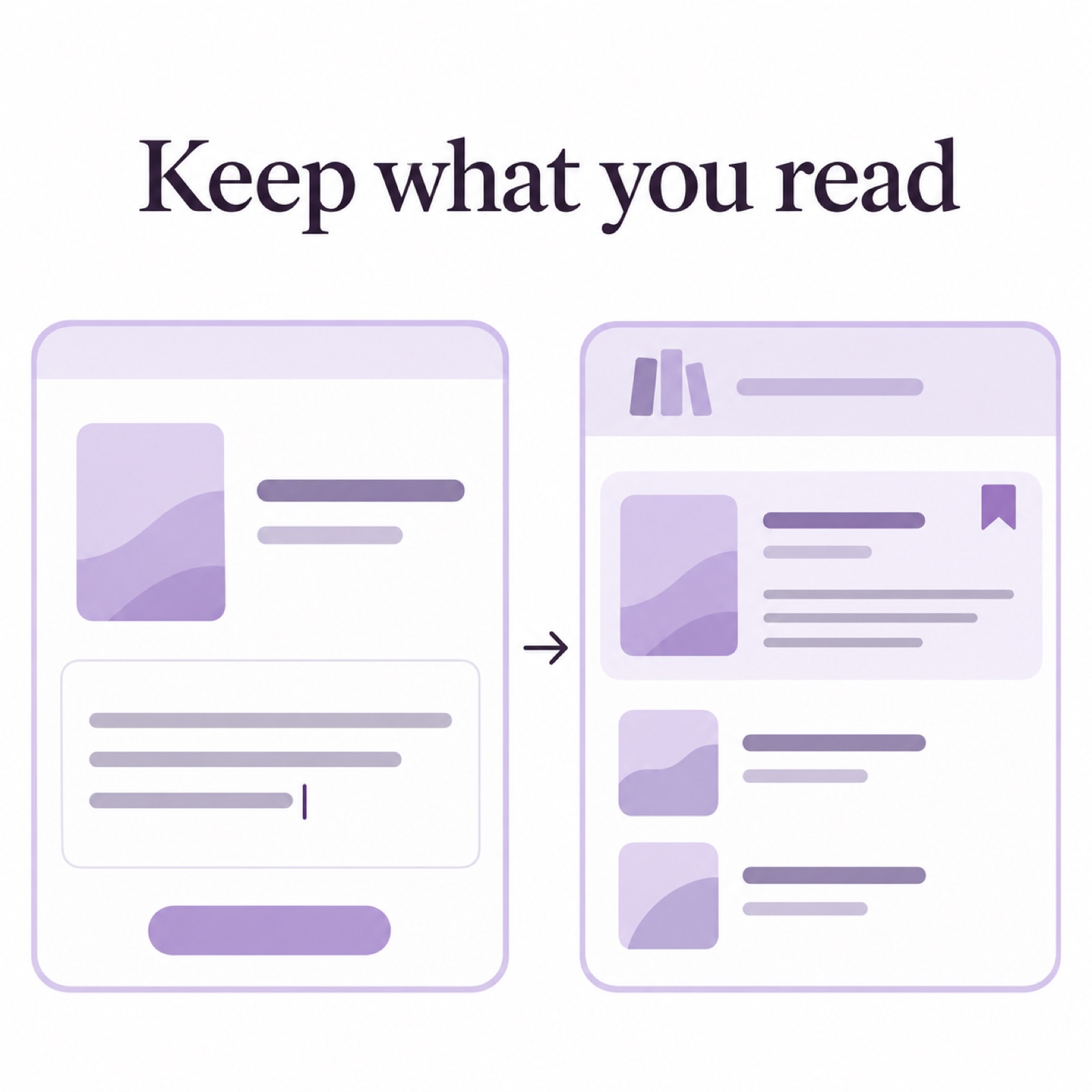
This is an ad for a fictional reading log app. On a white background, place a real screen with a book title and a short note entered into it in the left card, and a library screen collecting those entries in the right card. Add a small arrow between the two cards and write “Keep what you read” above them. This fictional example does not compare feelings or abilities before and after using the app. The layout shows the information entered into the app and how that information is organized.
This suits logging and organization apps that need to explain how to use them before explaining why to install them. When adapting it to your product, use the same sample data on both screens to make the connection clear. In AdForge, save an image reference divided into two areas, review its layout analysis, then describe the relationship between the input and the result in the selling points. When adapting this layout for Google App campaigns, however, do not assume a single finished banner represents the entire final ad. The composition of an app install ad can vary by placement.3
5. Pair the Same Screen with Different Reasons to Install
This is an ad for a fictional focus timer app. Place a real timer screen in the center of a teal background and change only the headline area. The first version reads “Start one focused session,” and the second reads “Make room for deep work.” The first focuses on an action to start now; the second focuses on time the user wants to set aside. Keeping the screen, background, and placement the same in both versions makes it easier to compare the messaging. This is an example of a test design, not a claim that either line performs better.
In AdForge, search the ad library for app ads and save references with clearly defined headline and screen areas. Review the saved ads' image layout and color analysis, then choose a reference ad. At the product information stage, describe the app's purpose and selling points, add uploaded assets, and proceed with image creation. The image ad feature creates three concepts based on real product photos. You cannot assume that uploading an app screenshot will preserve the UI exactly, so compare numbers, icons, and button text in the results with the original, then download a suitable result.
Key takeaways
Start your app install image ad with one benefit that a real screen can demonstrate. Choose a screen-focused, usage-scenario, cropped-detail, or input-and-result layout that suits your app, and use AdForge's reference analysis to decide on a creative direction. Compare the UI in the image concepts with the original for accuracy, then use your existing ad management tools to upload the finished creative and check performance.
FAQ
Do I have to include a phone mockup?
It does not have to be a requirement. If the whole screen explains how the app works, show it at a large size. If only a specific feature matters, consider enlarging that area. Prioritize a screen that supports the ad copy before choosing a mockup.
Can I use the same layouts for Google Ads app banners?
You can draw on the ideas, but do not assume a finished image for Meta can be used as is. Google provides guidance on image quality, use of the frame, and avoiding excessive text or logo overlays. The composition of app install ads can also vary by placement.23
Does AdForge create image ads that preserve app screenshots accurately?
That cannot be guaranteed from the feature information provided. The image ad feature uses real product photos to create three concepts following a reference layout. The explicit description of using app screenshots and screen recordings in app scenes applies to video ads. Compare the UI in image results directly with the original.
What assets should I prepare before creating an ad?
Prepare real app screens showing core tasks, English messaging that matches those screens, and assets you have permission to use in advertising. Use a sample account to create screens without personal information, and keep the copy limited to actions users can actually take in the app.
Related reading
Make your next ad with AdForge
AdForge (ad-forge.io) is an ad remake app: pick an ad you like and rebuild it as a video or image ad for your own product. Find references in the Meta and TikTok ad libraries, let AdForge write the script, AI narration and captions, then review and download. Every account starts with 12 free image ads.