How to Create Notion Template Video Ads: A Step-by-Step Guide to English Ads Using Actual Screens
You can show why a Notion template is worth buying without photos of a physical product. Learn how to turn one customer problem and actual usage screens into a video ad with an English script, voiceover, and captions.
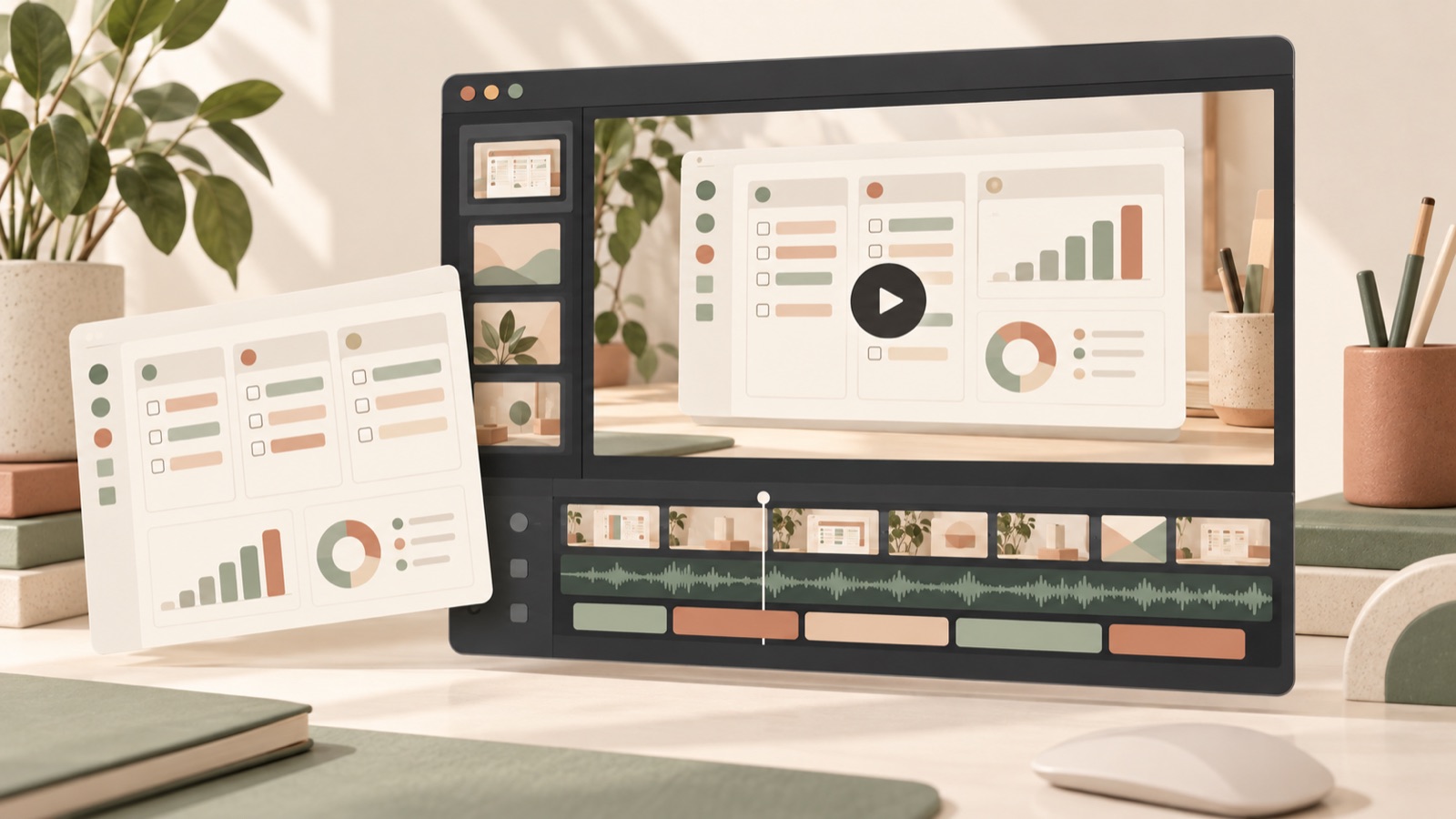
Start creating a Notion template video ad with one problem your customers face and an actual screen that helps them organize it. Instead of touring the entire dashboard, show a scene buyers can understand, such as finding tasks due this week. Sellers have also asked how advertising advice focused on physical products applies to Notion templates.1 Follow the steps below to turn screenshots and screen recordings you prepare yourself into an English ad that moves from the problem to the template in use and then to purchase guidance.
Turn One Customer Problem into a Reason to Buy
First, write one sentence describing who would open this template and when. “Someone who wants to be more productive” makes it difficult to choose a scene to show. As a hypothetical example, for a project template for freelancers, narrow it down to “someone who struggles to find this week’s deliverables because requests from multiple clients are mixed together.” You can also make the reason to buy more specific: “see client tasks and deadlines in one place” rather than “manage all your work.”
Like physical products, digital products need a clear reason to buy. In this article, however, the evidence is the screen buyers will use after purchasing, rather than packaging or appearance. Start by choosing an action you can demonstrate in the actual template, rather than working from a feature list. If the template has a view that brings deadlines together but no automatic rescheduling feature, limit the message to checking deadlines. This statement will guide your script and scene selection.
- Audience: Freelancers working on projects for multiple clients at once
- Problem: It is difficult to find the tasks that need to be finished this week
- Action to show: Check tasks due this week within client-specific tasks
- Reason to buy: Review scattered tasks and deadlines in one place
Prepare Materials That Show the Workflow, Not Just the Full Dashboard
Prepare screenshots and short screen recordings of the actual template that address your chosen problem. For the hypothetical example above, capture task lists by client, a view showing deadlines, and a task detail screen. Each recording should show one action clearly enough for viewers to understand what is clicked and what appears. What matters is whether buyers can picture themselves taking the same action after watching the ad, rather than how quickly you move between screens or open features in succession.
If you add task names and dates for the demo, do not present them as a real customer’s use case. Populate the screens with sample data that contains no personal information, and show features included in the template you sell. Digital product sellers have also asked about awkward AI videos and how to produce them.2 This article puts actual screens at the center of the production process to help reduce that problem. Sellers also prepare the materials uploaded to AdForge themselves and need to check that they have permission to use them.
- Materials for the opening scene: A problem or work situation customers will recognize
- Demo materials: Actual screen recordings showing the steps to address the problem
- Materials for the final scene: Information about the template’s contents and how to buy
Connect the Problem, the Template in Use, and Purchase Guidance in Your English Script
TikTok’s official Creative Codes outlines principles for structuring videos around a hook, body, and call to action, and using voiceovers and on-screen text.3 Applied to a Notion template, this could mean identifying the problem in the opening scene, showing the actual workflow in the middle, and explaining what to check before purchasing at the end. This is a proposed structure informed by TikTok’s materials; it does not represent official recommendations from other platforms or imply advertising results.
A hypothetical script for a freelancer template could flow like this. The opening scene shows a task list with “What’s due this week?” The next scene moves to the actual deadline view and explains, “See client tasks and deadlines in one place.” It closes with “Explore the template and what’s included.” Before using these lines as written, check that they match the screens you actually provide. If you do not offer installation or a free trial, do not prompt those actions.
Create the Ad in AdForge Using References and Actual Screens
In AdForge’s ad discovery screen, search for active ads from the Meta and TikTok ad libraries, and choose a reference that moves from presenting a problem to showing the product in use. For saved videos, you can review analyses of the hook, pacing, cuts, captions, voice, and music. Even if an ad is not for a Notion template, consider it if the way it incorporates a screen demo offers a useful reference. You can also see how many days it has been running, but do not infer sales or profitability from that duration alone.
After choosing an ad to remake, enter your product information and upload screenshots and screen recordings of the actual template. You can enter the product page address to fill in product information automatically, then check that the target audience and selling points are accurate. Select English as the language, and align the demo scenes with the explanations in the AI-generated script and storyboard. Review the result with its English voiceover, captions, and background music, regenerate only the scenes that do not match, and then download it.
- Discover ads: Choose and save ads with useful opening scenes and demo sequences
- Enter product information: Check the template’s purpose, target audience, and actual features
- Upload materials: Add the screenshots and screen recordings you prepared yourself
- Edit the script and storyboard: Align the English wording with the content of each scene
- Review the result: Check the screens, voiceover, and captions, then download
Align the Screens with the English Message, Then Try a Different Opening
Review the finished video with sound on and off. Check whether the relevant view appears while the voiceover mentions tasks due this week, and whether viewers have to read small text on the screen to understand the message. If captions cover task names or deadlines, adjust their placement. The closing guidance also needs to match the sales page. Checking that the views, included materials, and usage described in the ad match the template buyers receive gives you clear review criteria.
For your first follow-up creative, keep the main demo and change only the wording that introduces the problem. For the same hypothetical template, you could create opening scenes using “What’s due this week?” and “Which client task comes next?” These are proposed creative variations for comparing which question is closer to the customer’s reason to buy. Download the revised results from AdForge, then upload them directly to your ad account. Use your existing ad management tools to configure and run campaigns, review performance, and decide on the question for your next creative.
Key takeaways
Create Notion template ads by connecting one customer problem with actual usage screens. Using screenshots and screen recordings you prepare yourself, edit the English script and scenes in AdForge, check that the purchase guidance also matches, then download the ad and run it.
FAQ
Do Notion template ads need photos of a physical product?
This production approach uses screenshots and screen recordings of the actual template. Choose one customer problem and show the action and screen that address it. Focus on explaining what buyers can do after purchasing, rather than introducing the entire dashboard.
Does AdForge connect to Notion and record screens automatically?
The process in this article involves uploading screenshots and screen recordings prepared by the seller. It does not assume a Notion integration or automatic screen recording.
Do I need to create the English script and voiceover myself?
AdForge can write an English script and storyboard and add a voiceover and captions. You can edit the generated script yourself, so review it against the actual template features and screens. Video ad creation requires a paid plan.
What should I change in the next ad for the same template?
Start by keeping the demo screens and changing the opening question. You can introduce different problems, such as checking deadlines or choosing the next task. When comparing variations, record which message you changed and review campaign results in your existing ad management tools.
Make your next ad with AdForge
AdForge (ad-forge.io) is an ad remake app: pick an ad you like and rebuild it as a video or image ad for your own product. Find references in the Meta and TikTok ad libraries, let AdForge write the script, AI narration and captions, then review and download. Every account starts with 12 free image ads.