5 Facebook Slideshow Ad Examples: Sequencing Product Photos and English Copy
You can plan an ad without filmed footage by deciding the order in which to show your product photos. Explore five hypothetical examples of ads built around photo transitions, from feature highlights to collections, and the steps for creating an English-language video ad.

If you are looking for Facebook slideshow ad examples, start by searching for Facebook slideshow ad examples and video ad using images. In related communities, people have also asked how to find photo-based ads using terms such as animated static ads and gif banner ads.1 For your own ad, draw attention with a photo of the whole product, show reasons to buy through detail shots, and finish with a call to action. All five examples below are hypothetical. Choose a structure that fits the photos you have, then follow the steps for creating an English-language video ad with AdForge.
1. Feature-by-Feature Photo Sequence
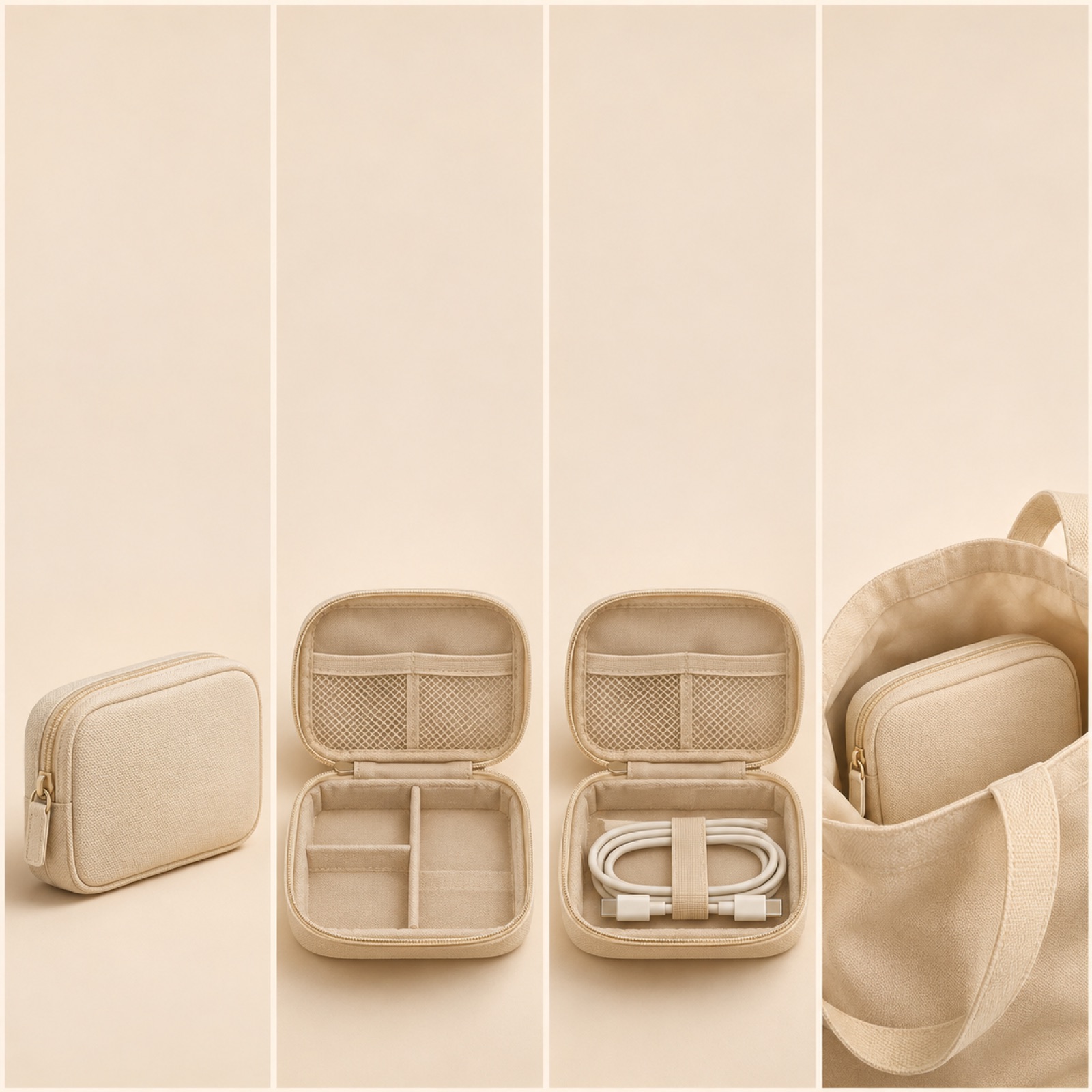
This hypothetical example is an ad for an organizer pouch. Start with a photo of the whole pouch against a cream background and the line “Small bag. More order.” Then show the unzipped interior, a compartment holding a charger, and the pouch inside a bag, in that order. A structure that sequences photos by feature is also covered in the reference material.2 This example first establishes what the product is with an overall view, then explains its uses through detail shots. When applying it to your own product, choose photos that show different features and pair each photo with just one explanation.
In AdForge, open the screen for finding reference ads and browse ads that transition between photos in the Meta Ad Library. Review the analysis of saved ads’ hooks, pacing, shots, and captions, then choose the structure you want. During the remake process, add your pouch photos, product information, and the features to highlight, and select English. In the AI-generated script and storyboard, check and adjust the sequence: overall photo → interior → storage in use → call to action. Review the result, including narration, captions, and background music, then download it. Check the photo sequence and how well the message comes across, without assuming that a specific transition effect will be reproduced exactly.
2. Reasons-to-Buy List
This hypothetical example is an ad for a portable notebook. The opening screen shows a large photo of the open notebook with “Your next everyday notebook.” The following screens show its portable size, open pages, and cover colors separately, paired with “Pocket size”, “Dotted pages”, and “Three colors”. At the end, bring the notebooks back together and finish with “Choose your color”. A list-based sequence is another structure covered in the reference material.2 This approach is designed to let viewers read one feature at a time, without crowding several into a single screen. Use the sample copy only when it matches the actual specifications.
For your own product, write down the reasons to buy first, then check whether you have a photo to support each one. If size is a selling point, you need a photo of the product held in a hand or placed next to a bag. If color is a selling point, you need a photo showing the options together. In AdForge, choose a list-based reference ad and enter the relevant photos and verified product information. Generate the script in English, then edit the storyboard so that each reason is paired with one photo. Check whether viewers have time to read the copy before the next photo appears. If it is too long, reduce the number of reasons or shorten the wording.
3. Collection Showcase
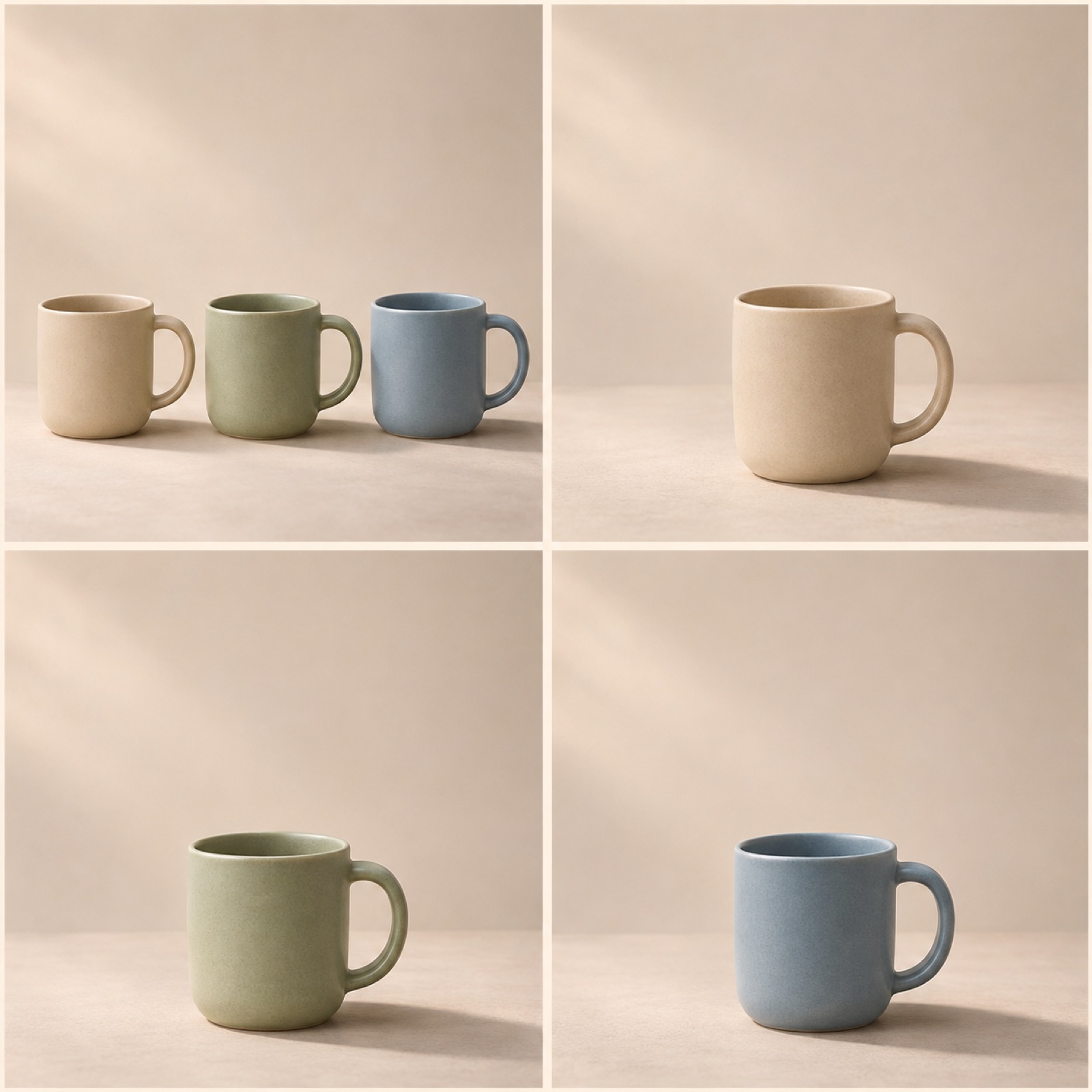
This hypothetical example is an ad introducing three mugs in different colors. On the opening screen, place the three products side by side with “Meet your morning colors”. Next, show the beige, green, and blue mugs one at a time, keeping their position and size consistent. On the final screen, show the full lineup again with “Find your favorite”. A photo sequence built around a collection also appears in the reference material.2 Keeping the framing consistent makes color differences easier to compare as the photos change. For your own products, you can replace color with a difference shoppers can actually choose, such as scent, pattern, or design.
Before production, check whether product size and background brightness vary too much between photos. If only one product appears larger, viewers may assume the products differ in size. In AdForge, select a collection-based reference and enter photos of each product, the exact option names, and a shared message. In the English script and storyboard, check the flow: collection introduction → individual options → selection from the full lineup. Review the finished video to make sure the option names match the photos. If a product is missing or a description is mismatched, you can regenerate just that scene and check it again.
4. Connected Use Cases
This hypothetical example is an ad for a foldable shopping bag. The first photo shows the folded product next to a coat pocket with “Take it along”. Next, pair a photo of the bag holding groceries with “For the grocery stop”, followed by a photo of it holding books with “And the library run”. Finish with a photo of the whole product and “Pick your everyday bag”. This structure helps buyers picture the product in their daily lives instead of listing specifications. Choose only situations supported by actual usage photos, and avoid extending the copy to suggest uses you do not have photos for.
When applying this to your own product, choose situations that reveal different reasons to buy, rather than simply different locations. For a shopping bag, a photo showing it being carried and a photo showing it holding items each explain a reason it is needed. In AdForge, choose a reference ad with a sequence of situational shots, then add your usage photos and a message for each scene. Edit the generated storyboard so that the explanation of the situations does not run longer than the product introduction. Check that the English captions and narration describe the same situation. Review whether the result accurately conveys the product’s shape and actual use, then download it.
5. Kit Contents Reveal
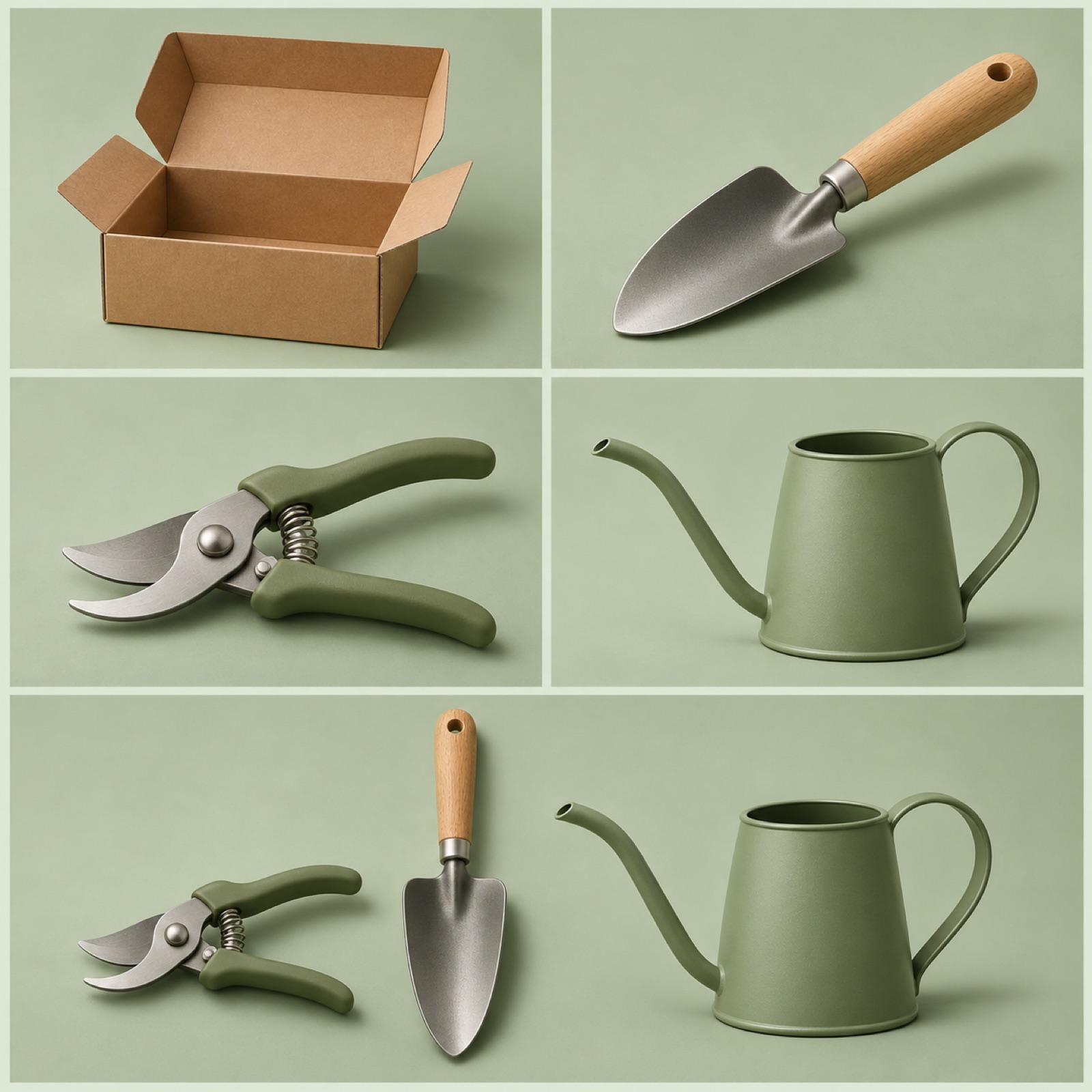
This hypothetical example is an ad for a plant care tool kit. Start with a photo of an open box against a light green background and “Your plant care kit”. Then show photos of a small trowel, a pruning tool, and a watering can, one at a time. Finish by laying out all the items actually included in the set for sale. Use “See what’s inside” as the closing line. This structure lets buyers see what they will receive, item by item. When adapting it to your own product, distinguish photography props from included items, and make sure separately sold items do not appear to be part of the set.
In AdForge, choose a reference that introduces products one at a time, then add a photo of the full set and photos of the individual items. Specify the included items and quantities accurately in the product information, and create an English script. Edit the storyboard into this sequence: box introduction → photos of each item → full set. During review, check that the quantities shown on screen match those in the captions and that props are not emphasized as though they are included products. Upload the downloaded video directly to your ad account. To compare opening scenes, prepare a separate creative that starts with the full-set photo while keeping the rest of the structure the same, and check performance in your existing ad management tools.
Key takeaways
A feature-by-feature sequence is a starting point for showing product details, a collection showcase for presenting options, and a kit contents reveal for explaining what buyers will receive. Choose one flow that your existing photos can support, and create a video that pairs each English message with a photo.
FAQ
What search terms should I use to find ads that transition between photos?
Start with Facebook slideshow ad examples and video ad using images. Related discussions also used animated static ads and gif banner ads as search terms.1 Add the product category you are interested in, then look at the photo sequence and copy placement in the search results.
If I search for gif banner ads, do I have to create a GIF?
This article uses the term as a search phrase for finding references. Do not choose a production file format based on a search term alone. With AdForge, you can create video ads using photos and messages; this workflow does not assume a GIF export feature.
Which structure works when I have only a few product photos?
If you have an overall photo and detail shots, start by considering a feature-by-feature sequence. If you have photos of different options, consider a collection showcase. If you lack photos showing distinct features, avoid forcing in more reasons to buy and focus on messages your photos can explain.
Can I reuse the copy and photos from a reference ad?
Use the reference for the structure of the opening hook, progression, screen layout, and call to action. Create new content using your own product information, selling points, and uploaded materials. Users need to verify their rights to use uploaded materials and review the finished ad.
Related reading
Make your next ad with AdForge
AdForge (ad-forge.io) is an ad remake app: pick an ad you like and rebuild it as a video or image ad for your own product. Find references in the Meta and TikTok ad libraries, let AdForge write the script, AI narration and captions, then review and download. Every account starts with 12 free image ads.