How to Create Video Ads from App Screens: English Ads for TikTok and Reels
Show one key action instead of trying to cover every app feature. This guide walks you through combining real screen recordings with an English script, voiceover, and captions, then reviewing and downloading the video in AdForge.
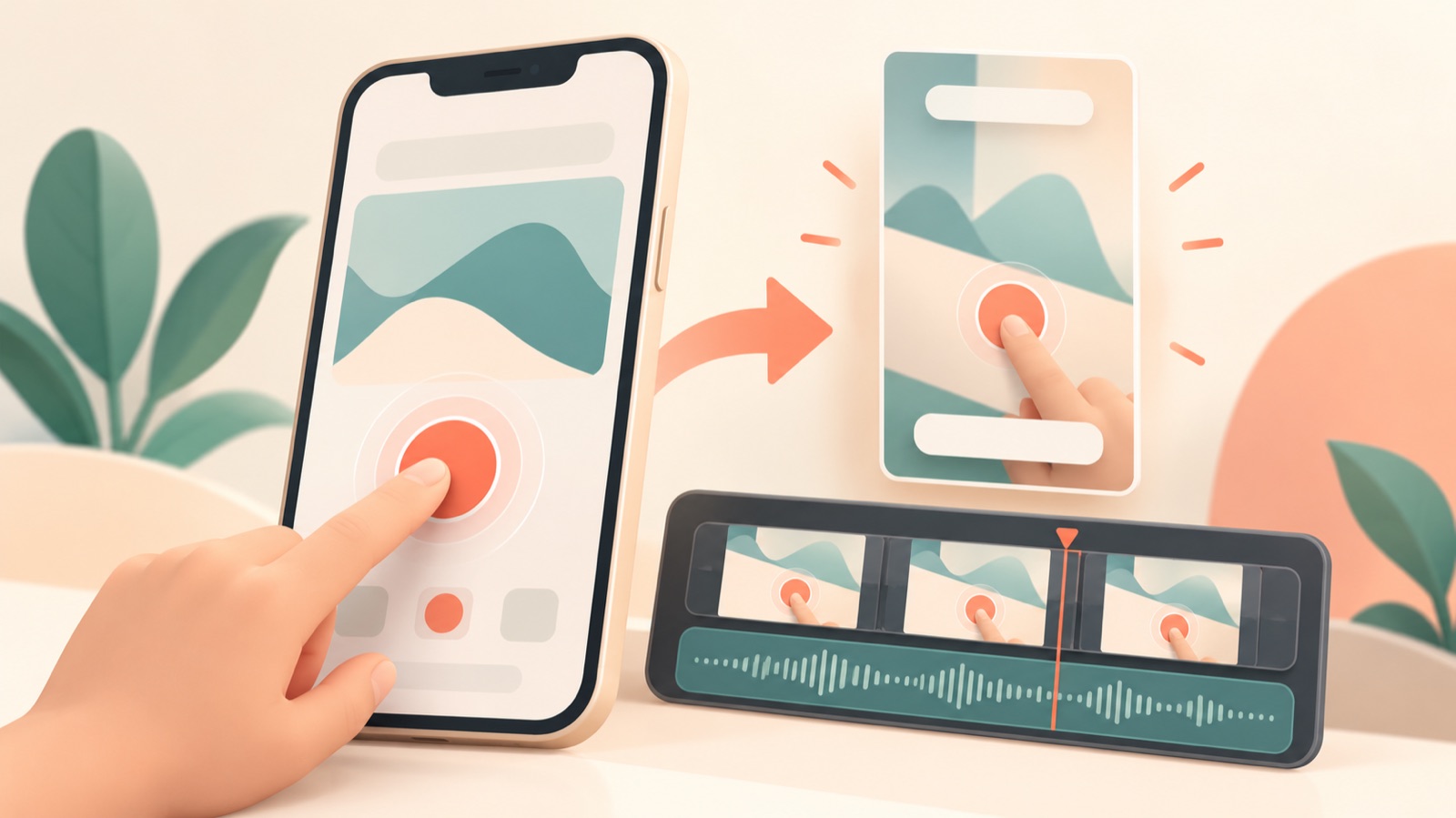
To create video ads from app screens, start by recording one key action, then explain the result users get in English. For TikTok and Reels ads, begin with a short demo that connects a problem to its solution rather than an overview of the entire app. Using a fictional scheduling app as an example, this guide takes you from preparing assets to producing a video in AdForge, reviewing the English, and finishing files for testing.
Choose one key action to show in the ad
First, define in one sentence what viewers should understand after watching the ad. For our fictional scheduling app, that would be: “Collect the times your friends are available and decide when to meet.” Focus on selecting times and checking the result instead of fitting sign-up, profile setup, and notifications into one video. TikTok’s official guidance also recommends short demos that show app features and clearly communicate their value.3
Choose based on a visible change on screen rather than a feature name. In this example, the key result is seeing where everyone’s selected times overlap. Simply saying “Scheduling gets easier” leaves the change unclear. Showing the screen before selections are made, followed by the screen displaying shared availability, makes it easier to distinguish what the voiceover should explain from what the app itself should demonstrate.
Prepare screenshots and screen recordings for each scene
Use screenshots to hold a result on screen and screen recordings to connect interactions with the changes they produce. For the fictional app, record the process of tapping available times and prepare a screenshot of the result showing everyone’s shared availability. Before recording, enter test names and schedules, and check that notifications and personal information are hidden. Record features the app actually offers so the explanation in the ad matches how the app works.
Prepare assets with distinct roles, such as “Select times,” “Check responses,” and “Shared availability results.” Capturing each action separately instead of uploading one long recording makes it easier to spot an unrelated screen in the generated video. Reader questions about app ad production also express a need to combine actual app screens with voiceover and captions. This is evidence of production demand, not evidence that the approach delivers results.2
Combine a reference ad with real app screens in AdForge
AdForge is our service, and we run this blog. It is an ad remake app that creates new ads using the product information and assets you provide, based on the structure of a reference ad. Start by searching the Meta and TikTok ad libraries and choosing a reference that moves from a problem to a short demonstration and then a result. Review the analysis of the saved ad’s hook, pacing, cuts, and captions, and assess whether your prepared app screens can support that sequence.
When entering product information, be specific about the app’s target users, key action, and the result you want to show. If you use a product page address to populate the information automatically, read it through to check that it matches the features actually available. Next, upload your screenshots and screen recordings, and select English as the production language. In the generated script and storyboard, check that the time-selection scene uses the corresponding recording and that the explanation of the result is paired with the results screen, then edit the script yourself.
The video includes AI voiceover, captions timed at the word level, and background music. If a particular app scene looks awkward, you can regenerate that scene. Video ads are a paid-plan feature. Since individual developers also raise questions about quality and cost when using app screens in videos, we recommend starting with a draft focused on one key action that you can review.1
Match the English script to the actions on screen
Write English lines that describe the action in front of the viewer rather than translating Korean introductory copy word for word. In this fictional example, the opening could introduce the problem with “Still asking everyone when they’re free?” Pair the time-selection scene with “Pick your available times.” and the results scene with “See when everyone can meet.” The test is whether the lines carry one task forward instead of introducing separate features.
Use AdForge’s editable script to align the explanation with the screen sequence, then review the generated voiceover and captions together. Revise claims such as “It books automatically” if they cannot be verified on screen or describe something the app does not actually do. If the app UI is in Korean, check whether adding an English voiceover is enough to make the action understandable. If viewers need to read button labels to follow the action, it is better to prepare the assets again with the app set to English.
If captions cover a key button or result, shorten the explanation or regenerate the scene and check it again. Refer to TikTok’s official production guidance on communicating app value through on-screen text and demos, but do not interpret it as a guarantee that a particular caption placement will improve performance.3 In this fictional example, check whether viewers have enough time to read the shared availability when it appears and whether the voiceover moves on before they can do so.
Finish and compare two versions with different openings
Once the first ad is complete, plan a second version that uses the same demo with a different opening. In fictional example A, the ad starts with the question “Still asking everyone when they’re free?” Version B opens with the results screen showing shared availability. Keep the middle demonstration and final call to action the same. This makes the intention to compare the openings clear. Check again that the edited script and generated scenes in AdForge match each plan.
Before downloading, review the English wording, accuracy against actual features, readability of the app screens, and rights to use the uploaded assets. Download the finished creative and upload it to your ad account yourself. AdForge does not automatically run ads through your ad account; campaign setup, ad delivery, and performance monitoring take place in your existing ad management tools. When comparing versions, also record the audience and delivery conditions to provide a basis for interpreting differences between the creatives.
Use the results to choose one thing to change in the next production round. For example, revise the screen sequence if the demonstration was unclear, or tighten the script if the English explanation was too long. The goal of the first video is not a perfect introduction that explains the entire app. It is to finish an ad that communicates the key action and its result, and to define a specific question for the next comparison.
Key takeaways
To create video ads from app screens, choose a key action, prepare real assets, apply a reference, and review the English script. Once you have finished a video in AdForge whose screens match its explanation, download it and compare creatives with different openings to decide what to produce next.
FAQ
Can I create a video ad with app screenshots alone?
AdForge uses the app screenshots and screen recordings you upload in app scenes. You can start with a structure that shows results through screenshots. However, if the interaction itself is central to the ad, prepare actual screen recordings as well.
What should I look for in an AI video tool for app ads?
Check whether it uses actual app assets in scenes, lets you edit the English script, and allows you to regenerate individual scenes. A key criterion is whether the generated video accurately communicates your app’s core action.
Do I need to produce the English voiceover and captions separately?
AdForge can generate English scripts, voiceovers, and captions. After generation, review whether the explanation matches the app screens and whether the product name and feature wording sound natural.
Can I run the finished video directly on TikTok and Reels?
After downloading the finished creative from AdForge, you need to upload it to your ad account yourself. Use your existing ad management tools for the final placement preview, campaign setup, ad delivery, and performance monitoring.
Make your next ad with AdForge
AdForge (ad-forge.io) is an ad remake app: pick an ad you like and rebuild it as a video or image ad for your own product. Find references in the Meta and TikTok ad libraries, let AdForge write the script, AI narration and captions, then review and download. Every account starts with 12 free image ads.