5 Real Estate Facebook Ad Examples: Photo Layouts and English Ad Copy
Wondering how to turn exterior, living room, and kitchen photos into ads? These five hypothetical examples show how to choose photos and position English copy for new listings, open houses, price changes, and more.
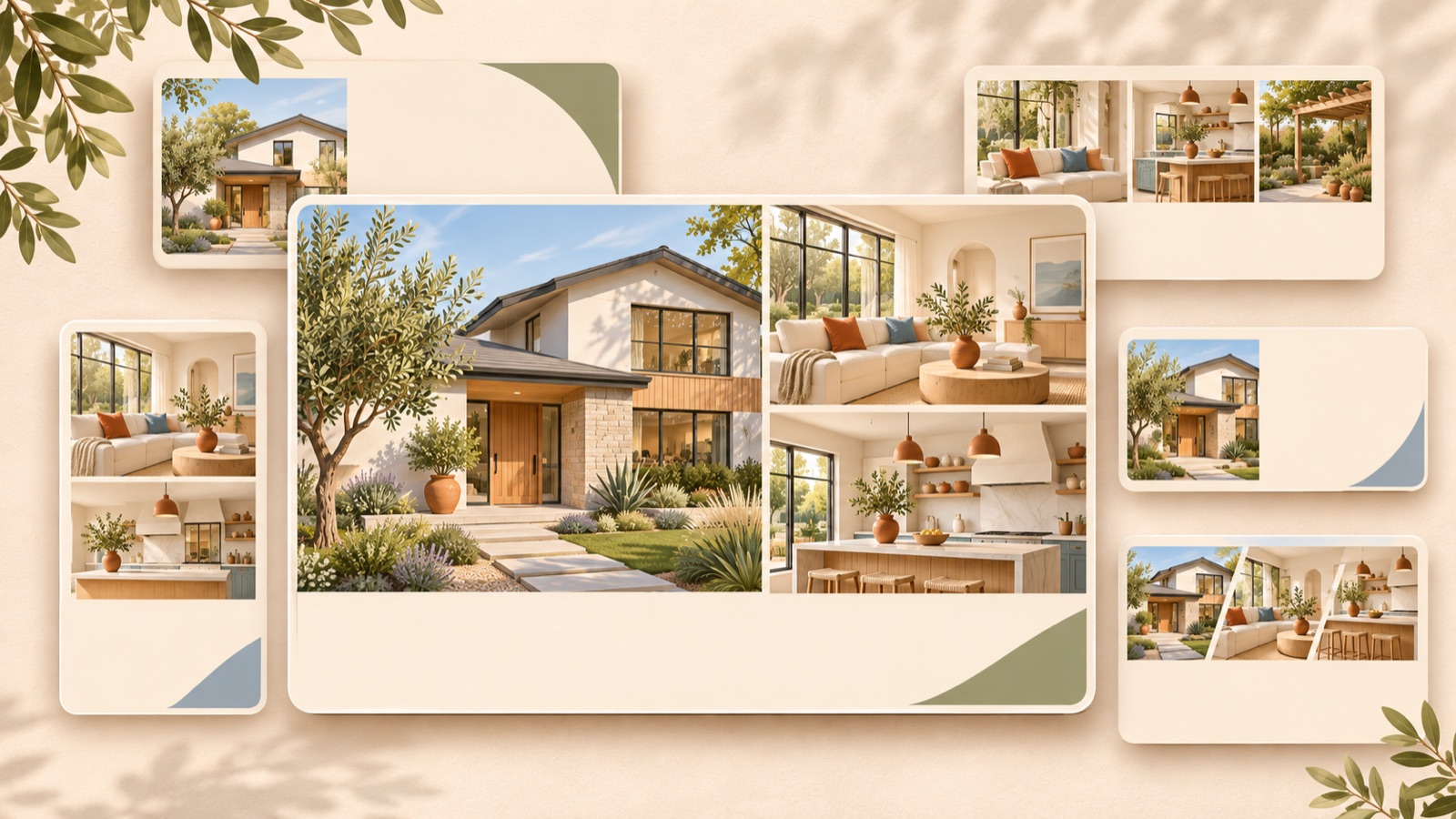
Choose a real estate Facebook ad example based on the news you want to share. Make the exterior the focus for a new listing, a single interior photo for a standout space, a group of photos for key features, the visiting schedule for an open house, and the new price for a price change. Real-world questions about ad production also reveal uncertainty about which hook and format to try after creating a static image.1 All five examples below are hypothetical. They explain how to choose a layout that suits your available photos, adapt the English copy, and create your first image concept in AdForge.
1. New Listing: Group Key Details Below an Exterior Photo
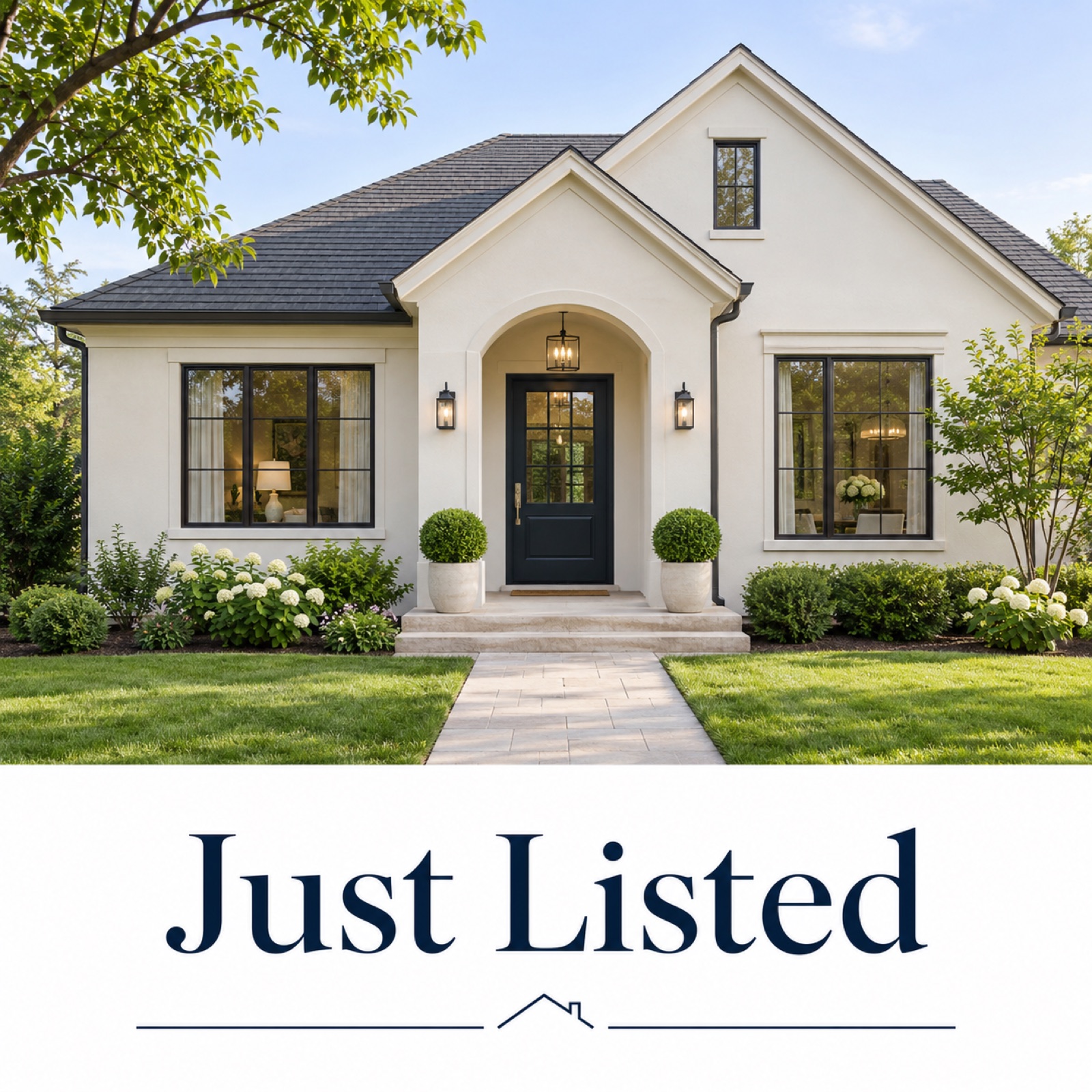
For this hypothetical example, let's introduce a newly listed home. Place an exterior photo across roughly the top two-thirds of the image, with a white information area below. Use “Just Listed” at the top, then “Cedar Grove · $625,000”, “3 Beds · 2 Baths”, and “View Listing” at the bottom. This layout helps someone seeing the property for the first time understand both its appearance and its basic details. ERA's official materials also support pairing exterior and interior photos with key features, a clear property description, and a call to action.3
To adapt this for your own listing, first verify photo usage rights, the price, location, and bedroom count. In AdForge's ad discovery screen, find and save a reference with separate areas for the exterior photo and property information, then review the image layout analysis. When remaking the ad, enter the listing details and English copy in the product information area, and upload the actual exterior photo in the photo upload area. Once you have three image concepts based on the reference layout, check the home's shape, the numbers, and any overlapping text before downloading.
2. Featured Space: Use One Living Room Photo to Give People a Reason to Visit
This hypothetical example features a home with a living room connected to large windows. Give the living room photo plenty of space, keeping copy away from where the windows meet the floor. Add a dark navy band at the bottom with “A Living Room That Opens to the Patio”. Use “Explore the Layout” as the smaller supporting copy and “See More Photos” as the call to action. Choose this layout when the way the spaces connect is more appealing than the exterior. The goal is to call out one feature that viewers can see in the photo.
For your own listing, keep just one feature that the photo can substantiate, such as large windows, a fireplace, or access to a patio. One actual advertiser also wondered whether to replace an existing photo ad with different home photos or video, but that case does not establish that any particular format is superior.2 In AdForge, choose a reference with a large photo and short copy at the bottom, then add the actual living room photo and the verified feature to create concepts. Compare the results with the original to check that windows, doorways, and connections between spaces have not changed before downloading.
3. Key Features: Arrange Three Different Spaces in One Image
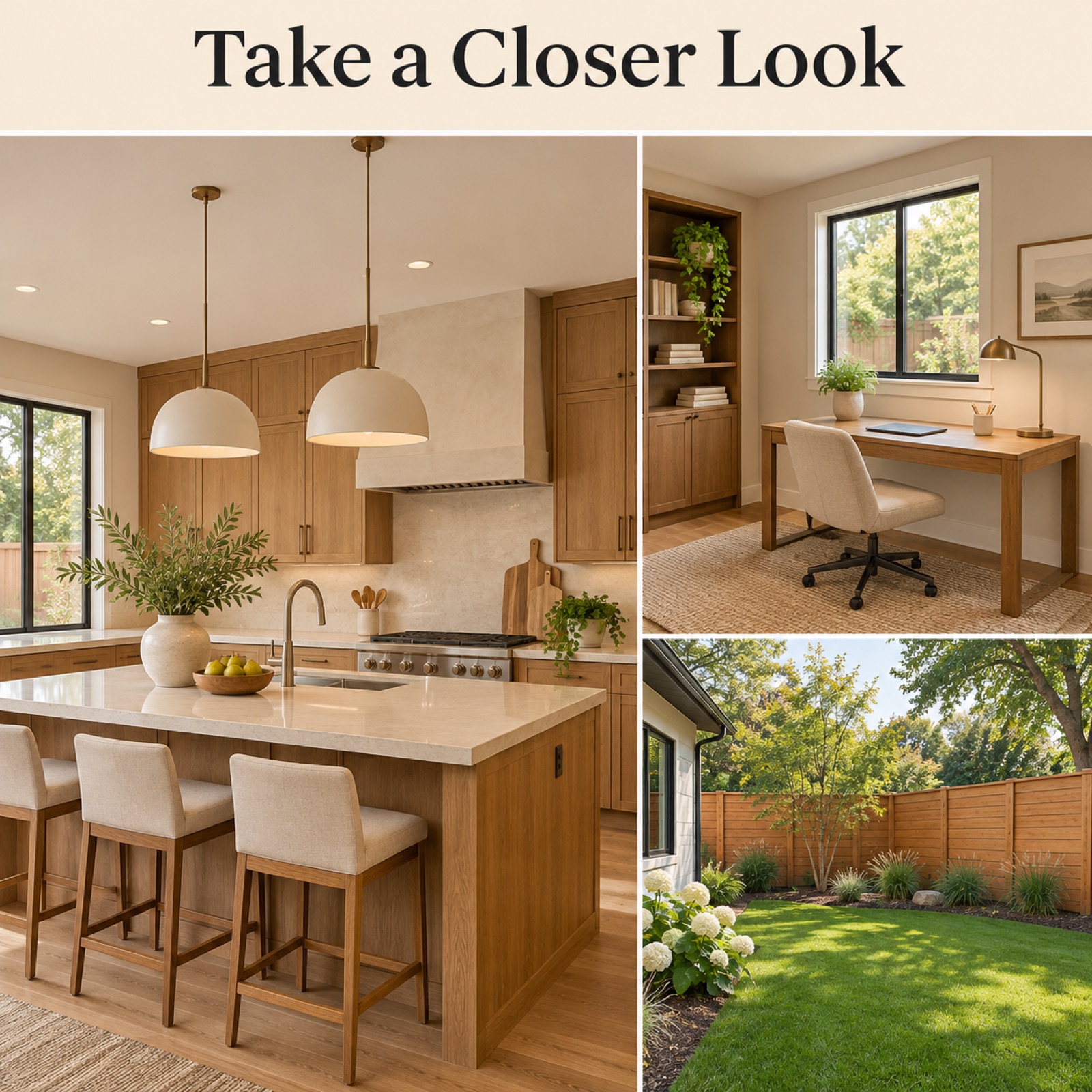
In this hypothetical example, we introduce a kitchen, a work-from-home space, and a backyard together. Place a large kitchen photo on the left, with the other two photos stacked on the right. Use the short labels “Kitchen Island”, “Dedicated Office”, and “Private Backyard” beside the photos. Set the headline at the top to “Take a Closer Look” and the copy at the bottom to “Explore This Home”. ERA's materials offer guidance on pairing each photo with a feature description.3 This layout works when you want to show the arrangement of several spaces rather than the atmosphere of a single room.
When adapting this for your own listing, choose photos that communicate different information instead of three living room shots from similar angles. Before labeling a small room as an office, check that this matches its actual use and the listing description. In AdForge, select a reference divided into multiple photo panels, then enter the space shown in each photo and its corresponding copy to create image concepts. Check that each label matches its photo and that the spaces are recognizable even in the smaller panels. If the details become indistinct, choose another layout that gives the photos more space.
4. Open House: Make Visiting Hours Easier to Read Than the Property Photo
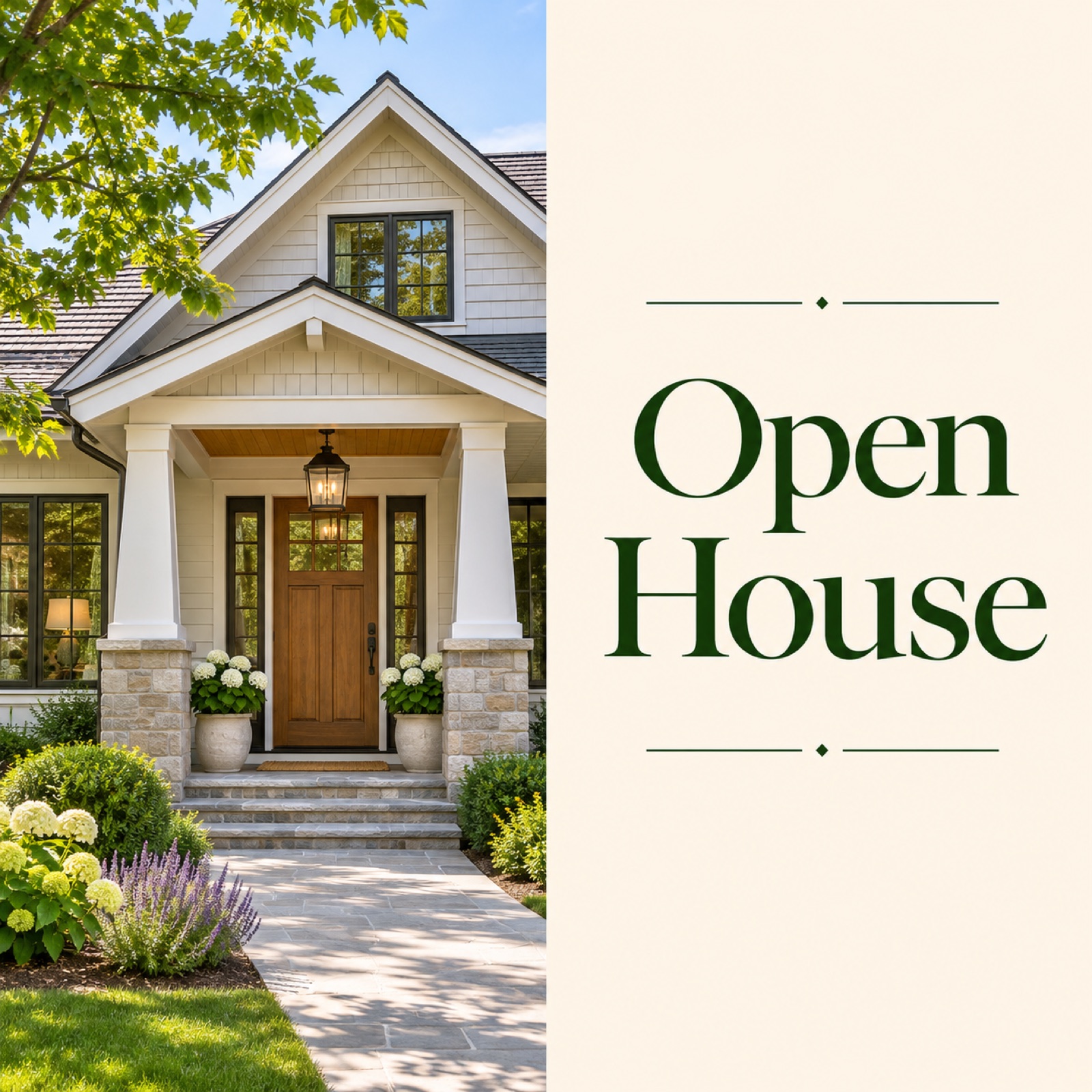
This hypothetical example announces a Sunday afternoon open house. Place an exterior photo showing the front entrance on the left and a cream-colored schedule card on the right. On the card, add “Open House”, “Sunday · 1–4 PM”, and “123 Example Lane” in that order, with “Stop By and Take a Look” below. The date and address are fictional details for illustration. Unlike a new listing introduction, this layout helps people decide when to visit first, so keep the schedule together in one place instead of scattering small text over the photo.
For actual production, prepare one finalized notice containing the event date, day of the week, hours, and address. If appointments are required, replace the example's drop-in invitation with wording that reflects the actual visiting arrangements, such as “Request a Viewing Time”. In AdForge, choose a reference with separate photo and schedule card areas, then add the property photo and finalized English notice to create three concepts. Before downloading, check the numbers and address against the original text. Upload the finished creative directly to your ad account, and use your existing ad management tools to run the ads and review performance.
5. Price Change: Show the New Price Alongside the Property Photo
For this hypothetical example, the listing price has changed. Place a large exterior photo at the top, with “New Price” and “Now $599,000” in a light gray area below. Keep the location name small and place “View Updated Details” at the bottom. If you include the previous price, it must match the actual price history. This layout is intended to make the change immediately clear. Keep the property photo instead of giving all the space to the price, so readers can also recognize which home the update concerns.
For your own listing, first prepare the updated property details showing the new price, and avoid copy about unverified discount percentages or the seller's circumstances. In AdForge, choose a reference with a clearly defined price area, then enter the actual exterior photo, current price, location name, and call to action. From the three generated concepts, choose the one that clearly shows both the price and the home. When comparing ads later in your ad management tools, keeping the same photo and varying only how strongly the price is emphasized makes it easier to explain what difference you are comparing than changing both the photo and copy at once.
Key takeaways
Choose an exterior photo for a new listing, a single interior photo for a featured space, and a group of photos for key features. Put the schedule at the center of an invitation to visit, and the current price at the center of a price change announcement. Pick the photo you already have that is easiest to explain, then create your first concept with verified information in English.
FAQ
Can I get started with just one exterior photo?
You can start with a new listing or price change layout. Avoid adding interior features that are not shown in the photo, and prepare verified pricing, location, basic property information, and copy directing people to more details.
What should I prioritize in the English copy?
It depends on the ad's purpose. Lead with the location and basic details for a new listing, a feature visible in the photo for a featured space, the schedule and visiting arrangements for an open house, and the current price for a price change.
How does AdForge use listing photos?
Add actual listing photos you have permission to use and your message to create three image concepts based on the layout of your chosen reference. Compare the results with the original photos and check the information for accuracy before downloading.
Will the ad automatically run on Facebook once I download it?
AdForge does not yet offer automatic ad delivery through connected ad accounts. Upload the downloaded creative directly to your ad account, and use your existing ad management tools for campaign setup, ad delivery, and performance review.
Make your next ad with AdForge
AdForge (ad-forge.io) is an ad remake app: pick an ad you like and rebuild it as a video or image ad for your own product. Find references in the Meta and TikTok ad libraries, let AdForge write the script, AI narration and captions, then review and download. Every account starts with 12 free image ads.