Nonprofit Fundraising Video Makers: 3 Tools and 2 Production Workflows Compared
Compare AdForge, Canva, and Adobe Express based on eligibility for free access, time available for hands-on editing, and the need to create English scripts and voiceovers. We also walk through how to prepare your first fundraising ad using photos of your activities and footage of volunteers at work.
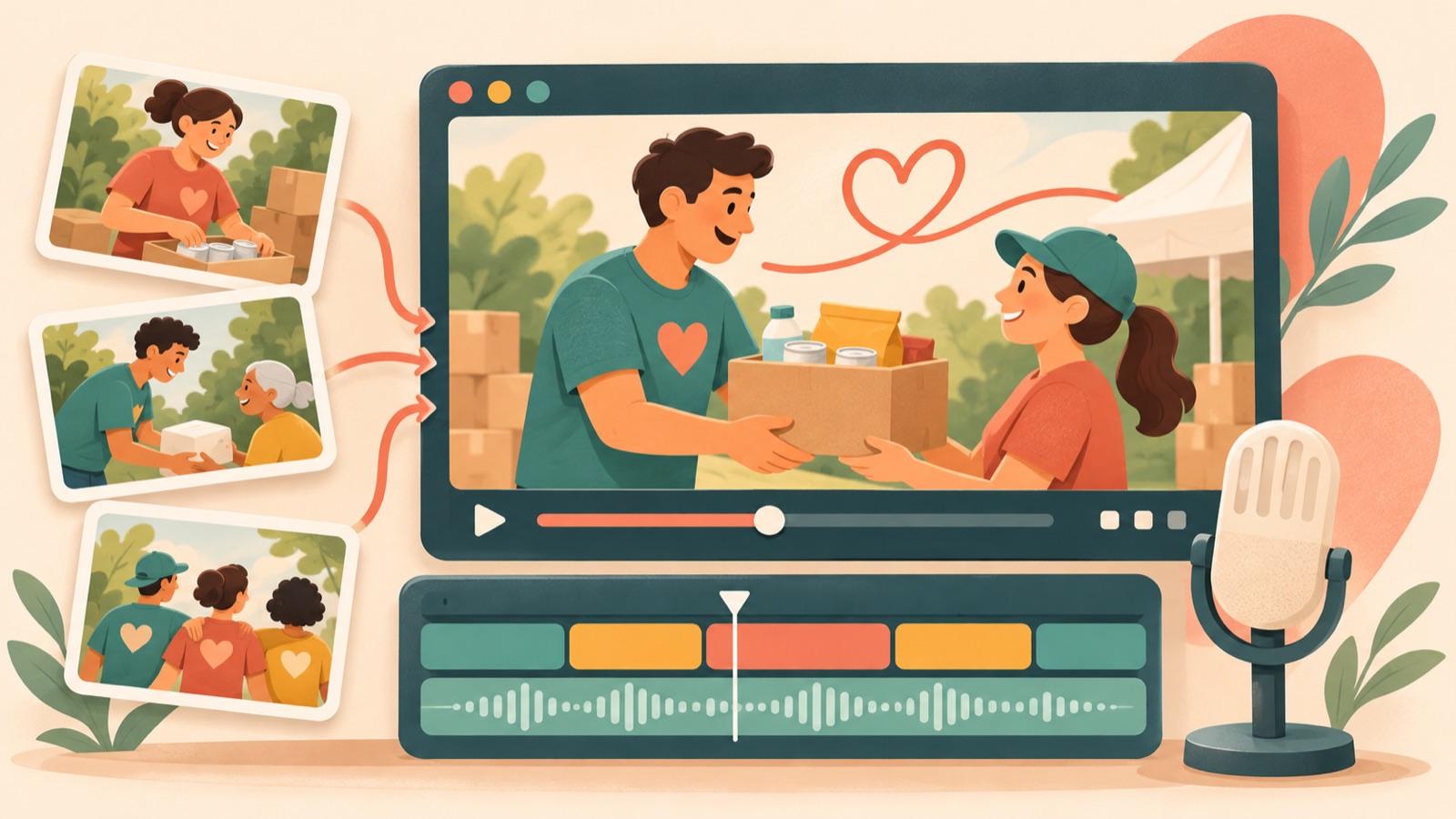
When choosing a video maker for nonprofit fundraising ads, start with eligibility for free access, the time available for hands-on editing, and who will prepare the English script and voiceover. If editing resources are limited and you need help starting with the script, consider AdForge, a paid video creation tool. If you qualify for free access and have time to edit, start by considering Canva or Adobe Express. Both services offer free premium access to eligible nonprofits.13 The five entries below cover three tools and two production workflows. Their order is not an absolute ranking of performance; each entry compares the work you will need to handle yourself.
1. AdForge — Start with a reference ad to build an English script and video structure
AdForge is our service, and we run this blog. It is an ad remake app that helps you create new ads by drawing on the opening scene, progression, visual layout, and call-to-action structure of an ad you like. You can revise AI-written scripts and storyboards and create videos with English narration, subtitles, and background music. This makes it a fit for people who want to spend more time reviewing their fundraising message than editing. Video creation is paid, with the Starter plan priced at $39 per month, excluding tax. The 12 free image ads are not a video trial allowance.
Search for and save reference ads in the ad library, then review the analyzed hooks and progression. Upload real photos and videos of your organization's activities for use in production. In the product information and message fields, enter the organization's activities and the verified fundraising purpose as separate items. Select English, then revise the script and storyboard to ensure the beneficiaries, intended use of funds, and donation request are accurate. On the results screen, check for anything that could cause viewers to confuse actual records with generated scenes. Regenerate only the scenes that need changes, then download the video. You also need to confirm that you have permission to use the uploaded materials.
2. Canva — Make use of free access eligibility and time for hands-on editing
Canva suits people who want to build a video by placing captions and visual elements on activity photos themselves. According to its official guidance, eligible nonprofits can access premium features for free for up to 50 seats, and the video editor supports captions, animations, and visual elements. If several people in your organization need to review materials and copy, it is worth checking eligibility for free access and the number of seats you need first.1
The advantage is that you decide what explanation to pair with each photo. As a hypothetical example, a food assistance organization could add an activity description to a photo of supplies being prepared, explain how this fundraiser's proceeds will be used alongside a packing photo, and place a donation request at the end. However, this recommendation assumes you have time to choose the scene order, write the English copy, and edit the video yourself. If you are stuck at the scriptwriting stage, compare staff time as well as subscription costs.
3. Adobe Express — Assemble your existing photos and on-site footage yourself
Adobe Express suits people who have already selected their photos and footage and want to cut the parts they need into a single ad. It supports uploading your own photos and videos, choosing templates, cutting and trimming, adding audio, and downloading MP4 files. You can use it to select moments from volunteer footage that clearly show the activity, then connect them with photos to explain the fundraising purpose.2
The official U.S. guidance states that Adobe Express Premium is available free to eligible 501(c)(3) nonprofits, with an eligibility verification process. If your organization is based in the United States, check whether you can apply first.3 Its advantage is a production process in which you select and refine your existing materials yourself. However, the features confirmed here should not be taken to mean that it will automatically produce a complete English script and narration. For this comparison, allow separate time to prepare the copy and the audio you will use.
4. AdForge and Canva — Split video production and fundraising graphics between tools
For organizations that need static informational graphics alongside a video, a workflow that assigns different roles to the two tools is a good fit. Use AdForge to create an English fundraising video based on a reference ad, and Canva to arrange photos and copy for the same campaign yourself. Canva's video editor also supports captions, animations, and visual elements, but the deciding factor for this workflow is clearly defining the deliverables you will handle, rather than bringing every task into one tool.1
As a hypothetical example, for a fundraiser supporting the provision of winter supplies, the AdForge video could connect real packing materials with the verified use of funds, while the Canva graphic could center on the same photos and donation request. Before starting, it is a good idea to finalize the organization name, fundraising purpose, and request wording that both outputs will share. The limitation is that you need to keep revisions consistent as you move between tools. Even if you qualify for free Canva access, you still need to account separately for AdForge's video creation costs.
5. AdForge and Adobe Express — Refine an AI-created video yourself before delivery
This workflow suits people who want to create an initial video with AI, then cut out selected portions themselves. Review the English script and storyboard in AdForge, create and download the video, then upload it to Adobe Express to cut or trim the sections you need. This production workflow uses Adobe Express's file upload, cutting and trimming, and MP4 download features; it does not mean the two services are automatically integrated.2
The advantage is that you can handle the final edit while reducing the burden of assembling every scene yourself from the start. However, changing the finished video's length can throw the voiceover out of sync with the on-screen copy, so play it back again to check. If the issue only requires changing one sentence, it is better to revise the AdForge script or the relevant scene first. Upload the final file to your ad account yourself, and use your existing ad management tools to set up the campaign and review performance.
Key takeaways
If you qualify for free access and have time to edit, consider Canva or Adobe Express first. If you need help starting with an English script and voiceover, consider AdForge's paid video creation. Build your first fundraising ad around real activity materials, a verified use of funds, and one donation request.
FAQ
What should we check first if we have almost no production budget?
Start by checking your eligibility for free nonprofit access to Canva and Adobe Express. Canva offers eligible organizations premium features for free for up to 50 seats, while Adobe Express offers free Premium access to eligible U.S. 501(c)(3) organizations.13 Regardless of whether you are approved, you also need to budget staff time for writing copy and editing.
Should we also consider Animoto as a fundraising video tool?
It is not included in this comparison because we could not confirm Animoto's features, pricing, or nonprofit support terms from the materials provided. Before adding more options, narrow down these three tools based on eligibility for free access, the amount of hands-on editing required, and whether you need to prepare an English script and voiceover.
What copy should we use in an English fundraising ad?
As a hypothetical example, a food assistance organization could connect its activity with a request using a line such as “Help us pack food boxes for local families.” Adapt it to your actual beneficiaries and the intended use of funds. Do not include unverified beneficiary counts or claims about the impact per donation, and apply the same standard when reviewing the script in AdForge.
What should we change to run a comparison test for our first ad?
Prepare one version that opens with an activity photo and another that opens with footage of volunteers at work. Keeping the fundraising purpose and donation request the same makes it easier to interpret the differences between the two creatives. In AdForge, you can regenerate the scenes that need changes. Use your existing ad management tools to run the ads and compare performance.
Related reading
Make your next ad with AdForge
AdForge (ad-forge.io) is an ad remake app: pick an ad you like and rebuild it as a video or image ad for your own product. Find references in the Meta and TikTok ad libraries, let AdForge write the script, AI narration and captions, then review and download. Every account starts with 12 free image ads.