5 Facebook Ad Examples for Eyewear: English Creatives Using Product and Model Photos
Instead of simply lining up eyewear photos, show reasons to buy through details, on-face views, and design choices. Explore five layouts suited to the photos you have and the steps for creating English-language image ad drafts with AdForge.
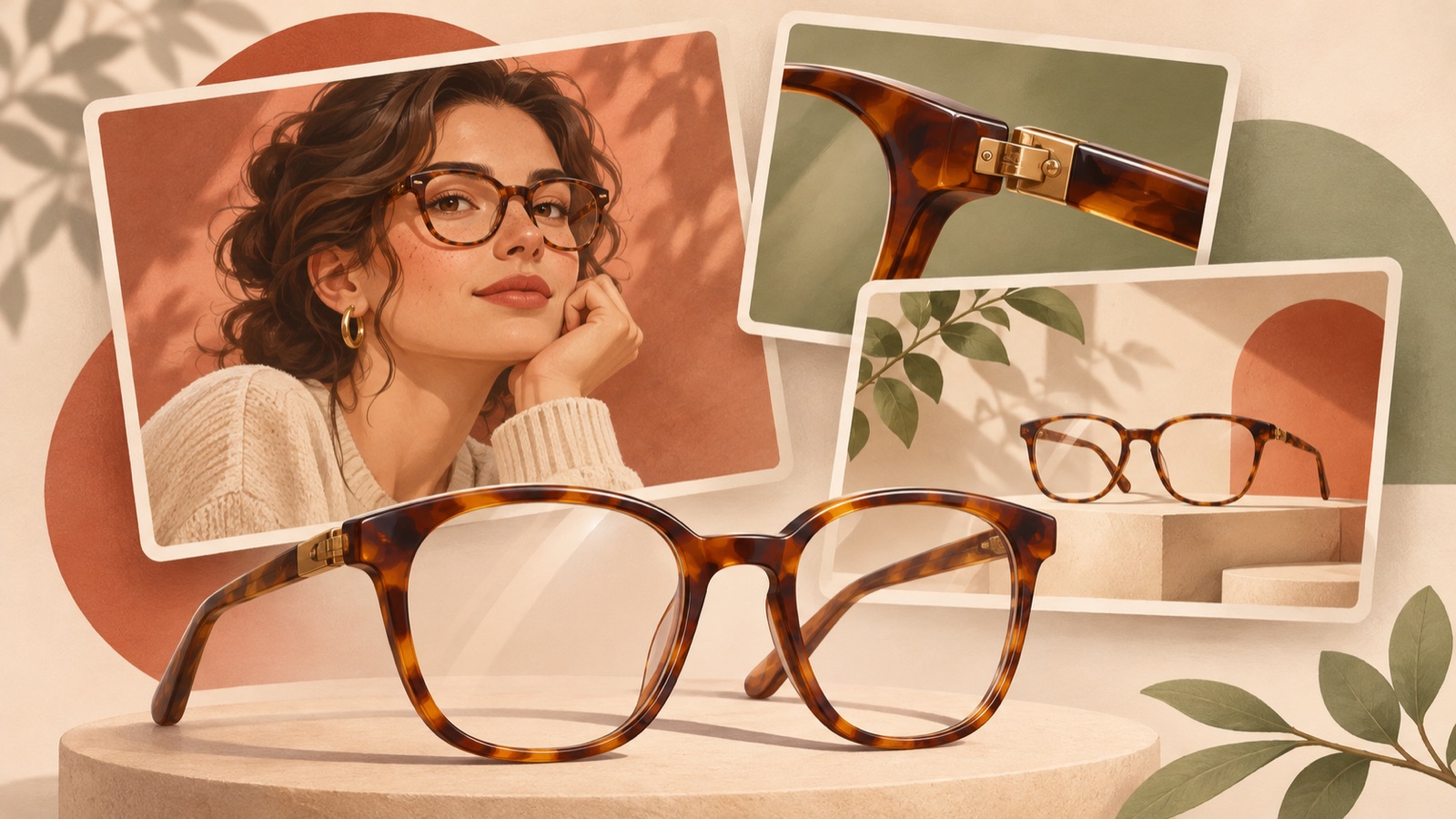
If you are looking for Facebook ad examples for eyewear, start by deciding which question your photos should answer, rather than how many photos to use. A detail close-up works as a starting point when shoppers want to understand the frame shape, an on-face layout when they want to judge its size on a face, and a comparison layout when they find it hard to choose between designs. There is also an actual question from a prescription eyewear seller asking for ad creative ideas that stand out.1 All five examples below are hypothetical. Choose a layout that suits the photos you have, and use it to create English-language image ad drafts in AdForge with a reference ad and actual product photos.
1. Frame Detail Close-Up
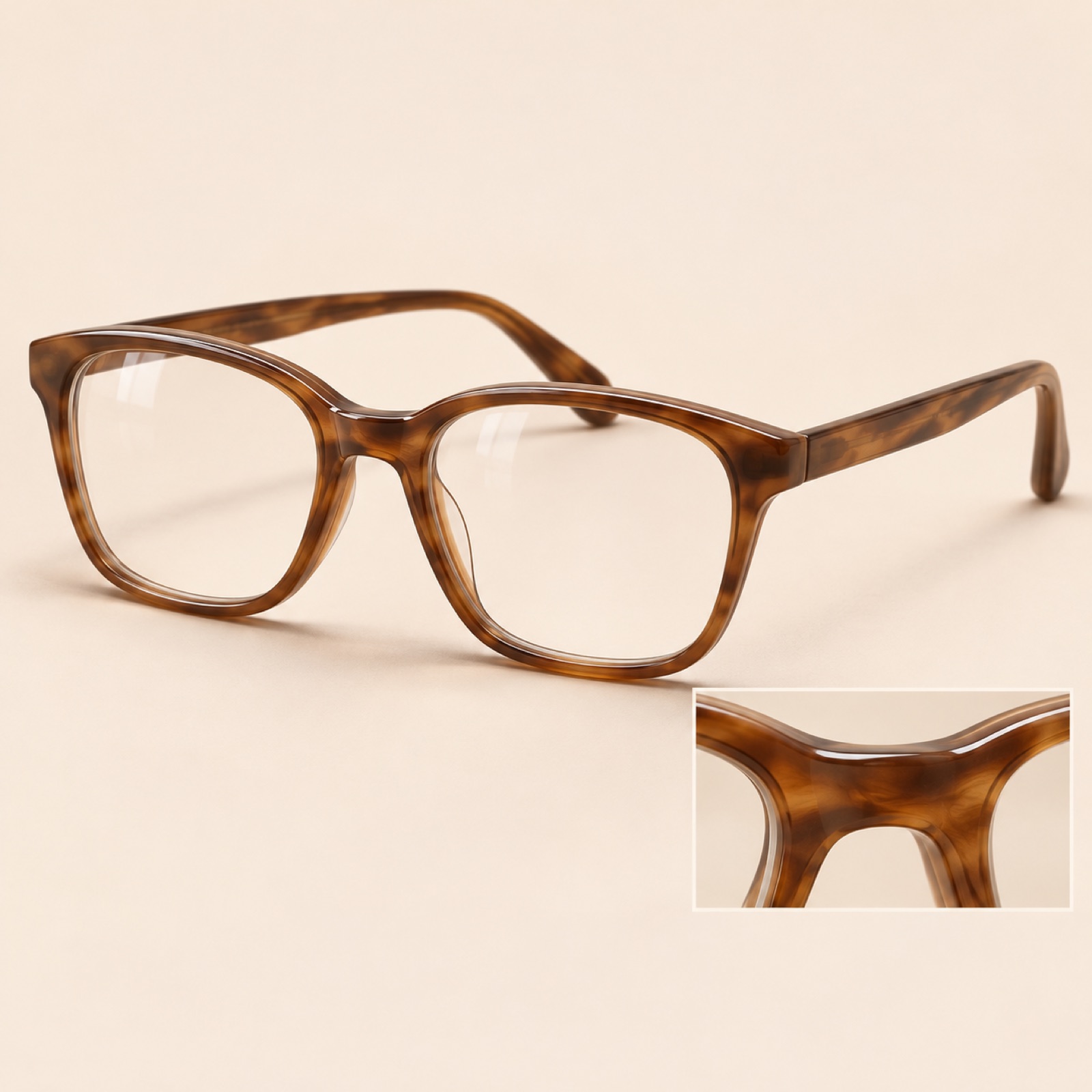
This is a hypothetical example. Place a large, angled product photo of brown prescription glasses in the center of a cream background. Add a smaller close-up of the same pair’s bridge at the bottom right. Use “A closer look at your next pair.” as the headline and “Explore the frame” as the call to action below. The ad gallery includes creative highlighting Ray-Ban’s frame designs.2 Here, use only the approach of inviting viewers to examine the design as a reference.
This layout brings out curves and colors that are easy to miss in a small product photo. When adapting it to your own product, choose one feature that stands out most. In AdForge, select an image reference that gives the product plenty of space, then add your actual product photo and information about the design detail you want to highlight. If the output includes a close-up, compare it with the original to check the bridge shape and frame pattern. If enlarging the photo does not reveal a visible difference, the on-face layout below is a better fit.
2. Focus on How the Glasses Look When Worn
This is a hypothetical example. Place a large photo of someone wearing the glasses on the left, using an image you have permission to use, and a front-facing product photo of the same frame model on the right. Choose a photo that shows the full face and both sides of the glasses. Use copy such as “See the shape. Picture your look.” to encourage viewers to examine the appearance, and put the actual frame model name below. This layout connects the size seen on a face with the shape of the glasses on their own in a single image. The colors in the on-face and product photos need to match to make comparison easy.
This example answers the question, “How will the shape I saw in the product-only photo look on a face?” Instead of claiming that the glasses suit every face, show what the photo allows viewers to assess. In AdForge, choose a reference combining a large photo with a smaller product photo, then remake it using your on-face photo and a product photo of the same frame model. Check that the frame being worn has not changed to a different model in the result. The English copy will also feel more natural when it focuses on observing the design rather than judging appearance.
3. A Choice Between Two Designs
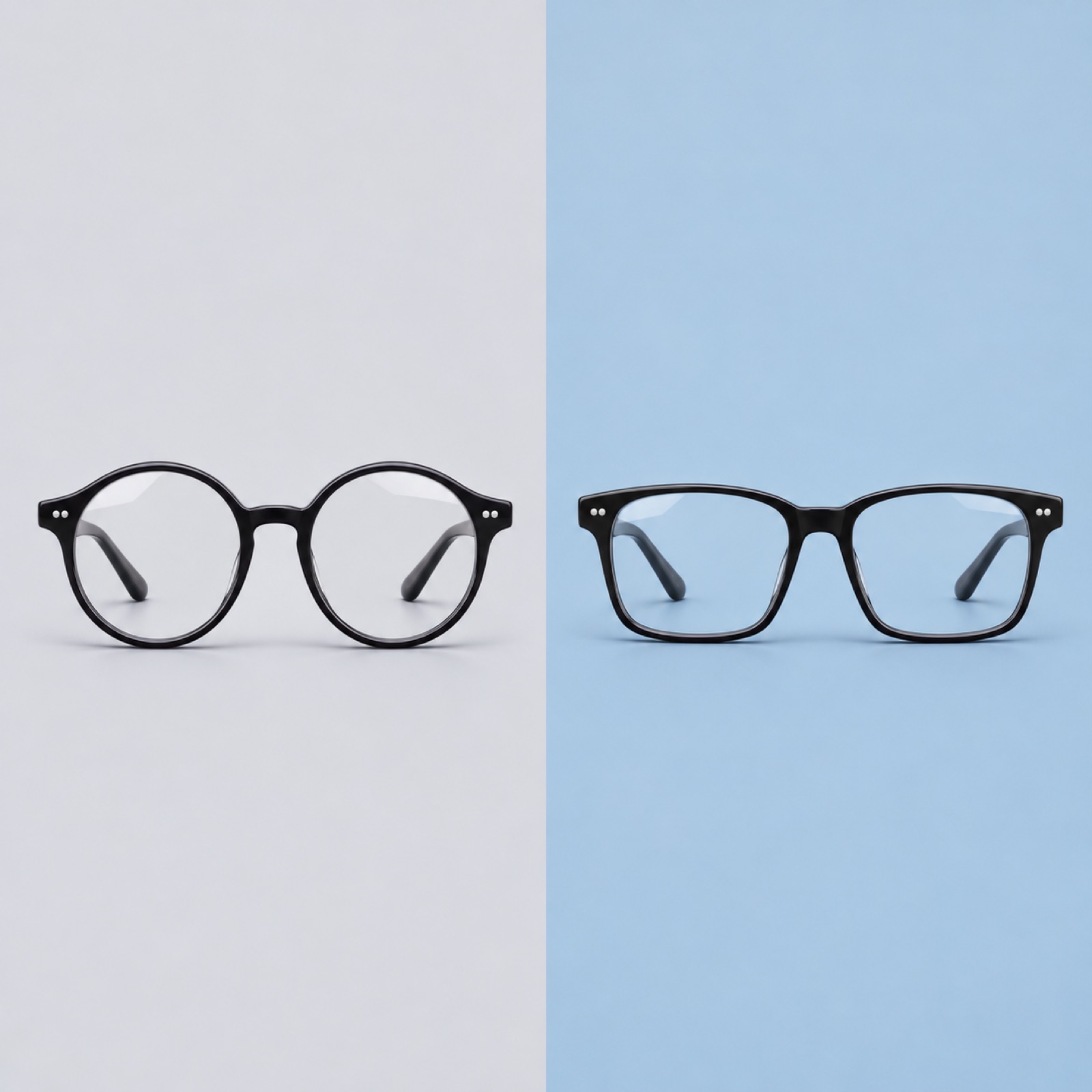
This is a hypothetical example. Split the background evenly between light gray and pale blue. Place a round frame on the left and a rectangular frame on the right, using front-facing photos at the same size. Add “Round” and “Rectangle” beneath the respective photos and “Which shape is yours?” at the top. Use a single call to action at the bottom: “Compare the shapes”. Both product photos should be taken from the same angle and under similar lighting so that the difference in frame shape remains the focus.
This layout gives shoppers one basis for choosing instead of simply displaying more products. When applying it to your own products, compare either shape or color. Changing shape, price, and material at the same time makes it harder to tell what the ad is asking people to choose. In AdForge, select a reference with a side-by-side comparison layout, then add the two product photos and their exact model names. Review the finished draft for the relative size of the glasses, the left and right labels, and whether the products match the ones you actually sell. Make sure shoppers can also easily find those same two designs on the product page after seeing the ad’s question.
4. A Collection at a Glance
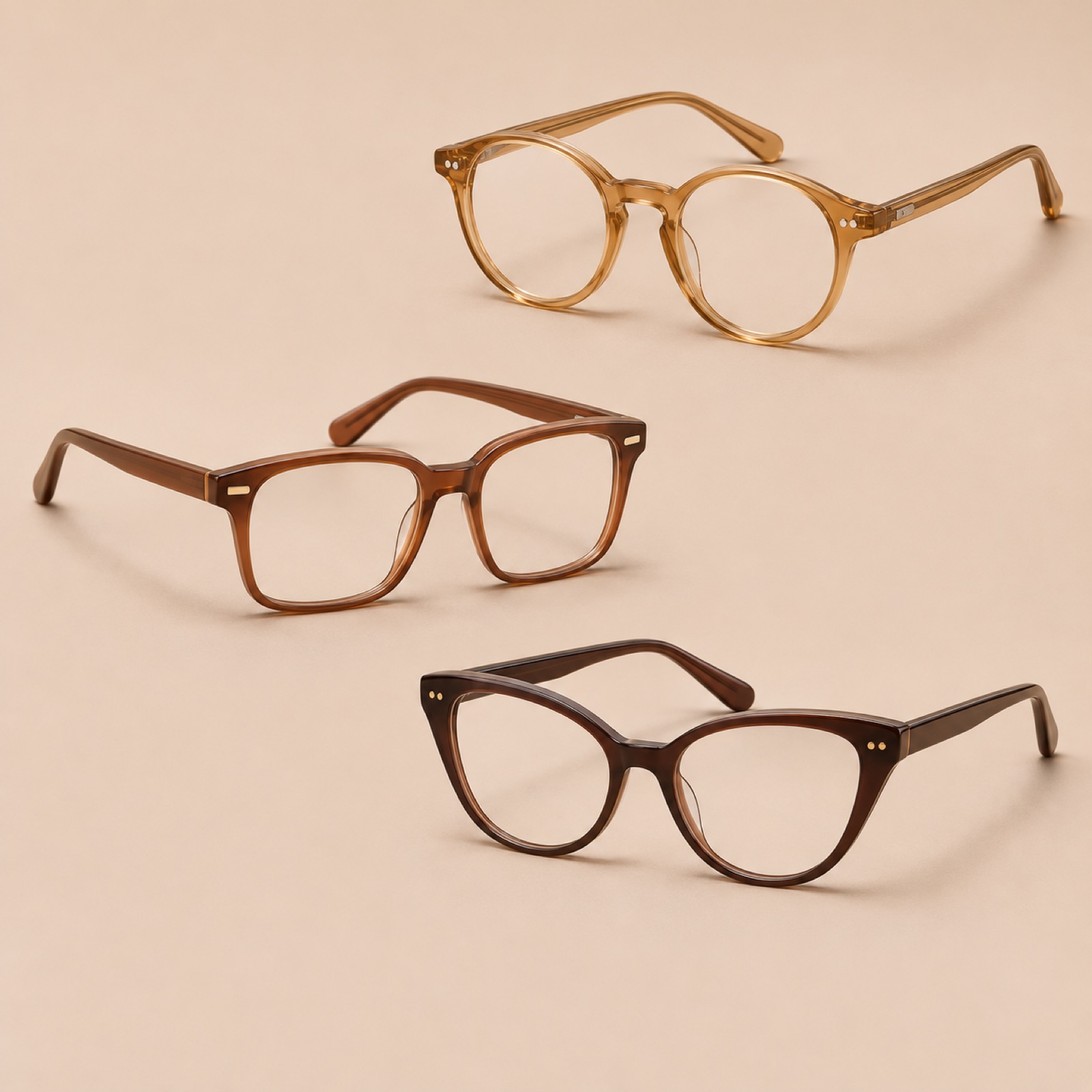
This is a hypothetical example. Arrange three different brown-toned frames at staggered heights on a beige background, and place “Find your everyday frame.” at the top left. Label each product with its name and put “Shop the collection” at the bottom. The gallery features ads introducing Warby Parker’s retro-style frames and winter collection.2 For this example, take inspiration from how the collection is grouped, while building your layout around colors or design elements that your own products actually share.
The steps for creating this in AdForge are as follows. Search the ad library for eyewear-related Meta ads and save an image in which multiple products and the copy occupy separate areas. Review the saved ad’s layout and color analysis, then select that reference in image ad creation. Add your own product photos, product information, and English message to create three drafts. Check each product’s name and color, along with the legibility of the copy, then download your chosen creative. Uploading the ad to Facebook, running it, and checking performance are handled in your existing ad management tools.
5. Highlight One Verifiable Feature
This is a hypothetical example. Place a large side-view photo of the glasses on the right of a white background, with “Adjustable nose pads” on the left. Add a close-up showing the nose pads below, and use “View frame details” as the call to action. This layout assumes the product actually has adjustable nose pads. By connecting a feature confirmed in the product description with a photo on the same screen, it lets readers see what the copy means.
When adapting this to your own product, choose a feature listed in the product specifications that you can also show in a photo. There is no need to expand the copy into unsupported claims about comfort or the effects of wearing the glasses. In AdForge, select an image reference with separate areas for the product and a short description, then enter the actual feature and a photo that shows it. During review, check whether the highlighted copy exaggerates the information you uploaded. You can then run the detail and feature layouts separately while keeping the same product and call to action, helping you decide which purchase question to address first.
Key takeaways
Eyewear ad layouts become clearer when you decide which purchase question each photo should answer. Choose one approach that suits your available materials: details, on-face views, design choices, a collection, or a verifiable feature. Create three image ad drafts in AdForge using a reference and actual product photos, then broaden what your creatives communicate by addressing a different purchase question in the next ad.
FAQ
Can I create eyewear ads without photos of someone wearing the glasses?
Yes. Front-facing product photos work for design-choice or collection layouts, while angled and side-view photos work for detail layouts. For an on-face layout showing the size of the glasses on a face, first obtain an actual photo of someone wearing them that you have permission to use.
Which of the five should I create first?
Choose the difference you can show most clearly with the photos you have. A detail layout works well if the frame’s curves are clearly visible, while a choice layout suits photos of multiple models taken under the same conditions. Start by finishing one creative that answers a single purchase question.
Can the English copy say that prescription lenses are included?
Check whether they are included under your actual sales terms before saying so. Distinguish between terms that apply to frames only and those that vary with the lens selection. The English copy in this article is hypothetical, so adapt it to your own product descriptions and purchase process.
Are drafts created in AdForge automatically run on Facebook?
No. After reviewing and downloading the result, you upload it to your ad account yourself. Campaign setup, ad delivery, and performance checks are also handled in your existing ad management tools. Users must check their rights to use uploaded materials and verify how the finished creative depicts the product.
Related reading
Make your next ad with AdForge
AdForge (ad-forge.io) is an ad remake app: pick an ad you like and rebuild it as a video or image ad for your own product. Find references in the Meta and TikTok ad libraries, let AdForge write the script, AI narration and captions, then review and download. Every account starts with 12 free image ads.