How to Create Car Dealership Video Ads: Turn Vehicle Photos into English Ads That Invite Visits
Follow these steps to create English ads using your existing vehicle exterior and interior photos and short videos. Connect the vehicle introduction, feature descriptions, dealership location, and invitation to visit in a single video.
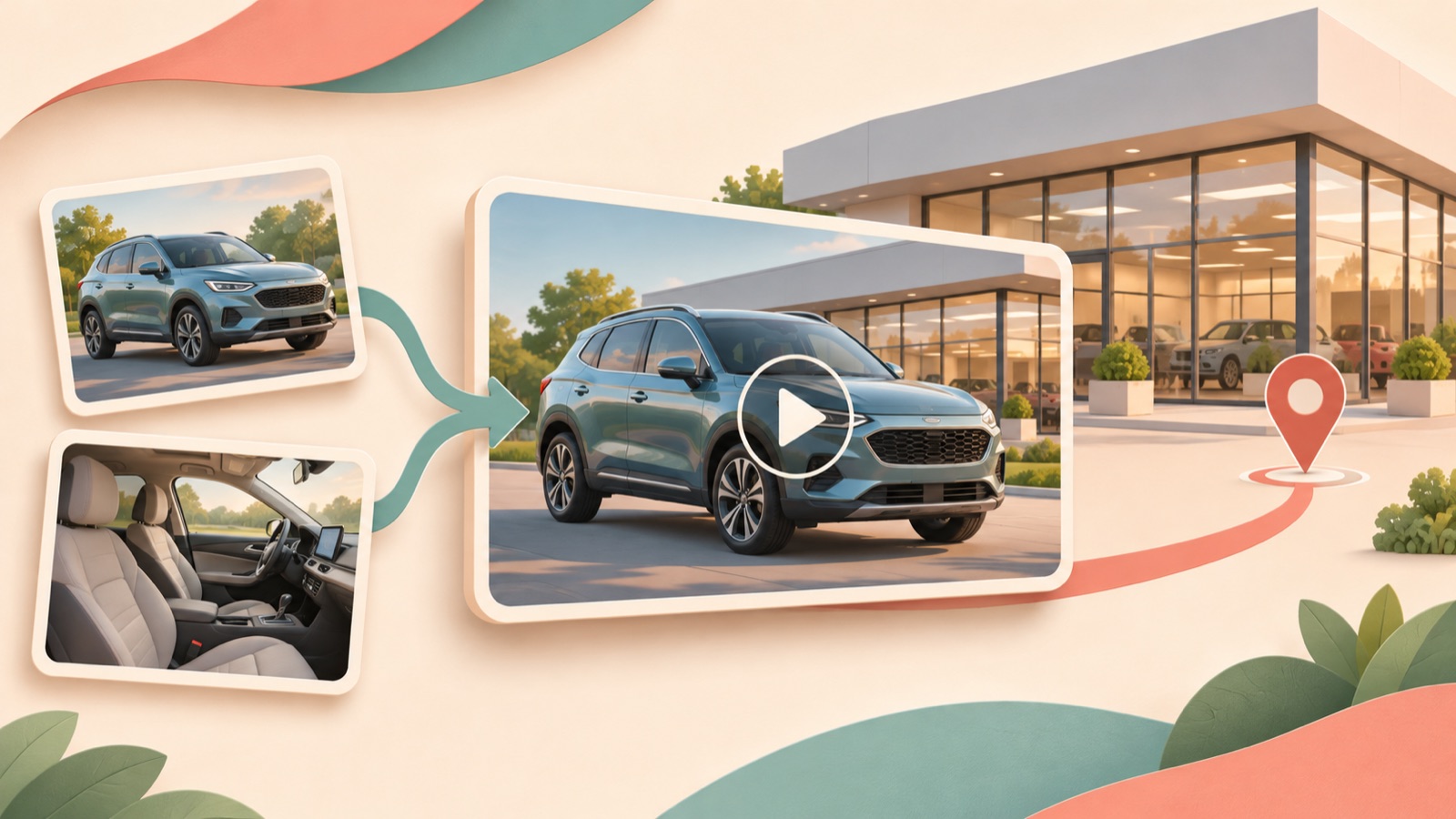
Start creating your car dealership video ad by connecting an overall view of the vehicle, its interior and features, and the dealership location and invitation to visit, in that order. You can begin production by adding verified vehicle information and English messaging to exterior and interior photos and short videos. Organize your materials in the order below and remake a reference ad in AdForge to prepare an English video ad you can review and download without a separate shoot.
Choose one vehicle to advertise and the features to show
First, choose the vehicle to feature in one video and gather materials for that vehicle only. Sort them into photos showing the full exterior, photos of the front and rear seats, and photos or short videos showing the features you want to highlight. Check the year, model, trim, and color against the vehicle information, and confirm that every photo shows the same vehicle in your inventory. Mixing in interior photos of another vehicle that looks similar can give viewers the wrong impression even when the ad copy is accurate.
Assign one piece of information to each photo to make scripting easier. Use exterior shots to show the vehicle type and color, interior shots to show the seating layout, and cargo-area photos to show the actual space. If you want to include the price or mileage, prepare those figures separately using values verified at the time of production. Choose features you can explain on screen first, rather than filling the script with options missing from your materials or spaces you have not photographed.
- Exterior materials: Photos that clearly show the vehicle’s overall shape and color
- Interior materials: The seats, dashboard, or cargo area you want to highlight
- Vehicle information: Verified year, model, trim, and figures to include in the ad
- Visit information: Dealership name, city, address, and the action you want viewers to take to visit
Use reference ads to choose the order in which you show the vehicle
A small agency asked what to create after researching competitors’ ads and still being unable to decide. Gathering references and choosing a structure that fits your vehicle are separate tasks.3 When reviewing references, note what appears first, when the full vehicle is shown, and what invitation to visit follows the feature descriptions. Choose an ad whose sequence you can fill with the photos you already have.
In AdForge, you can search active ads from the Meta and TikTok ad libraries and see how many days they have been running. Saved video ads are analyzed for their hooks, pacing, cuts, captions, voices, and music. Use days running as information to guide your search, and avoid treating it as proof of performance. Refer to the selected ad’s opening scene and progression, then rebuild the vehicle details, terms, and copy using your own inventory materials and verified information.
Connect the exterior, interior, and invitation to visit in your English script
As a hypothetical example, let’s build an ad for a used SUV with actual materials showing its rear seats and cargo area. Pair a full exterior photo with “Looking for your next SUV?” in the first scene. Follow it with an interior photo and “Take a look inside.” Then add “See the cargo space.” to the cargo-area video. Have the copy describe what viewers can see on screen rather than make abstract statements about quality. TikTok’s official automotive advertising guide also outlines a creative approach using everyday context, clear explanations, and narration.1
In the final scene, show the fictional dealership name “Maple Lane Motors” along with the city and address to be replaced with the actual details, and close with “Contact us to arrange a visit.” When applying this example, replace the SUV vehicle type, the interior features shown, the dealership information, and the way visits are arranged. Let the narration explain what each scene means and the captions present key information for viewers to read. If the address is long, give viewers enough time to read it on the final screen rather than including the entire address in the voiceover.
Add your vehicle materials in AdForge and create an English video
AdForge is a remake app that creates new ads by adding your product materials and messaging to a reference ad. First, prepare the information for the vehicle you want to advertise at the product information entry stage. Pasting a product page address automatically fills in product information, so if you use that vehicle’s page, check the populated details against your inventory information. Next, select a reference, upload exterior and interior photos and short videos of that vehicle, and enter the features to highlight and the message inviting viewers to visit the dealership.
During video creation, select English as the language and review the AI-generated script and storyboard. Check that the exterior comes first, followed by the interior and then the invitation to visit, and make edits yourself. In the result, which includes AI narration, word-aligned captions, and background music, check the pronunciation and caption spelling of the model name and whether the vehicle matches the copy. If a particular scene has a problem, you can regenerate just that scene. Compare regenerated scenes with the actual vehicle materials as well before deciding whether the final video is ready.
- Vehicle information entry: Compare automatically populated information with your actual inventory.
- Reference selection and material entry: Add photos and videos of the same vehicle along with English messaging.
- Script and storyboard review: Adjust the sequence of exterior shots, features, and the invitation to visit.
- Result review: Check the vehicle’s appearance, English voiceover and captions, and closing information.
Upload the finished creative and use the structure for your next vehicle
Review the finished video at phone-screen size to check whether the vehicle is recognizable, viewers have time to see the interior, and the closing information is readable. Editing feedback on an actual dealership video also raised issues with vehicle identification, scene duration, and contact information legibility.2 Use these as review criteria rather than interpreting them as performance metrics. Check whether the vehicle type and invitation to visit come across with the sound off, confirm that you have permission to use the uploaded photos and videos, and then download the video.
Upload the downloaded creative directly to the existing ad management tool you use to run Facebook and Instagram ads. AdForge does not automatically run ads through your ad account; campaign setup, ad delivery, and performance review take place in your existing tool. For your next creative, try changing only the opening scene for the same vehicle or replacing one highlighted feature. If you change the vehicle itself, replace the interior materials and vehicle information as well as the exterior shots. Keeping this structural framework lets you start by choosing the materials and messaging you need when introducing the next vehicle in your inventory.
Key takeaways
Gather exterior and interior materials for the same vehicle along with verified information, then build an English script that moves from the vehicle introduction to its features and an invitation to visit. Remake a reference in AdForge, compare the result with the actual vehicle, and download it to prepare creative you can upload to your existing ad management tool.
FAQ
Can I create an ad with vehicle photos alone, without driving footage?
You can create a video ad by adding vehicle photos and messaging to AdForge. Prepare photos showing the full exterior, interior, and features you want to highlight. You need to review the finished video yourself to confirm that the vehicle’s appearance and details match your actual inventory.
Do I need to write the English script or record the narration myself?
AdForge can create an English script and storyboard, AI narration, and captions. You can edit the generated script yourself, so check the model name, option descriptions, dealership location, and wording inviting viewers to visit.
Does the free offer for getting started with photos include video ads?
Every account starts with 12 free image ads made from your own product photos, with no credit card required. This allowance does not replenish. Video ad creation is available on paid plans.
What should I change when testing ads for the same vehicle?
Start by changing either the question in the opening scene or one highlighted feature. For example, you could prepare one creative that opens with the exterior and another that opens with the interior space. Record what you changed and check campaign results in your existing ad management tool.
Related reading
Make your next ad with AdForge
AdForge (ad-forge.io) is an ad remake app: pick an ad you like and rebuild it as a video or image ad for your own product. Find references in the Meta and TikTok ad libraries, let AdForge write the script, AI narration and captions, then review and download. Every account starts with 12 free image ads.