5 Nail Salon Campaign Banner Examples: How to Arrange Photos, Prices, and Booking Copy
Explore five banner examples using your existing nail service photos, from seasonal designs to new services and booking announcements. Learn how to plan Japanese copy and photo placement, then create drafts in AdForge.
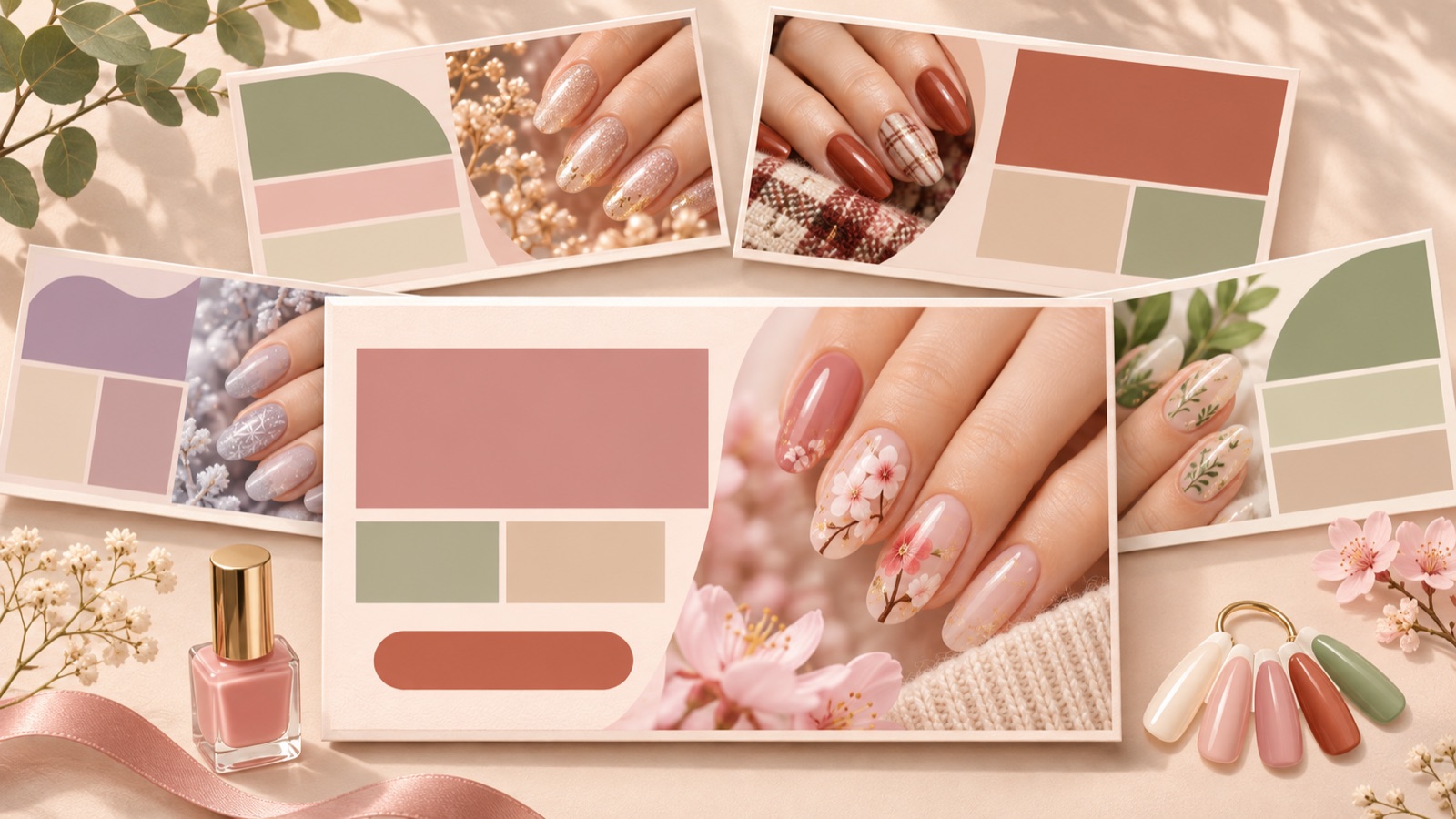
A nail salon campaign banner needs to show the design through photos, help customers choose with service names and prices, and guide their next step with booking copy. Lead with photos for seasonal designs, features for new services, and eligibility conditions for discount campaigns. All five nail salon campaign banner examples below are hypothetical. Compare the Japanese copy and layouts, then use them to create AdForge drafts with your existing nail service photos.
1. Seasonal Design Showcase
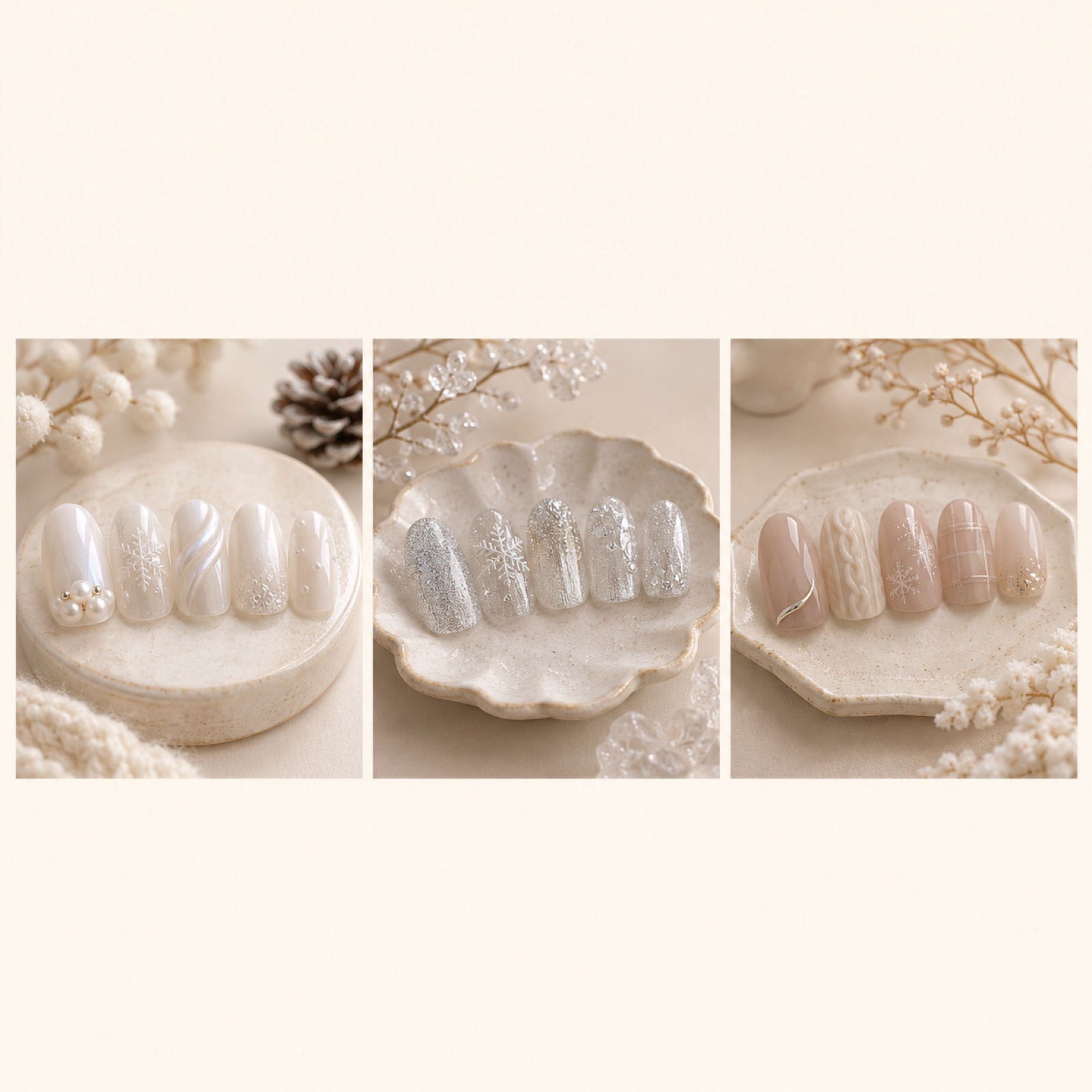
For this hypothetical example, we will introduce a winter nail collection. At the top of the banner, place 「冬のネイルコレクション」 on an ivory background. In the center, arrange three nail service photos side by side, featuring pearl, silver, and muted beige designs. Add the short line 「お気に入りのデザインでご予約ください」 at the bottom. Actual nail salon design commissions also include seasonal features and image creation for seasonal and trend-based content.12
This layout helps customers compare designs before they read the copy. Keep the nails at a similar scale in each photo, and place decorative elements in the margins outside the photos. To adapt it for your salon, replace the photos with designs you offer during the same season. If prices vary by service, avoid grouping them under a single headline price. In AdForge, you can choose a reference featuring multiple photos and create an image draft using your actual nail service photos and seasonal message.
2. New Service Launch
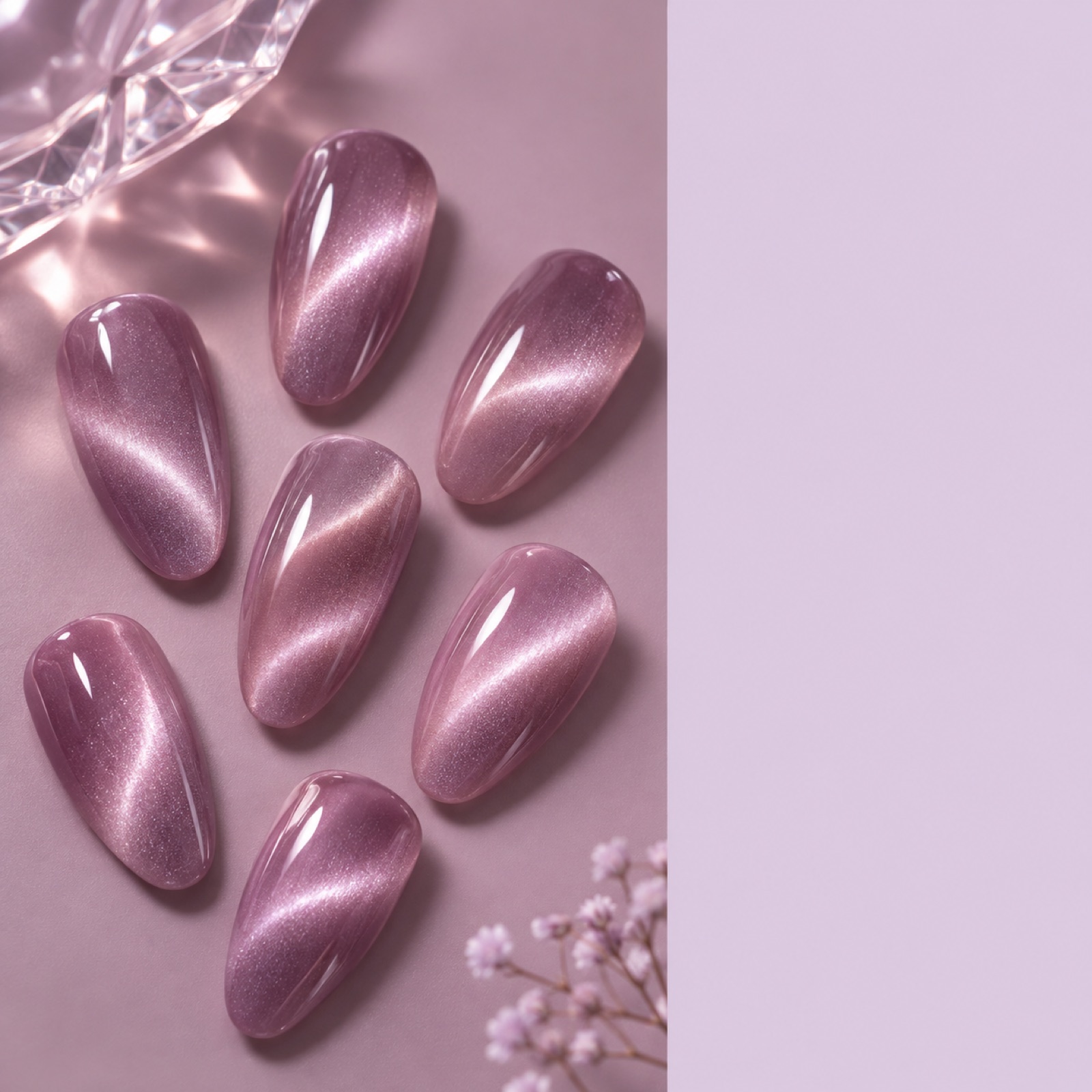
This hypothetical example features a new magnetic nail service. Place one large nail service photo on the left that clearly shows how the design reflects light. On the right, arrange 「新メニュー」, 「マグネットネイル」, and 「光で変わるきらめき」 from top to bottom. Make the service name larger than the description, and group the price and booking information at the bottom right. Overlaying large text on a photo meant to show shimmer can obscure the very feature that makes the new service distinctive.
The purpose of this layout is to show at a glance how the new service differs from existing options. When adapting it for your own service, first assess whether the photo visibly communicates the feature you want to highlight. If it does not, choosing another nail service photo is better than adding more copy. When adding your photo and selling points to AdForge, provide both the fact that it is a new service and its specific features. Check that the nail shapes and decorations in the result match the original.
3. Price Information
This hypothetical example presents a 「定額デザイン」 service. Place one representative nail service photo at the top, with the service name and 「税込6,800円」 below it. This is a hypothetical price used to explain the layout. Immediately below the price, add any additional cost conditions, such as 「オフ代別」, and place 「対象デザインは予約ページへ」 at the bottom. Keep the price and conditions in the same area so customers can check what the price covers as soon as they read it.
This layout suits customers comparing prices. However, you need to check whether every decoration shown in the photo is included in that price. When adapting it for your salon, first organize the information customers need to decide whether to book, including the actual total price, removal fees, and charges for additional decorations. When creating it in AdForge, enter the actual service name, price, and what is included, then compare three drafts. Choose the version that makes the relationship between the photographed design and the pricing conditions clearest, rather than the one with the largest numbers.
4. Limited-Time Offer
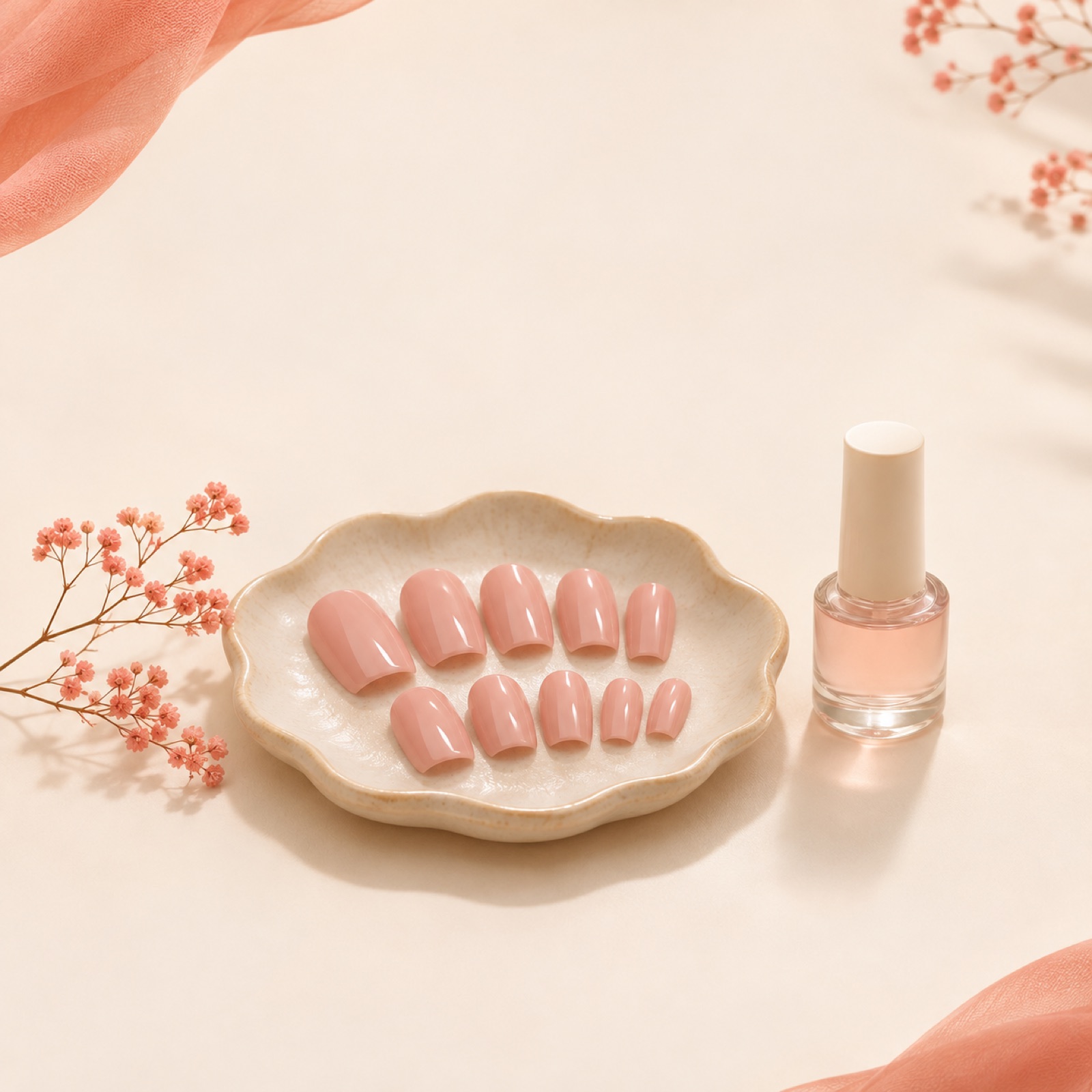
This hypothetical example is a campaign offering a nail care benefit to customers who visit on weekdays. Place 「平日限定」 at the top, a nail service photo and 「ネイルケア付き」 in the center, and 「対象:平日ご来店のお客様」 with the actual campaign dates at the bottom. Use 「対象日時を確認して予約」 as the booking copy. This layout gives the benefit prominence while keeping eligibility and dates readable on the same screen. It draws on the principle of pairing a clear message with a call to action.3
Use this layout when you want to communicate a reason to visit rather than a discount amount. When adapting it for your own campaign, update the applicable days, eligible services, and booking period along with the benefit name. Clearly state whether the end date applies to the appointment date or the date the booking is made. After remaking an offer-focused reference in AdForge, check that small text does not blend into the background, and compare the finished banner copy with the conditions on your booking page.
5. Booking Announcement
This hypothetical example announces that bookings for next month are open. Place 「来月のご予約受付中」 in large text at the top, with one photo of a signature salon design in the center. Add 「ご予約はプロフィールから」 at the bottom, and position the service name in smaller text beside the photo. This wording is intended for cases where customers can access booking through the profile. Since the purpose of this layout is to announce that bookings are open, check that the booking information is read first rather than adding multiple offers.
In AdForge, choose and save an image reference with a clearly defined booking information area from the ad library screen, then review the layout and color analysis. At the image ad creation stage, upload an actual nail service photo you have permission to use, and enter the service information and Japanese booking copy. Review photo reproduction, Japanese text, and the information area across the three drafts created from the reference layout, then download your chosen image. Upload the finished image directly to your existing social media and advertising tools, and continue handling bookings through your existing booking tool.
Key takeaways
Planning a nail salon banner becomes easier when you first decide what you want customers to choose or do after seeing the post. Focus on photos for design selection, include conditions for price comparisons, and prioritize booking copy for booking announcements. Prepare your existing photos and actual service information, then choose the layout that communicates your objective most clearly from AdForge’s three image drafts.
FAQ
Can I include the service name, price, and booking information on a single photo?
Yes. First, find space where the text will not cover the nails. Group the service name and price together, and separate the booking information at the bottom to establish a clear reading order. If there is not enough room for the conditions, try reducing the number of photos or decorative elements first.
In what order should I prepare the Japanese banner copy?
Prepare the campaign objective, service name, price and applicable conditions, and booking method, in that order. Decide whether to lead with 「新メニュー」 or 「ご予約受付中」 based on the purpose of the post. Check the Japanese text in the finished image for missing characters and line breaks.
What should I check when uploading nail service photos to AdForge?
Check that you have permission to use the photos in advertising. In the finished draft, review whether the nail shapes, colors, and placement of embellishments match the design you actually offer. If decorations absent from the photo have been added or the colors have changed, do not use it as is.
Does AdForge publish banners and accept bookings?
AdForge is used to create, review, and download advertising images. It does not yet have a feature that automatically runs ads through your advertising account. Use your existing management tools to publish, run ads, and check performance, and your salon’s existing booking tool to accept bookings.
Make your next ad with AdForge
AdForge (ad-forge.io) is an ad remake app: pick an ad you like and rebuild it as a video or image ad for your own product. Find references in the Meta and TikTok ad libraries, let AdForge write the script, AI narration and captions, then review and download. Every account starts with 12 free image ads.