How to Create HVAC Video Ads: Turn Job Photos into an English-Language Ad
You can build an HVAC service ad with real job photos and short on-site clips, without filming anyone new on camera. This guide walks through selecting assets, writing an English script, and creating and downloading the ad in AdForge.
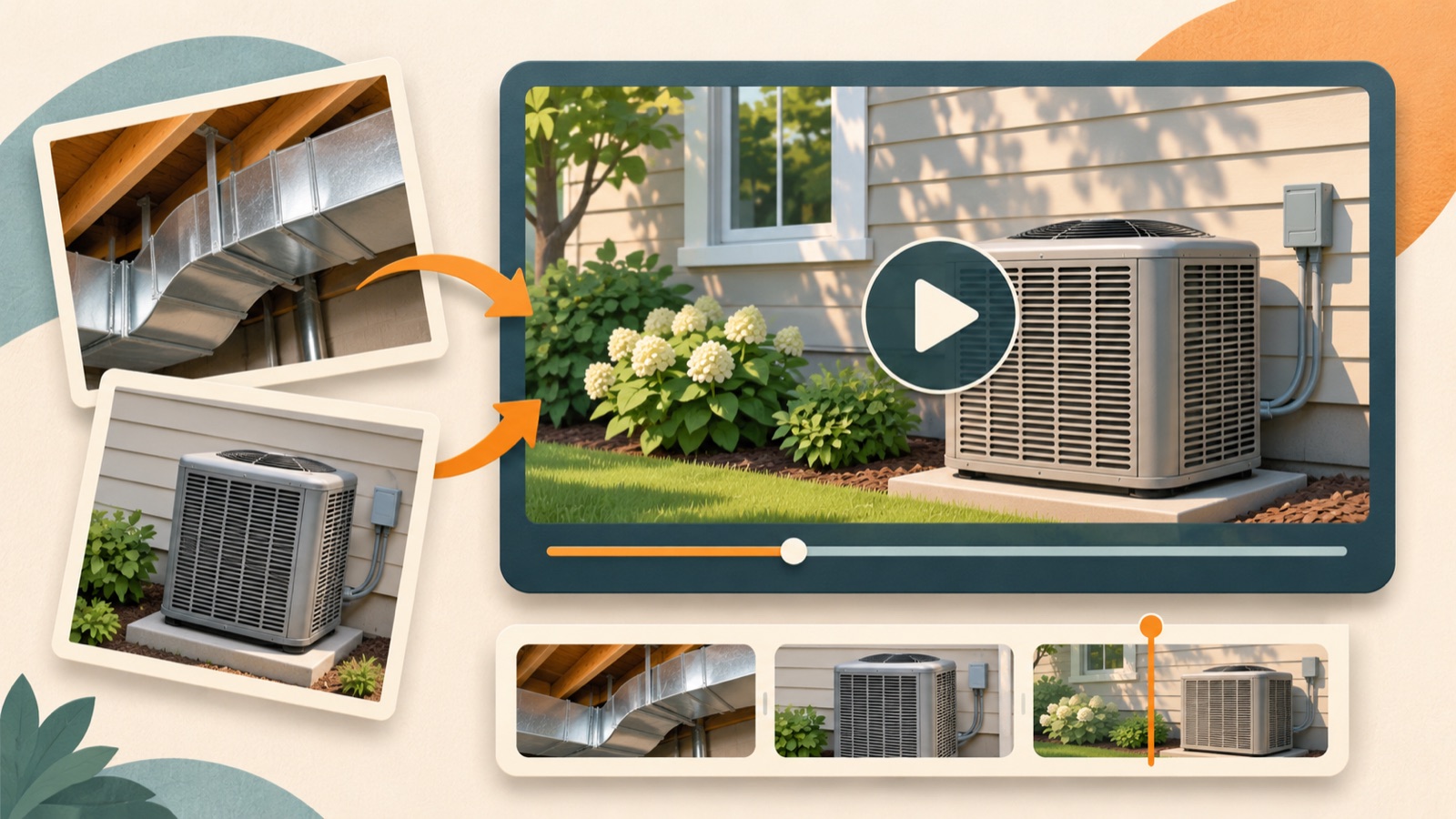
You can start creating an HVAC video ad without waiting for new on-camera footage. Choose one service—repair, installation, or routine maintenance—and arrange your existing real-world assets in this order: introduce the problem, show the work, explain the service, and explain how to book. Using an AC inspection as a hypothetical planning example, this guide explains how to organize your assets, create an ad with an English script, narration, and captions in AdForge, and download it.
Narrow down the service this ad will explain
First, confirm with the client, in one sentence, what kind of inquiries this ad should generate. Decide whether the goal is cooling repair inquiries, consultations for new equipment installation, or routine maintenance bookings. A referenced agency post describes a Texas HVAC client whose existing footage was used in an ad. The client then requested similar follow-up ads, but producing new on-camera footage was difficult. The starting point for this project is choosing a service you can explain within that constraint.2
The hypothetical brief in this guide is an ad encouraging local customers concerned about their AC’s cooling to book an AC inspection. First, write down the inspection scope the client actually offers, the service area, and the booking method. If your existing assets only show installation work, it is better to switch the topic to installation consultations. Make it a production rule to leave repair details and claims about customer satisfaction out of the script unless the job footage supports them.
Organize on-site assets by their role on screen
Instead of organizing files only by date, group them by their role: an overall view of the equipment, hands at work, the inspection process, or the finished job. The body and comments of a referenced post also describe a production constraint: real job photos and videos are available, but their quality and quantity are limited. This case is a reference for the practical challenge of building an ad with limited on-site assets, rather than a statistic representing every business.1
Next to each file, record the actual service type and the work visible on screen. For the hypothetical brief, you could use a photo of an outdoor unit for the opening, actual inspection footage to explain the work, and an equipment photo supplied by the business as the background for the booking instructions. Do not connect photos from different jobs as though they show the before and after of a single job. Confirm usage rights and resolve any questions about showing addresses, vehicle license plates, customer faces, or similar details before production.
- Keep only photos and videos directly related to the service.
- Record the actual work shown in each asset and how the asset may be used.
- Prepare pricing, service area, and booking details confirmed by the client.
Choose a structure from reference ads and add English copy
In AdForge’s Meta and TikTok ad libraries, search for reference ads using terms related to your service, such as HVAC, AC maintenance, and air conditioning service. You can check which ads are running and how long they have been running, then review analyses of saved videos covering their hooks, pacing, cuts, captions, voices, and music. Choose a structure you can reproduce with your own assets. Prioritize sequences that combine on-site scenes with short explanations over ads built around someone speaking at length on camera.
A hypothetical English script could introduce the problem with “Concerned about your AC’s cooling?” and pair actual inspection footage with “Schedule an AC inspection.” Then explain the confirmed service area and close with “Contact us to request an appointment.” This copy is a draft that requires the business’s confirmation before use. Do not include unverified promises such as immediate visits or same-day repairs, or borrow customer testimonials and offers from reference ads.
Add your assets in AdForge and complete each scene
Start creating your video ad in AdForge using your chosen reference. On the product and service information screen, enter the business name, the single service you want to advertise, the service area, verified selling points, and booking instructions. At the asset upload stage, add the real job photos and short video clips you selected earlier. You can also paste a product page address to populate the information automatically, but check that the imported content matches the service you are advertising. Video ad creation is available on paid plans.
Once the script and storyboard are generated, edit them yourself to follow the four stages defined earlier. Check that descriptions of the work match the uploaded footage and that booking instructions match the actual inquiry process. Create the script, narration, and captions in English, then review the result with AI narration, word-synced captions, and background music. If a particular scene misrepresents the actual work or conflicts with the explanation, you can regenerate and review just that scene.
- Choose a reference and add service information and real on-site assets.
- Edit the generated script and storyboard to reflect the facts.
- Check that the English narration, captions, and scenes align, then download the result.
Get approval for the finished ad and choose the question for the next creative
Send the client the video together with the copy they need to check. Comparing the service name, area names, inspection scope, and booking instructions against the script helps pinpoint revisions. Play the video with sound to check the pronunciation of the business and area names, then watch it muted to see whether the captions alone communicate the service and next action. If photos pass too quickly for viewers to understand the work, adjust the storyboard and download the version that receives final approval.
You can plan follow-up creative by keeping the same job assets and changing the opening question. As a hypothetical example, compare “Concerned about your AC’s cooling?” with “Looking to book an AC inspection?” while keeping the service explanation and booking instructions the same. A referenced post provides context about an author who had been creating static image ads from real job photos and was considering a move to video, but it does not establish that video solves performance problems.3 Upload the finished creative directly to the ad account, and use your existing ad management tools to run the ads and check performance.
Key takeaways
Choose one HVAC service and assign real job assets to the problem, work, service explanation, and booking instructions. Edit the English script and storyboard in AdForge, review the narration and captions, then download the approved video and upload it to your ad account.
FAQ
Can I start with job photos if I have no on-site footage?
You can start production with real job photos. However, do not describe work that is not visible in the photos as though it was actually filmed. Build the script around equipment views and verified service information, then review the generated result.
Does a technician or the business owner need to speak on camera?
This approach communicates the service through real on-site assets and English narration instead of an on-camera explanation. AdForge can generate AI scripts, storyboards, narration, and captions, so new on-camera filming is not a prerequisite.
Can I use assets from multiple jobs in one ad?
Use assets with confirmed usage rights and verified work details to introduce the service. The production rule in this guide is to avoid connecting different jobs in a way that could make viewers mistake them for one customer’s work process or before-and-after results.
Can I run the finished ad directly from AdForge?
Automatic ad deployment to ad accounts is not yet available. Review and download the result, then upload it directly to your ad account. Use your existing ad management tools for campaign setup, ad delivery, and performance tracking.
Related reading
Make your next ad with AdForge
AdForge (ad-forge.io) is an ad remake app: pick an ad you like and rebuild it as a video or image ad for your own product. Find references in the Meta and TikTok ad libraries, let AdForge write the script, AI narration and captions, then review and download. Every account starts with 12 free image ads.