Best Performance Max Video Ad Creation Tools: 3 Tools and 5 Production Options Compared
Compare ways to create Japanese-language Performance Max videos when you only have product photos. Choose the right workflow based on script and voiceover needs, how much editing you want to handle yourself, and editing restrictions after saving.
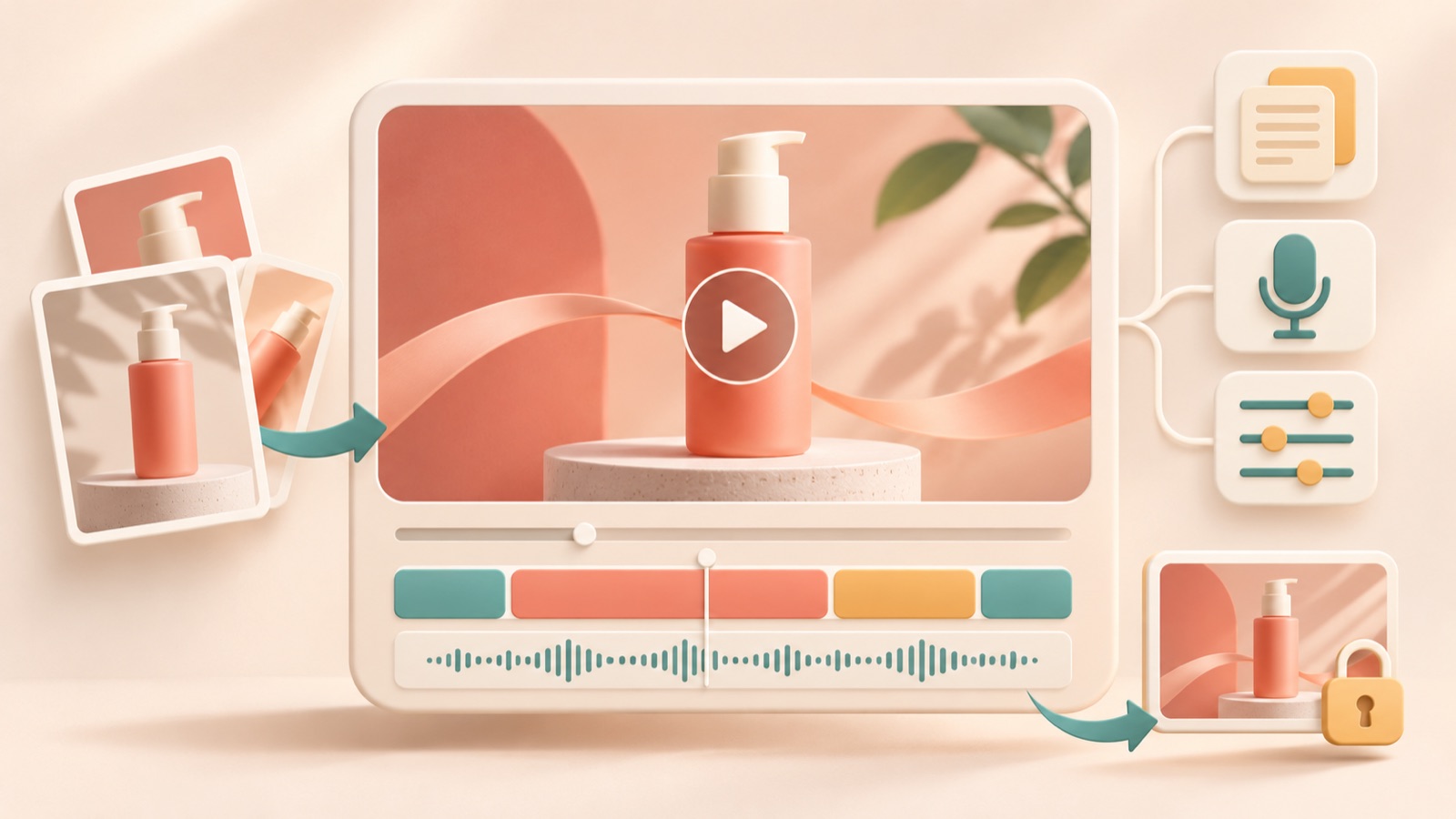
If you’re looking for a Performance Max video ad creation tool, choose based on whether you’re starting with product photos, need a Japanese script and voiceover, and who will handle revisions. Use AdForge to prepare scripts, narration, and subtitles; Google Ads templates to place finalized photos and copy into a layout; or Adobe Express to edit the video yourself. The list below compares three standalone tools and two supporting production workflows from Google. It is a set of options for the work involved in preparing one Japanese-language video, rather than a ranking that counts five separate tools.
1. AdForge — Use Reference Ads to Prepare Japanese Scripts, Voiceovers, and Subtitles
AdForge is our service, and we run this blog. It is an ad remake app that uses the hook, narrative structure, visual layout, and call to action of a reference ad as a framework to create a new ad with your product photos and information. It suits marketers who have photos and descriptions but find it difficult to write scripts, shoot footage, or edit videos themselves. You can generate Japanese scripts, narration, and subtitles, then revise the script and storyboard. You can also regenerate individual scenes. Video production is paid, and users are responsible for reviewing the output.
In the ad discovery screen, search for Meta and TikTok ads and save formats you can also communicate with your own photos. Review the hook, shot, and subtitle analysis of saved ads to choose a reference. At the product information step, add product photos, an accurate description, and the selling points you want to communicate. If you populate the information using a product page URL, check it against the actual offer. Select Japanese as the language, then start by revising the product name and scene order in the script and storyboard.
As a hypothetical example, if you sell a foldable storage box, prepare photos of it unfolded and folded, along with its dimensions. Only describe a storage benefit such as ‘使わないときは折りたたんで収納’ if the product actually folds. Check the generated output for product appearance, Japanese pronunciation, and alignment between subtitles and speech. Regenerate any scenes that need work, then download the video. You must also check that you have the rights to use the uploaded materials. Separately check the finished file against Performance Max aspect ratio and duration requirements.1
2. Google Ads Templates — Place Finalized Photos and Japanese Copy into a Layout
With Google Ads templates, you choose a layout in the Asset Library and add images, a logo, copy, and music to create a video. This suits marketers who have already finalized their Japanese copy and photo sequence. The advantage is that you can use the provided layout to see which materials you need to fill in. The limitation is editing after saving. Once you save a generated video, you cannot edit it; you must create a new video to make changes. Teams whose copy changes frequently before approval should consider this restriction first.2
Under Tools, open the Asset Library in Asset Studio, then select Create video from the add button. Add your materials to the template, review the storyboard and finished preview, and make revisions before saving.2 For the hypothetical storage box ad, pair the full product photo with its intended use, the folded photo with how it is stored, and the final photo with copy prompting viewers to check the dimensions. Before saving, check that the Japanese text stays within the photo area and does not obscure the product.
3. Adobe Express — Edit Your Planned Scenes and Copy Yourself
Adobe Express is an option for teams that want to create and edit video ads themselves. Adobe’s official guidance covers turning a sequence of still images into a video and editing ads with Express.3 It suits teams with someone who can decide what description to pair with each photo and make editing decisions while reviewing the finished video. Its advantage is that you can work from your own creative plan. However, you need to manually prepare the scene order and Japanese copy before adding the photos.
For the hypothetical storage box ad, you could show the unfolded box to demonstrate its use, explain the storage benefit with the folded box, and finish by prompting viewers to check the dimensions. Review the Japanese script first, and check that each photo substantiates its accompanying sentence. We recommend this workflow when producing a video centered on on-screen copy. If you also need Japanese audio, you must decide how to prepare the voiceover. Teams that are stuck at the scripting stage can review a Japanese draft from AdForge, then decide whether they need to edit the video themselves.
4. Add a Voiceover in Google Ads — Add Explanations to an Existing Video
Google Ads also offers a separate workflow for adding a voiceover to an existing video. Select Add voiceover in the Asset Library, set the language, voice, volume, and message, then preview the result.2 This suits marketers who have finished turning their photos into a video and only want to add spoken explanations. The advantage is that video production and voiceover work can be handled separately. For a Japanese-language ad, however, check before starting that you can select Japanese and the voice you want in the language menu. If you cannot, choose another production workflow.
Approach this as a way to turn prepared sentences into speech. In the hypothetical storage box ad, position the message so that the storage explanation plays when the folded photo appears. If a sentence finishes after its scene in the preview, adjust it by shortening the script, for example. The presence of a language selection feature does not mean that Japanese scripts and subtitles will also be prepared in the same workflow. If you want to create all three together, the AdForge workflow more directly fits that task.
5. Performance Max Automatic Video Creation — Use Existing Assets Instead of Producing a Video Yourself
Performance Max automatic video creation is a platform production method, rather than a separate editing tool. When an asset group has no eligible video, a video may be generated automatically from existing images and text. When generation occurs depends on eligibility conditions, and uploading your own video disables automatically generated video ads.4 This suits marketers considering an automated workflow that uses existing materials. However, if you need a video with Japanese scenes and copy finalized in advance, producing it yourself is better suited to that goal.
When producing a video yourself, first decide which video you will upload. The official Performance Max guidance lists landscape 16:9, square 1:1, and portrait 9:16 aspect ratios, with a minimum duration of 10 seconds for each. For Shorts, it specifies portrait videos lasting 10–60 seconds. Add the prepared video to your Performance Max asset group.1 Users must also check AdForge output against these requirements and upload it themselves. For this project, start by completing one Japanese-language video that gives viewers a clear reason to buy using the photos you have, rather than creating every format at once.
Key takeaways
Choose AdForge if you need Japanese scripts, voiceovers, and subtitles; Google Ads templates if you want to place finalized materials into a layout; or Adobe Express if you have someone to edit the video directly. Identify one reason to buy that your existing photos can demonstrate, and finish your first Japanese-language video.
FAQ
What should I choose if I only have product photos and no Japanese script?
Prepare a reference ad and product description, then use AdForge to create a Japanese script, storyboard, narration, and subtitles. Define your selling points before generation, and afterward check the pronunciation of the product name and the accuracy of the product information.
Can I edit a video made with Google Ads templates later?
You can make revisions during the preview stage before saving, but you cannot edit a saved generated video. Any later changes require a new video, so finalize the Japanese copy and terms of sale before saving.2
Are Performance Max automatic video creation and video enhancement the same feature?
No. Automatic video creation uses images and text from asset groups that have no eligible video. Video enhancement creates versions with different aspect ratios or shorter durations from an existing video. The disabling of automatic video creation when you upload your own video is separate from video enhancement settings.4
Does finishing a video in AdForge mean my Performance Max ad is ready to run?
No. You must download the finished video, check Performance Max aspect ratio and duration requirements, and upload it yourself.1 AdForge does not automatically run ads through your ad account. Campaign setup, delivery, and performance monitoring take place in your existing ad management tools.
Make your next ad with AdForge
AdForge (ad-forge.io) is an ad remake app: pick an ad you like and rebuild it as a video or image ad for your own product. Find references in the Meta and TikTok ad libraries, let AdForge write the script, AI narration and captions, then review and download. Every account starts with 12 free image ads.