How to Create Framed Facebook Stories Ads: Backgrounds, Product Videos, and English Copy
Stories ads with a product video set inside a background are easier to create when you define each element’s role first. This guide walks through reference analysis, English copy preparation, production in AdForge, and reviewing the results.
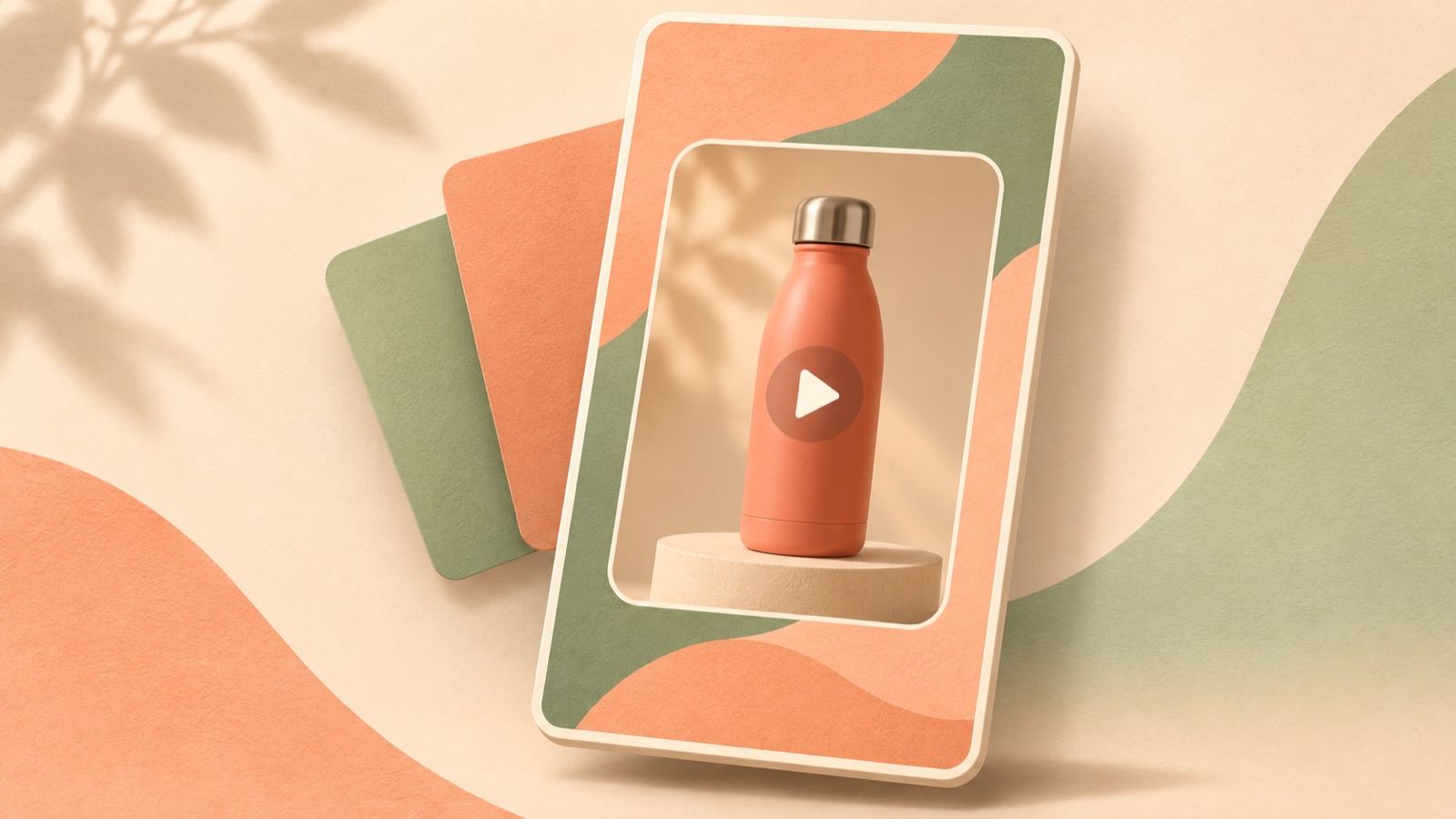
To create a framed Facebook Stories ad, start by breaking down your reference ad into its background, product video, top message, and purchase prompt. Prepare one action to show in your product video and a short piece of English copy, then use your reference and product assets to create a new ad in AdForge and review the result. The goal here is to adapt the reference ad’s overall composition to your product, rather than replicate specific corners or coordinates exactly. Following the steps below will help you define both a draft you can create with your existing assets and the criteria for reviewing it.
Break the reference ad into four roles
The layout you’re looking for places a product video over a static background, with short copy and a purchase prompt above it. A user who had seen a video inside a rounded rectangle with copy at the top did ask about a template with that layout. However, that question does not establish that a particular template exists or is currently available. Treat it only as a reference describing the visual features you want to recreate.1
As you review the reference, assign each element a role: the background sets the mood, the inset video shows the product in motion, the top copy gives a reason to buy, and the purchase prompt tells viewers what to do next. For example, if the video already demonstrates how to use the product, there is no need to repeat lengthy instructions at the top. AdForge analyzes saved ads for their hooks, pacing, cuts, captions, and more. Use that analysis to examine the video’s flow, and separately note the role of each visual element yourself.
- Background: colors and spacing that keep the product and copy distinct
- Product video: one action customers should see
- Top copy: one benefit conveyed by that action
- Purchase prompt: one action to take after watching
Choose product assets that remain clear inside a frame
Placing a product video inside a background reduces the space available to show the product. Prioritize footage that shows hand movements or key components up close over footage where the product already appears small in the original shot. Check which part you actually want to show, rather than simply whether the product is centered. If the scene shows a lid opening, suitable footage should show both the lid and the hand and make the beginning and end of the movement clear.
For a hypothetical example, suppose you sell a foldable phone stand. Choose a scene showing the stand being unfolded and a phone placed on it, rather than footage of the entire desk. Also prepare product photos as references for its shape and color. Shopify’s production guide also discusses the opening screen, short messages, and combining images with video. Use it only for composition ideas here, not as evidence of current Facebook specifications.2
- Actual product photos that show its shape and color
- Existing footage that clearly shows the key action
- Product information and the selling point to emphasize in this ad
- Assets you have personally confirmed you have permission to upload and use
Write the top English copy and purchase prompt separately
Use the top English copy to communicate one benefit viewers can see in the video. In the hypothetical phone stand example above, you could pair the unfolding footage with “Unfold. Set. Watch.” Make the purchase prompt specific about the next action, such as “Shop the stand.” Instead of aiming for a particular character count, check whether viewers can read the copy in one pass while watching the product action. Do not add unverified discounts or shipping benefits just to fill empty space.
Google’s video ad production guidance also recommends keeping the message simple and reinforcing it through on-screen text, audio, and a call to action. However, these guidelines are for YouTube and should not be interpreted as Facebook features or specifications.3 Apply that principle to this draft by making sure the top copy and narration do not list unrelated benefits. When creating an English script, narration, and captions in AdForge, review them around the same reason to buy.
Remake the ad in AdForge using your reference and product assets
Search for Meta ads in AdForge’s ad library, then select and save a reference with the composition you want. Review the saved ad’s analysis to check its opening scene, cuts, captions, and pacing. You can also see how long each ad has been running, but do not assume an ad performs well based on duration alone. At the product information step, populate the details using the product page address and check them, or enter the product information and selling points you prepared.
At the video ad creation step, select your reference, add your product photos and videos, and enter your prepared English message. In your creative direction, explain the roles of the product video inside the background, the short copy above it, and the purchase prompt. Check the sequence of product actions and copy in the AI-generated script and storyboard, and revise them if needed. These steps communicate the intended composition; they do not mean you can precisely specify a frame’s position or rounded corners.
- Find and save an ad with your desired composition in the library.
- Review the saved ad’s analysis for its hook, cuts, captions, and progression.
- Enter product information and selling points, and upload actual photos and videos.
- Provide your English message and creative direction, then review the script and storyboard.
- Check the generated result and regenerate the relevant scene if needed.
Check the message sequence in the finished ad and plan the next creative
Review the result with the sound off first. Check whether the visuals alone clearly connect what the product is, what it does, and why viewers should care. Then turn the sound on and check whether the English narration and captions match the product video. Flag anything that needs revision, such as a background that draws more attention than the product or copy that covers it. AdForge lets you regenerate an individual scene, so it helps to review and identify problem scenes separately.
Download the reviewed creative and upload it directly to your ad account. Use your existing ad management tools to set up the campaign, run it, and check performance. You can plan the next creative by keeping the same framed layout and changing the reason to buy. In the hypothetical phone stand example, the first ad could focus on how easily it unfolds, and the next on folding it away for storage. This lets you use the same product assets to prepare ads that answer different questions.
Key takeaways
Defining the roles of the background, product video, top message, and purchase prompt gives framed Stories ads a clear creative direction. Prepare assets that clearly show the key action and short English copy, remake the ad in AdForge using a reference, then review the script, storyboard, and finished visuals. You can develop further creatives by showing a different reason to buy within the same composition.
FAQ
Can I match the reference ad’s rounded corners and frame position exactly?
AdForge creates a new ad using the reference’s underlying structure, such as its visual composition and progression. It does not guarantee precise control over specific coordinates or corner shapes. Identify any elements that must match before production, and check them yourself in the generated result.
Do I need to prepare the English narration and captions separately?
You do not need to produce finished versions yourself. AdForge can create English scripts, narration, and captions. However, prepare the product name, selling points, and top message first, then review the generated English wording.
Can I try this video production process with the free image ads?
The 12 image ads available to get started for free are separate from video ads. Video ad creation is available on paid plans. Free image drafts alone cannot show you the video’s motion or narration.
Does adding a purchase prompt also configure Facebook’s purchase button?
Treat the purchase prompt visible in the video and the call-to-action settings in your ad account as separate items. After downloading the finished creative from AdForge, configure and run the actual ad yourself using your existing ad management tools.
Make your next ad with AdForge
AdForge (ad-forge.io) is an ad remake app: pick an ad you like and rebuild it as a video or image ad for your own product. Find references in the Meta and TikTok ad libraries, let AdForge write the script, AI narration and captions, then review and download. Every account starts with 12 free image ads.