5 Smart Home Meta Ad Examples: From Installation to Daily Routines and App Controls
Show smart switches, locks, and lighting in everyday situations instead of listing features. Explore five English-language ad concepts you can create with your existing product photos and app screens.
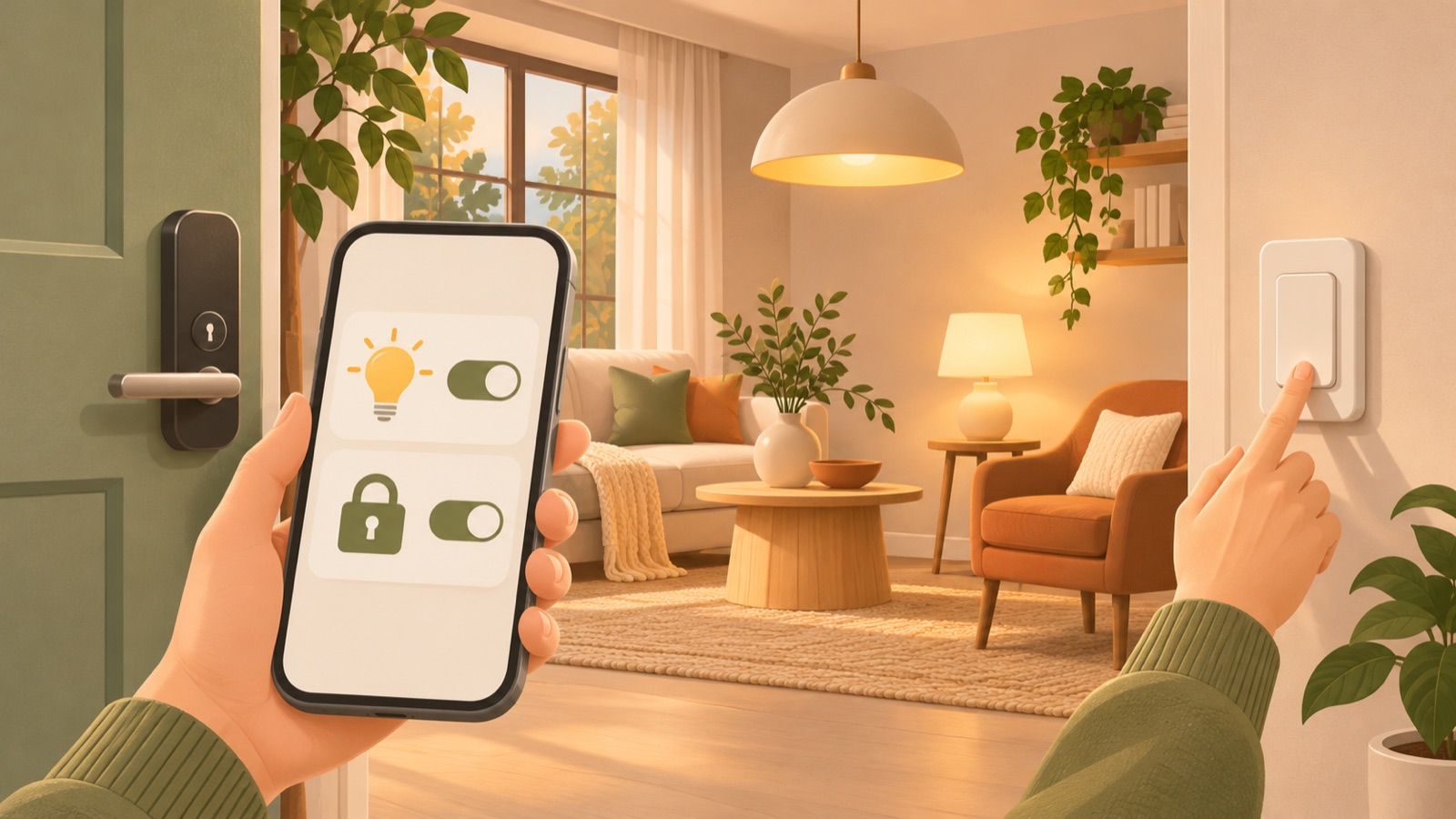
Smart home Meta ad examples are easier to develop when you choose them around the moments customers use a product rather than its features. Show the installation process to customers worried about setup, and show how daily life changes to those who do not yet understand its value. A marketer at a smart home brand described struggling to come up with ad ideas, wanting to improve image ads while waiting on filming preparations and approvals for video.1 The five concepts below are hypothetical examples you can plan using existing photos and app screens. Each connects the assets you need, English ad copy, and the steps for creating drafts in AdForge.
1. Easy Installation: Lead with the Installed Result
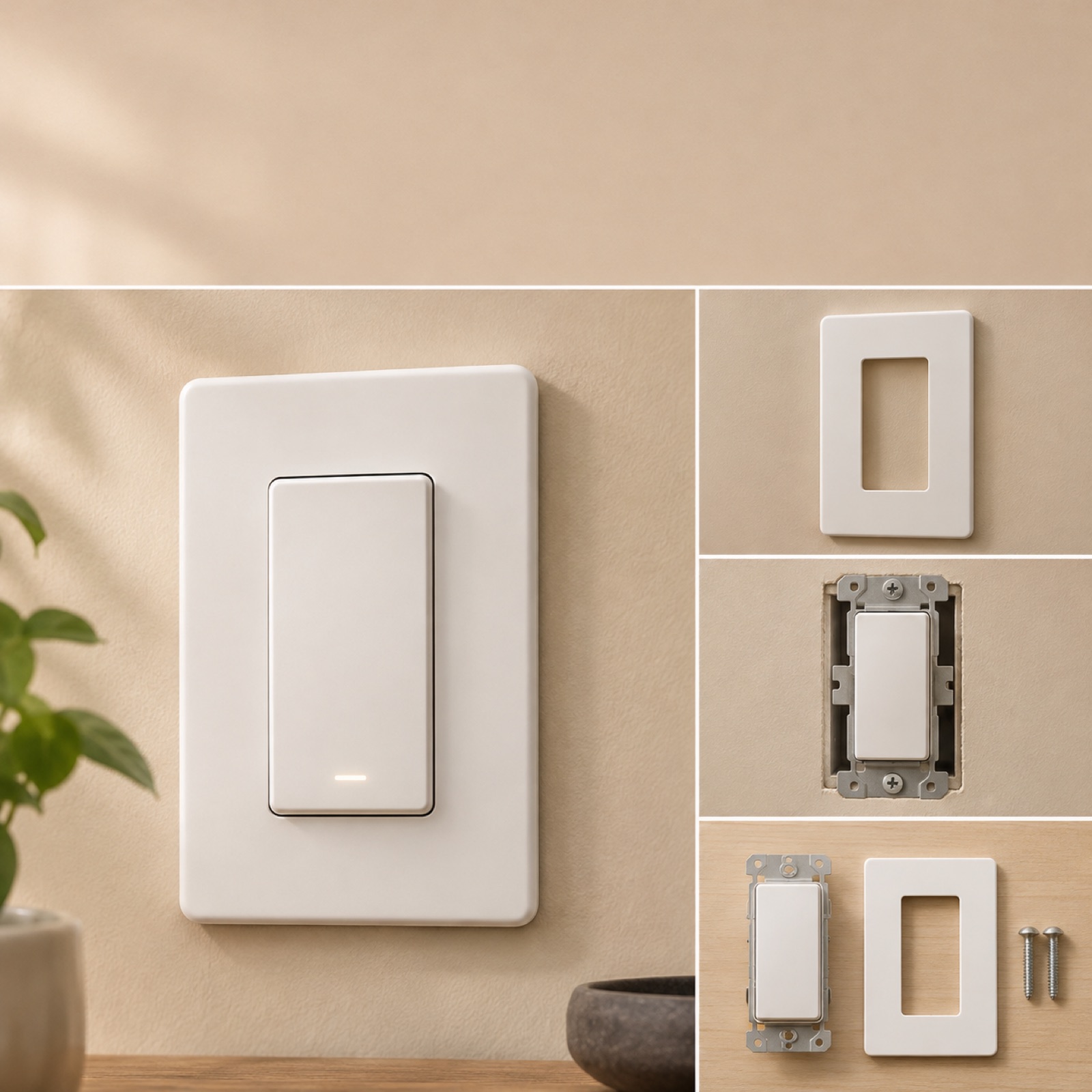
This is a hypothetical example. For a smart switch image ad, place a large photo of the actual completed installation on the left and smaller photos of the installation process on the right. Add “See how it fits your home.” at the top and “View installation steps” at the bottom. The collection of real-world examples includes a Wyze ad built around ease of installation.2 This concept takes that question and answers it by showing where and how your product is installed.
This approach suits products for which installation is a barrier to purchase. The idea is to show what customers should check before installation instead of making a vague promise of convenience. To adapt it to your product, prepare photos and explanations that match its wall specifications, wiring, and required parts. In AdForge, choose an image reference featuring an installation scene, then add actual product photos and verified installation messaging to create three drafts. Do not include installation times or tool-free installation claims that the photos alone cannot substantiate.
2. Morning Routine: Connect the Product to the Start of the Day
This is a hypothetical example. A smart lighting video opens in a dark bedroom, then shows the bedside light switched on, followed by the space where someone gets ready for the morning. Use “A little light for your morning.” as the opening line and “Explore the lighting” as the closing line. A Lutron ad in the example collection uses a waking-up scene.2 The useful takeaway is the sequence: establish when and where the product is needed before introducing a specific feature name.
This approach suits brands that need to explain how their lighting can be used. The goal is to connect scenes so customers can picture their own mornings. If your product supports scheduled lighting, prepare the settings screen and footage of it actually working. If you can only show manual operation, use a scene of someone turning it on by hand. Upload your existing footage to AdForge, create an English script and storyboard, then use the editable script to correct any wording that could imply automatic operation. If you only have photos, start with an image ad showing the morning setting.
3. Checking While Away: Answer One Status Question
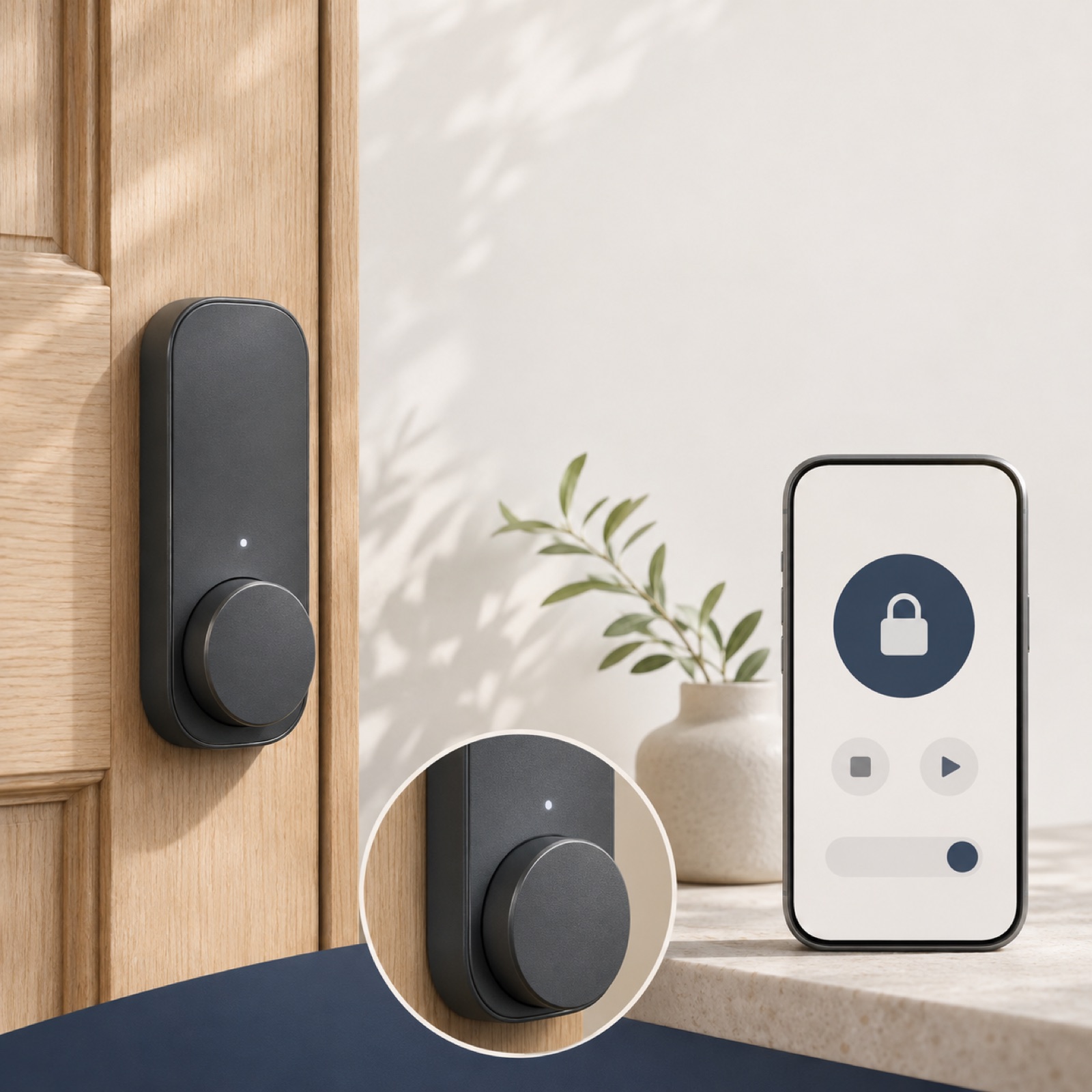
This is a hypothetical example. For a smart lock that supports remote status checks, open with a photo of the front door and “Did I lock the door?” The next scene shows the lock status in the actual app, and the final scene pairs a product photo of the lock with “See how status checks work”. The example collection includes an ecobee ad built around being away from home.2 Here, that situation-based structure is adapted to a smart lock, showing only the status information available for that product.
This example suits products whose brands want to explain how to check their status after leaving home. Pairing a question with an answer helps customers understand what the feature is for without presenting a long list of features. Before adapting it to your product, confirm whether remote checks are supported and what connection requirements apply. Upload actual app screenshots or screen recordings to AdForge, then review the script so the status display leads into the product photo. Do not use generated screens as proof of lock status, and remove account information and home addresses from uploaded assets.
4. App Controls: Connect Actions and Results on the Actual Screen
This is a hypothetical example. The concept is a smart switch video with a prominent screen recording of the actual app, followed by footage of the lighting before and after the action. Keep the copy short with “Tap to turn it on.” and close with “See the controls”. A Schlage ad in the example collection focuses on easy operation.2 The aim is to show which button to tap and what changes, rather than simply saying the app is easy to use. This approach suits products that benefit from a feature demonstration.
In AdForge, find and save a reference showing app controls in the ad library, then review the analyzed hook, shots, and caption structure. Choose the ad to remake, enter your product information and selling points, and upload actual product photos, app screen recordings, and footage of the product working. Set the video production language to English, review the AI script and storyboard, and correct the button names and actual sequence of actions. Check that the narration and captions match the visuals in the generated result, regenerate only the scenes that need changes, and download it. Video ads require a paid plan, and you upload the finished creative directly to your ad account.
5. Room Ambiance: Show the Lighting Difference in the Same Room
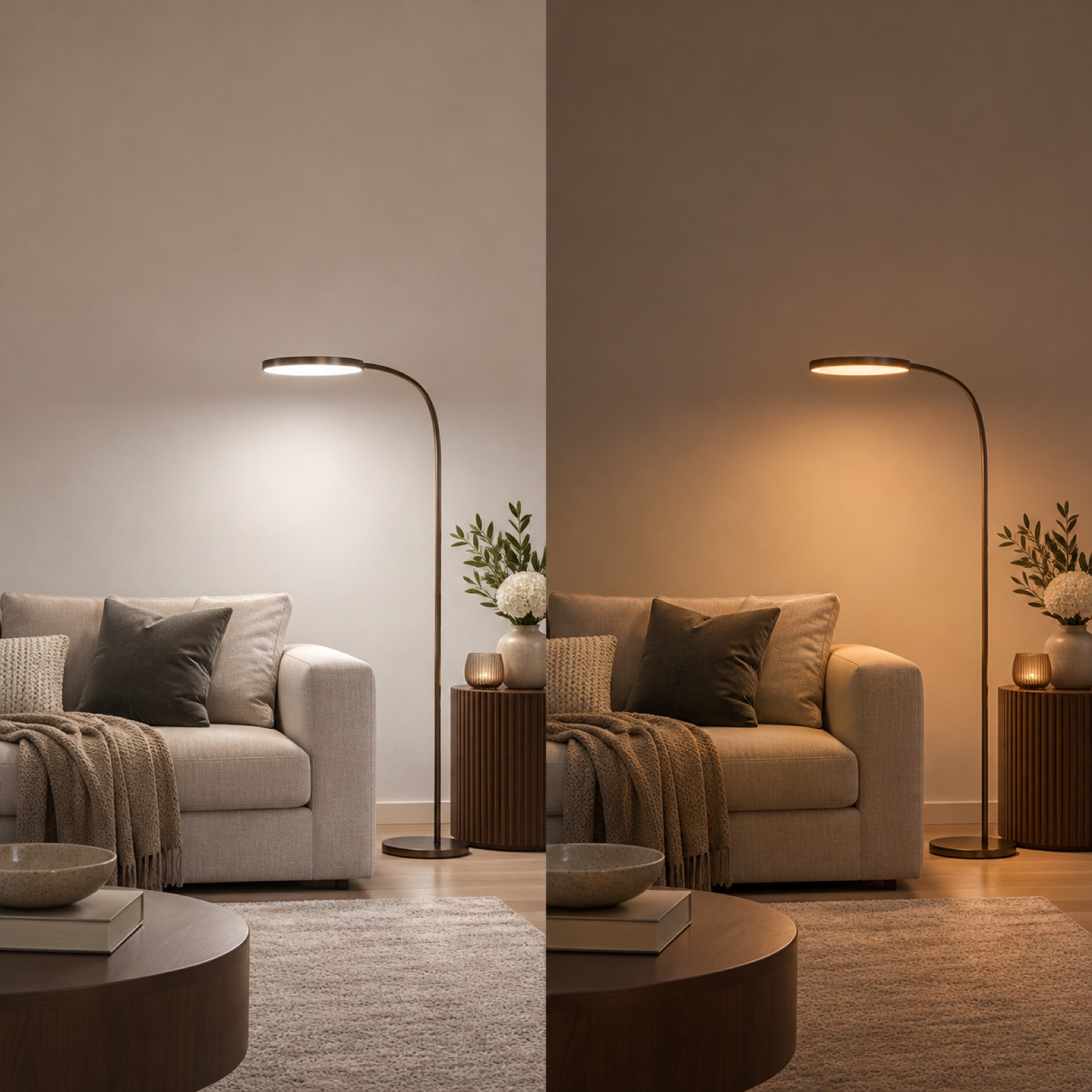
This is a hypothetical example. For a smart lighting image ad, place two photos of the same living room taken from the same angle side by side. The left shows a bright setting for reading, and the right shows a dimmer setting for relaxing. Add “One room. Two moods.” at the top and “Find your lighting setup” at the bottom. A Govee ad in the example collection uses room ambiance as its focus.2 This approach shows how the room changes rather than emphasizing the product’s appearance.
This approach suits products that customers buy for changes in color or brightness. Keeping the room the same lets you direct attention to the difference in lighting. To adapt it to your product, shoot with colors and brightness levels it actually supports, keeping the furniture arrangement and camera position consistent. In AdForge, choose an image reference with a split-screen layout, then add actual room photos, product photos, and English messaging to create three drafts. Review the product color and light source position. For the first test, keep the photos fixed and compare different copy. Check performance in your existing ad management tools.
Key takeaways
Show the process when installation is a concern, everyday scenes when the use case is unfamiliar, and the actual app screen when customers want to understand the controls. Choose the concept you can substantiate best, create an English-language draft with your existing assets, and start testing the creatives you have reviewed.
FAQ
Which of the five ad concepts should I create first?
Consider both your customers’ purchase questions and the assets you have. If you receive many installation questions and have process photos, the easy-installation concept is a good fit. If you have app recordings and footage of the product working, use the app-controls concept. If you have enough room photos, you can start with an ambiance-focused image ad.
Can I create a smart home video ad without filming new footage?
AdForge lets you create video ads using product photos, existing footage, app screenshots, and screen recordings. However, scenes explaining actual operation need assets that verify what is being shown. If you do not have enough material, start with an image showing the product and the space where it is used instead of a feature demonstration.
What should I review first when creating an English-language ad?
Before reviewing the English copy, check that the product features match what appears on screen. Adjust the script to the model sold in the United States, the app’s button names, and the installation requirements. Review AdForge’s English narration and captions alongside the actual visuals as well.
Can I use the reference ad’s copy and visuals exactly as they are?
When remaking an ad, use elements such as the opening scene, sequence, and layout as a structural reference, then create new content using your own product information and assets. Check that you have the rights to use the photos and videos you upload, and review the output. All English copy and ad concepts in this article are hypothetical examples.
Related reading
Make your next ad with AdForge
AdForge (ad-forge.io) is an ad remake app: pick an ad you like and rebuild it as a video or image ad for your own product. Find references in the Meta and TikTok ad libraries, let AdForge write the script, AI narration and captions, then review and download. Every account starts with 12 free image ads.