Meta Ad Creative Production at Scale: Turn a Brief into Images and Videos
Separate your new product launch brief into product facts, messages, and available assets to clarify the production sequence. This guide covers image and video production lists, plus generation, review, and downloads in AdForge.
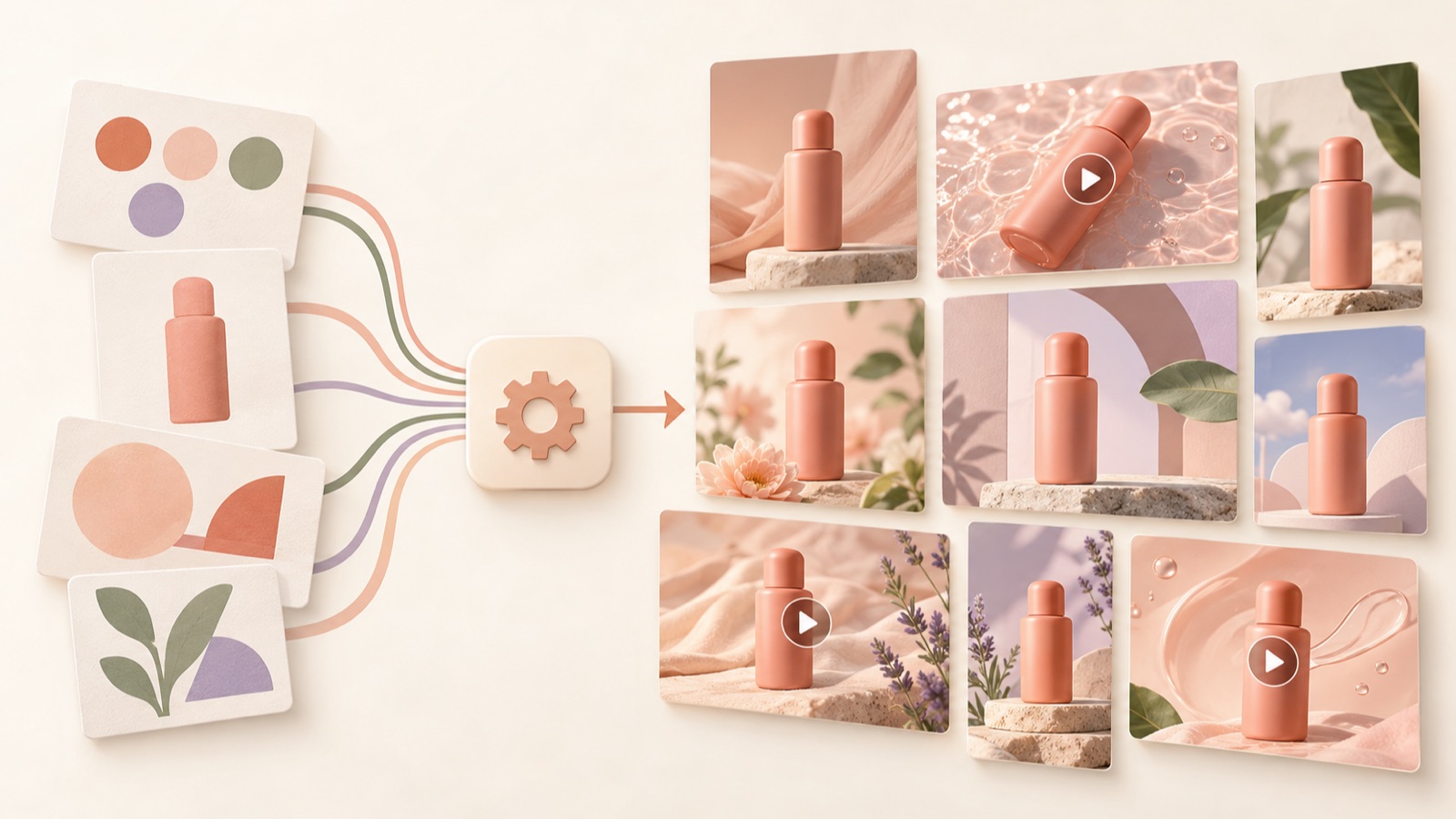
Start producing Meta ad creative at scale by turning your brief into a production list. Organize the product facts and messages, create an initial set of image and video ads for review, then continue production in the approved direction. Actual client briefs also request a combination of a supplied brief, copy variations, image and video production, and delivery deadlines.1 The steps below will help you decide which assets to provide, what to review, and which files to hand over.
Separate the brief into product facts, messages, and available assets
Extract what you need for production from the brief and organize it into three groups. Under product facts, list verifiable information such as package contents, how to use the product, and launch terms. Under messages, write one sentence for each reason a customer would choose the product. Under available assets, link to actual files such as front-facing product photos, footage of the product in use, and packaging photos. Go beyond handing over the full document: pair each message with assets that can show it.
As a hypothetical example, suppose you are launching a new organizer pouch. If the brief mentions separate internal compartments and a wide opening, turn each feature into a potential message. Pair interior photos with the compartment message, and footage of the opening with scenes of putting items in and taking them out. Do not add claims about waterproof performance or satisfaction after use that the footage and photos cannot show. Use this organized brief as the source for the product information and selling points you enter into AdForge.
Build a production list by combining messages and formats
Write the production list so that each creative's role is clear before the file count. Include the message, format, assets to use, opening line, call to action, reviewer, and deadline. Assign product features that can be understood at a glance to images, and usage scenes that need a sequence to make sense to videos. Meta's official training also covers creative diversification by concept, purchase motivation, and format. You can use these distinctions to guide decisions as you increase production volume.3
For the hypothetical pouch above, create separate production items for an image showing the internal compartments and a video showing the pouch being opened and used. Label an image that keeps the internal organization message but changes only the opening line as a copy variation. This distinction helps you see whether you need a new concept or another version in the existing direction. AdForge generates three image ad options at a time, so review those three images before deciding which messages to produce more creative for.
Choose references in AdForge and create images and videos
Search for Meta ads in AdForge's ad library and choose references suited to the messages on your production list. First, look at whether the reference is an image that prominently features the product or a video that shows how it is used. The analysis of a saved ad lets you examine image layout and colors, as well as video hooks, pacing, and shots. At the product information step, enter the product facts and selling points you organized, then upload photos and videos. Even if you paste a product page address to fill in the information automatically, check it against the brief.
When creating image ads, review the three options generated using the reference layout and your actual product photos. When creating video ads, open the AI-written script and storyboard to edit the opening scene, product explanation, and call to action. Use a Korean script, narration, and subtitles, and review the resulting narration, subtitles, and background music together. You can regenerate individual scenes that do not fit. Check the finished result before downloading it, then follow the same steps for the next production item with a different message or reference.
Review representative creative before continuing production
Before starting full production, review creative that represents your main messages and formats. Actual production requests also show an approach in which a small batch is reviewed before production volume increases.2 Within your team, assign someone to assess product depictions and copy, and schedule review time in advance. Check whether the product is clearly visible in images and whether the usage sequence is correct in videos. For revision feedback, specify both what needs to change and why. Distinguish personal preferences from errors in product facts.
If the opening scene in the hypothetical pouch video does not convey the message clearly enough, revise that scene first. If the product scenes work well but the opening line is vague, edit the script's introduction. After regenerating a scene or editing a script in AdForge, check both the revised part and how it flows with the surrounding content. Keep approved product descriptions in subsequent creative, and mark the elements you intend to change, such as the opening scene or copy, on the production list. Once the review criteria are established, they are easier to apply to the remaining production items.
Organize launch files alongside information for future production
Name downloaded files so that the product, message, format, and version are easy to identify. Record each final filename and its approval status on the production list, and distinguish work in progress from launch-ready output. For images, check the product's appearance and the copy. For videos, check that the script, narration, and subtitles communicate the same information. You also need to review usage rights for uploaded assets. AdForge uses the reference's underlying structure as a guide and creates new content from the product information and assets you provide, so reviewing the output is the user's responsibility.
Upload the finished creative directly to your ad account. AdForge does not yet offer automated campaign delivery through ad accounts; campaign setup, delivery, and performance checks take place in your existing ad management tools. Keep a record on the production list of the message and format used for each file. After launch, connect the results from your existing ad management tools to this list to discuss the direction of future production. Your next request can then specify which messages to show more of and in which formats, rather than simply asking for more creative.
Key takeaways
Organize your brief into product facts, messages, and assets, then build an image and video production list. Choose references in AdForge, generate and review representative creative, and continue production and launch file preparation in the approved direction.
FAQ
Can I upload a brief file to generate multiple ads at once?
The described feature set does not include automatic interpretation of brief files or batch generation of dozens of creatives. Extract the product information and messages from your brief, enter them, and select references and assets for production. Image ad generation produces three options at a time.
Should I create images or videos first?
Start with the format that makes the launch's core message easiest to assess. Review images first if the product feature can be shown at a glance, or videos first if the usage sequence matters. If both formats have the same deadline, prepare representative creative for each first.
Can I create both images and videos for free?
Every account starts with 12 free image ads made from your own product photos, with no card required. The free allowance does not replenish. Video ads are available on paid plans.
Will producing more creative improve ad performance?
Production volume alone cannot tell you how ads will perform. Record differences in messages and formats, then check results in your existing ad management tools after the ads run. Use the production list to decide what to change in subsequent creative.
Make your next ad with AdForge
AdForge (ad-forge.io) is an ad remake app: pick an ad you like and rebuild it as a video or image ad for your own product. Find references in the Meta and TikTok ad libraries, let AdForge write the script, AI narration and captions, then review and download. Every account starts with 12 free image ads.