How to Create 3 Banner Ad Mockups: From Product Photos to Review-Ready Options
Once your product photos and copy are ready, you can choose a reference ad and generate three image mockups at once. This guide walks through creating banners for the Japanese market and comparing product accuracy, Japanese copy, and information layout.
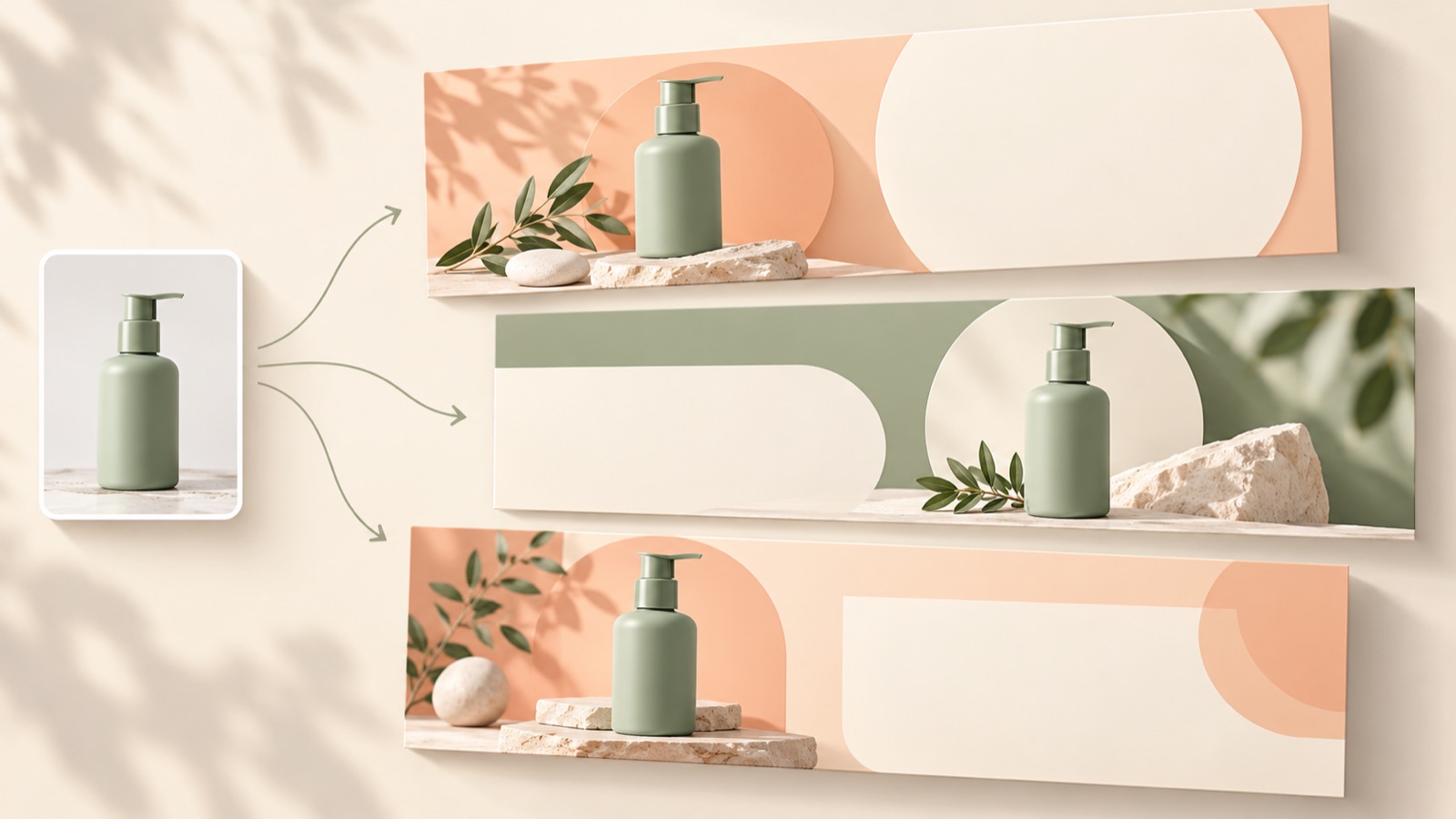
Creating three banner ad mockups starts with preparing product photos, ad copy, and a reference ad. AdForge uses the reference layout to create three image ads at once with your actual product photos. However, the three results are not guaranteed to represent different strategies or layouts. If you are presenting banners for the Japanese market to a manager or client, define what you want to compare before generating them, then use the same criteria to check product accuracy, Japanese copy, and information layout. Here is the process, from preparation to handing over the options for review.
Define the comparison question before creating three options
First, clarify whether the request is for “three polished candidates in the same direction” or “three options showing different directions.” Industry practitioners have also written about the purpose and criteria for comparing multiple mockups. The number of generated images and the number of creative directions should be assessed separately.2 If you are choosing among candidates using the same product and copy, write down a one-sentence review question, such as “Choose the option that shows the product clearly and makes the key message easy to read.”
As a hypothetical example, suppose you are preparing a banner for a portable pouch to be sold in Japan. If you already have one product photo and the message “Organize small items in your bag,” prepare the inputs so that all three candidates retain that content. Reviewers can compare how product size, copy placement, and spacing are presented. If, instead, you have been asked for three directions—storage capacity, gifting, and portability—you need to define the message and reference ad for each direction separately.
Prepare product photos, Japanese copy, and a reference ad as one set
Choose product photos that match exactly what will be sold and shown in the ad. If you are selling one pouch, avoid photos that make several pouches look like a set, and keep the original images available to check the color and zipper design. Prepare the Japanese copy in three parts: headline, supporting text, and call to action. Banner creators’ own experiences also reveal the effort involved in preparing multiple compositions and text placements.1 Gather approved inputs first to reduce the decisions needed during generation.
Choose a reference ad based on where the product photo and copy will go, as well as its overall feel. If you need a long Japanese explanation but use a reference dominated by a large photo, the layout may not accommodate the amount of information you want. Even a typical template workflow requires replacing photos and copy and adjusting colors and fonts.3 When using AdForge, first check whether the layout can accommodate the orientation of your photo and the amount of copy you have prepared.
- Photos: Materials showing the actual product and configuration you will sell
- Copy: Approved Japanese headline, supporting text, and call to action
- Product information: Product name, features, and selling points to include in the ad
- Reference ad: An ad whose photo placement and information density suit this banner
Choose a reference ad in AdForge and generate three mockups
In AdForge, go to the reference-ad selection step and choose an image ad reference. You can search for ads currently running in the Meta and TikTok ad libraries, and saved image ads are analyzed for layout and color. For this task, focus on product photo placement and copy areas when choosing a reference. The ad remake process uses the reference ad’s underlying structure while creating new content from the product information, selling points, and uploaded materials you provide.
At the product information step, paste the product page address to populate the information automatically. Check that the populated details match the product you are selling, then add your prepared photos of the actual product and your advertising message. When you proceed with image ad creation, three mockups are generated at once based on the reference layout. Review all three on the results screen, then download the candidates you want to use. You also need to check that you have the rights to use the uploaded materials.
- Select a reference ad: Choose a layout for the product and copy.
- Enter product information: Check the details populated from the address and the selling points.
- Add materials: Provide actual product photos and your prepared message.
- Review results: Compare and download the three generated mockups.
Review product accuracy, Japanese copy, and readability in the same order
When you receive the three results, check whether they match the actual product before choosing your favorite colors. Compare the pouch’s zipper position, presence or absence of a handle, color, and quantity offered against the original photo. Next, check whether any part of the message you entered is missing or has changed meaning. A candidate that misrepresents the product is difficult to approve as is, even if you like the layout. Record specific corrections, such as “The handle shape differs from the original,” rather than “Looks odd.”
Review the Japanese separately for natural phrasing and on-screen readability. Check that the product name is written consistently and that line breaks do not make modifier relationships awkward. Then reduce the image to its intended display size and read the headline and call to action. In the hypothetical pouch banner, one candidate might have a readable headline but supporting text that gets lost in the product’s pattern. In that case, “The supporting text overlaps the background and is hard to read” is more useful for the next revision than “It looks nice.”
- Product accuracy: Do the shape, color, and included items match the actual product?
- Copy accuracy: Are the approved content and product name preserved?
- Japanese wording: Do the meaning and line breaks feel natural?
- Information layout: Are the product, headline, and call to action easy to find?
Send the options for review with a recommendation and reasons
Show the three downloaded mockups side by side at the same size, and briefly note the differences you observed beneath each candidate. Describe only features present in the actual results, such as “Option A shows the product larger,” “Option B has more space around the headline,” or “Option C needs its supporting text checked.” Labeling the three options as different strategies before generation can create a mismatch between the results and their descriptions. Articles on reviewing multiple mockups also offer the perspective that differences should be explained in relation to the purpose of the review.2
In your handoff message, include one recommended candidate, the reason for choosing it, and one remaining revision. For the hypothetical example, you could write: “I recommend Option B. The product’s shape is easy to see, and the headline is readable. It needs a final check after adjusting the Japanese line breaks in the supporting text.” This makes it clear what the approver needs to decide. When running the final creative, upload the downloaded file directly to your ad account. Use your existing ad management tools for campaign setup, delivery, and performance review.
Key takeaways
To create three banner mockups, define your comparison question and prepare actual product photos, approved Japanese copy, and a layout reference. Review the three results generated in AdForge against the same criteria, then send them with a recommended candidate and specific reasons for your choice.
FAQ
Do all three mockups created in AdForge have different layouts?
Different layouts or strategies are not guaranteed. AdForge creates three mockups using the selected reference layout as a guide. Check the actual differences after generation to compare the candidates.
How should I prepare Japanese ad copy?
Prepare approved wording for the headline, supporting text, and call to action separately. In the generated results, check again that the intended meaning is preserved and that the product name and line breaks read naturally.
Can I try creating image ad mockups for free?
Every account starts with 12 free image ads made with your own product photos. No card is required, and the free allowance does not replenish.
Can I send the three generated images directly to a client?
First, check product accuracy against the original, copy accuracy, Japanese wording, and readability. Make it clear that the images are for review, and include your recommended candidate and any required revisions to help the client choose.
Make your next ad with AdForge
AdForge (ad-forge.io) is an ad remake app: pick an ad you like and rebuild it as a video or image ad for your own product. Find references in the Meta and TikTok ad libraries, let AdForge write the script, AI narration and captions, then review and download. Every account starts with 12 free image ads.