How to Make Massage Video Ads: Turn Treatment Footage into English Booking Ads
A step-by-step guide to creating English Instagram and Facebook ads with existing treatment footage and studio photos. Learn how to choose one service, prepare an English script and booking instructions, and review the finished video in AdForge.
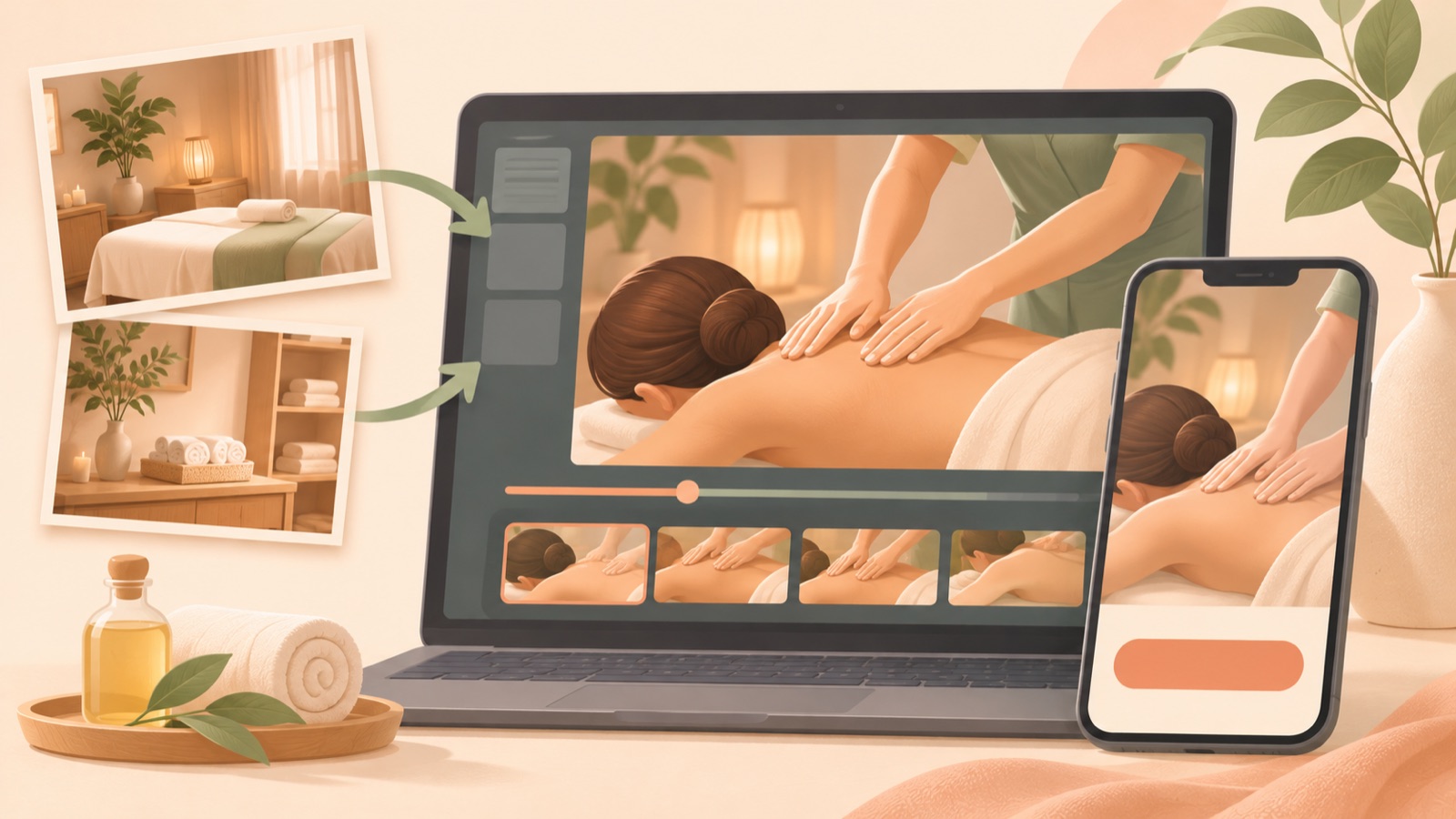
To start making a massage video ad, connect existing treatment footage, photos of your space, service details, and booking instructions into a single flow. First, choose one service to advertise. Then use a reference ad’s structure to add your existing assets and English messaging to AdForge, and review the generated script and scenes. This article walks independent studio owners and mobile massage providers through completing their first English Instagram and Facebook ad.
Choose one service and one booking action
Trying to fit every service your studio offers into one video can make it unclear what viewers should book. First, decide whether this ad will promote a massage at your studio or a mobile massage at the client’s home. The American Massage Therapy Association, AMTA, suggests sharing information such as services, special announcements, and appointment availability on social media. With that in mind, collecting the service name, location, duration, and booking method in one document makes it easier to identify the information your script needs.2
For example, a hypothetical studio promoting a 60-minute service could set the ad’s goal as having viewers check available appointment times. The closing line would guide that action with wording such as “View available appointments.” For a mobile service that arranges appointments through inquiries rather than accepting online bookings, “Message us to request an appointment” would fit. Check your actual booking process before choosing the wording. If you include a price, list only the amount and conditions that apply to the advertised service.
Organize assets for treatment, setting, and booking information
In one online discussion within the massage industry, a mobile massage provider in the United States described difficulties with video editing, while another participant explained that they use actual treatment footage in ads. This is an example of demand for creating ads from existing footage. It cannot be interpreted as evidence of any particular scene’s performance.1 Start by finding clips in your existing footage that clearly show hand movements and the treatment process, and choose photos that give a clear view of the setting clients will actually visit.
Give each asset a role: treatment footage explains what service clients receive, while photos of the space explain where they receive it. For mobile massage, you can use footage of the massage table and setup you actually take to appointments instead of studio photos. Also check that you have permission to use the footage and images, including the clients shown, in advertising. Keeping assets that explain the actual treatment and service setting, rather than adding lots of unrelated decorative photos, makes it easier to connect the script with the scenes.
Choose an opening scene and sequence from a reference ad
In AdForge, you can search ads currently running in the Meta and TikTok ad libraries and see how many days each ad has been running. Try search terms close to your service, such as “massage,” “massage studio,” or “mobile massage.” When choosing a reference ad, consider whether your existing assets can support its structure. If you have treatment footage and photos of your space, a sequence that opens with the treatment, shows the setting, and ends with booking instructions can be a starting point.
For saved video ads, you can analyze the hook, pacing, cuts, captions, voice, and music. Check what the opening scene shows, when the service explanation appears, and what call to action closes the ad. Do not assume an ad generates strong booking results based only on how long it has been running. When making a remake, use elements such as the reference ad’s sequence and visual layout as a framework, and create new content using your own service information and uploaded assets.
Add your assets and edit the English script in AdForge
Start creating a video ad in AdForge using your selected reference. When entering service information, include the massage type, studio location or mobile service area, service duration, and booking method. At the upload stage, add treatment footage and photos of your space that you have confirmed you have permission to use. Organize your message around what the service is, where clients receive it, and how they book, then select English as the language for the script, narration, and captions. Video ad creation is available on paid plans.
When reviewing the AI-generated script and storyboard, make sure the scenes match the descriptions. For a hypothetical studio, the script could use lines such as “A 60-minute massage at our local studio.”, “Take a look inside our treatment room.”, and “View available appointments.” These are examples of lines paired with treatment footage, photos of the space, and booking information, respectively. Adjust the duration and location to match your actual service, and correct the script if it adds treatments or effects that your assets do not substantiate.
Check the booking flow in the finished video and export your first creative
AdForge adds AI narration, word-level synchronized captions, and background music to the video. When reviewing the result, first mute the sound and check whether the captions alone make the service and booking method clear. Then turn on the sound and check the English pronunciation, whether the captions match the narration, and whether the music obscures any explanation. Also check that the photos of your space fit an in-studio service and that a mobile massage ad does not mistakenly tell clients to visit a studio. If a particular scene does not fit, you can regenerate just that scene.
Download the reviewed video and upload it directly to your Instagram or Facebook ad account. AdForge does not automatically launch ads through ad accounts, so use your existing ad management tools to set up campaigns, run ads, and review performance. When saving your first creative, record the service name and opening scene together. Next time, you can keep the service explanation and booking instructions the same and compare a version that opens with treatment footage against one that opens with an introduction to the space. Clearly identifying what changed makes it easier to decide what to adjust in the next video.
Key takeaways
Choose one massage service to advertise and one booking action, then prepare actual treatment footage and photos of your space. Select a reference ad in AdForge, add your service information and assets, and review the English script and storyboard. Check the finished video’s captions, audio, and booking instructions, then download it and run it through your existing ad management tools.
FAQ
Can I get started with short massage treatment clips?
You can get started by preparing footage that explains the treatment alongside photos of your space. Check the role each asset plays in the script and storyboard. Focus on the service details you can show with your existing assets.
What English information should I include in a mobile massage ad?
State your actual service area and booking process. If appointments are arranged after an inquiry, you can use wording such as “Message us to request an appointment.” Match the wording to your actual process so it does not imply that clients can book instantly online.
Do I need to include wording about the effects of massage?
You can build your first ad around the service you provide, the setting, and the booking method alone. If the AI adds effects or results to the script that cannot be verified from your input assets, remove them or replace them with confirmed service descriptions.
Can I create video ads in AdForge for free?
Video ad creation requires a paid plan. The 12 free image ads available to every account are for creating image ads with your own product photos and are separate from video creation.
Make your next ad with AdForge
AdForge (ad-forge.io) is an ad remake app: pick an ad you like and rebuild it as a video or image ad for your own product. Find references in the Meta and TikTok ad libraries, let AdForge write the script, AI narration and captions, then review and download. Every account starts with 12 free image ads.