5 Fukubukuro Image Ad Examples: How to Arrange Products, Prices, and Preorder Details
Start by deciding whether to show every item or give one featured product more space. Explore five hypothetical examples for different selling formats and learn how to create drafts using your own product photos.
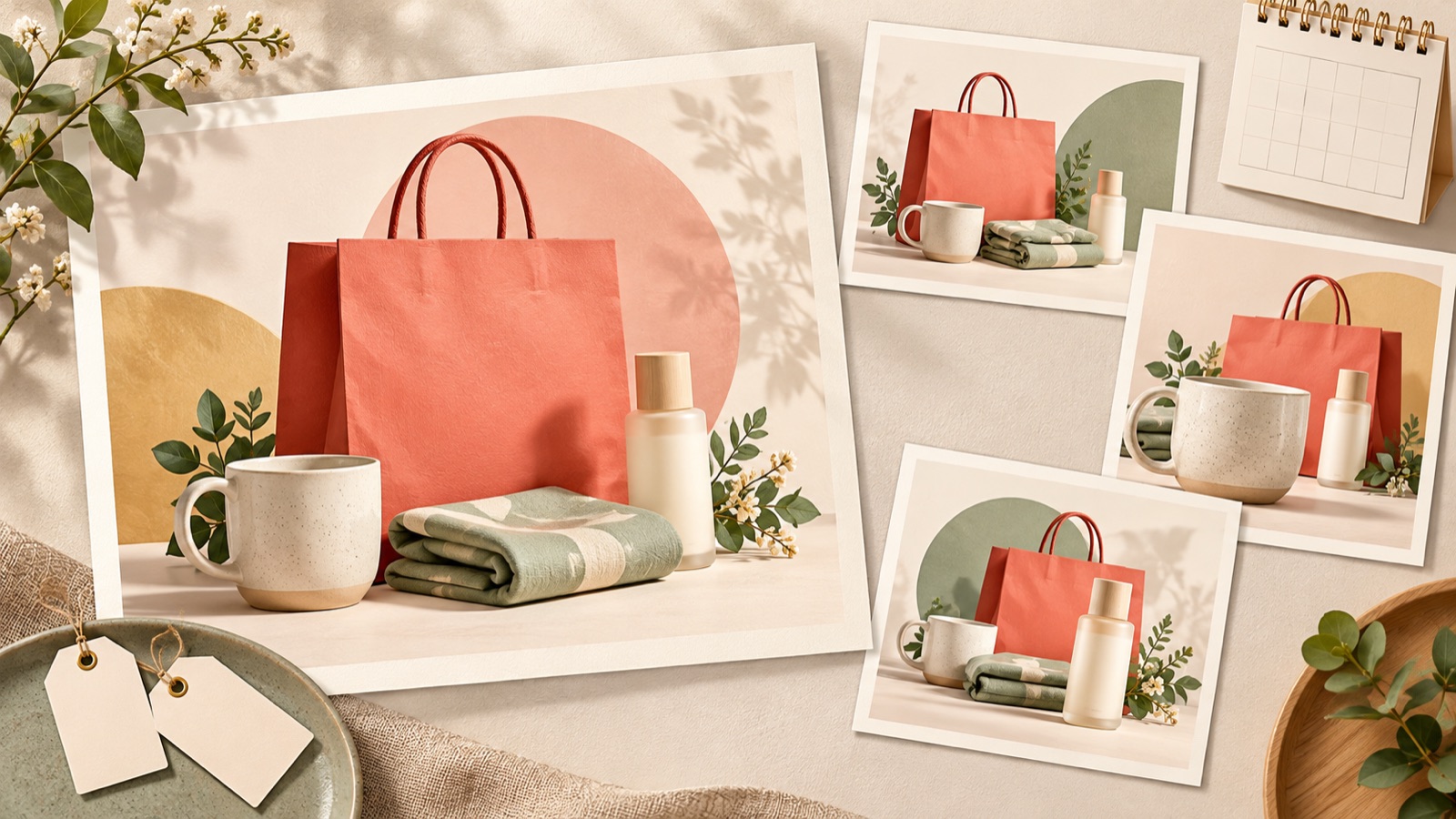
Fukubukuro image ads are easier to lay out when you start with how the set is sold. If the contents are confirmed, show the full set first. If there is a key product, lead with that item. For preorders, put the order window first. One firsthand account also describes the challenge of creating a banner that explains the contents through photos.1 All examples below are hypothetical. Choose a layout that fits your available photos and confirmed sales details, then use it to create and review three image ad drafts in AdForge.
1. Show All the Contents
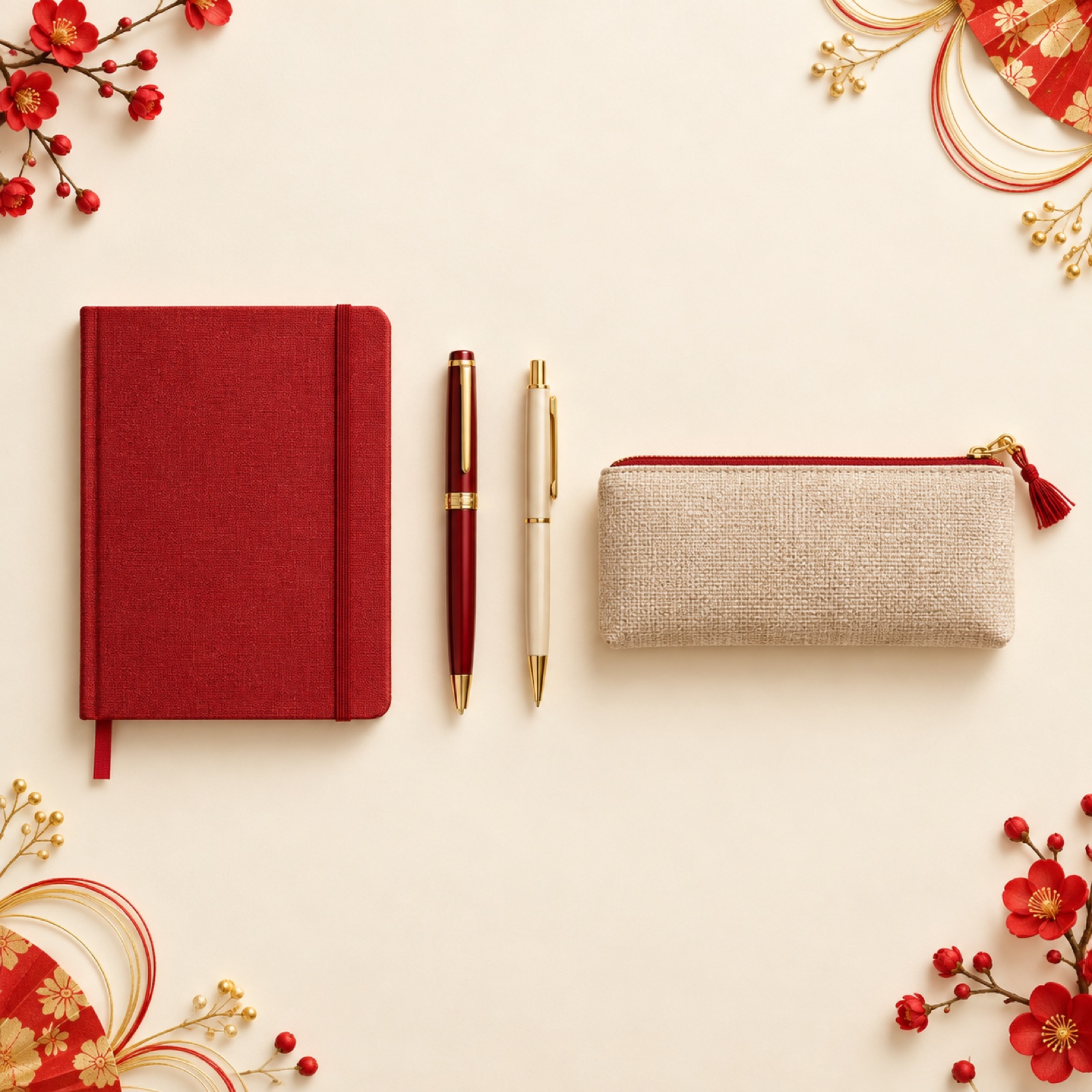
For this hypothetical example, let’s create a stationery fukubukuro. Arrange a notebook, pens, and a pouch without overlapping them in the center of a cream background, with 「中身が見える文具福袋」 above them. Group the confirmed selling price and purchase details below. This layout suits a set that includes every item shown in the photo. The aim is to help shoppers compare what they will receive at a glance, so photograph the set in a way that keeps decorative props from looking like included items.
When adapting this to your own products, confirm the included items and quantities first. Enlarging photos of differently sized items to the same dimensions can mislead shoppers about their relative sizes, so it is a good idea to prepare a photo of the complete set as well. In AdForge, choose an ad reference with a layout that displays the products spread out, then add your actual product photos and Japanese messaging. In the three generated drafts, first check for missing items, duplicate items, and whether the photos match the stated quantities.
2. Highlight a Featured Product
This hypothetical example is a home goods fukubukuro built around a mug. Place a large mug photo on the left, with smaller photos of the included coaster and teaspoon grouped at the lower right. Use a headline such as 「マグカップ入り福袋」 to identify the key product. Put the price in an open area away from the smaller product photos. This design helps shoppers notice the product that gives them a reason to choose the set, instead of presenting every item with equal emphasis.
For your own products, choose the item whose appeal is easiest to explain, rather than simply the most expensive one. If colors or designs are random, state that condition close to the photo so it does not imply a guaranteed selection. In AdForge, choose a reference that gives the featured product plenty of space, then add your product photos and confirmed description of the contents. When looking for older banners, check when they were added. BANNER LIBRARY’s 「2023福袋」 was added in 2022, so it can serve as a reference for past designs.2
3. Offer a Choice of Sets
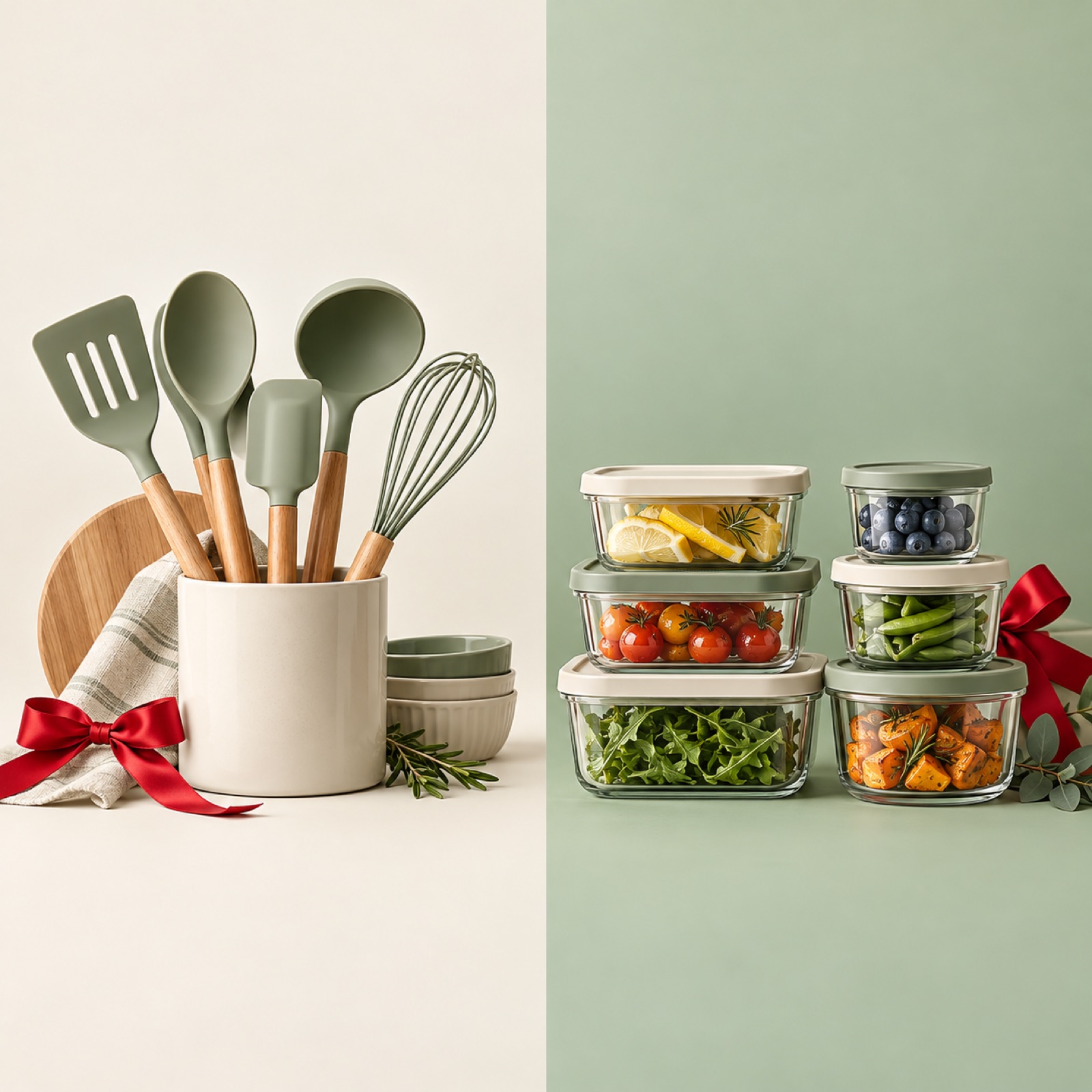
For this hypothetical example, divide a kitchenware fukubukuro ad into two panels. Put a cooking utensil set on the left and a food storage container set on the right, arranging the product photos, set name, and price in the same order in each panel. Use 「選べる福袋」 as the title when buyers can actually choose their set. Keeping the background brightness and photo sizes similar across both panels makes the options easier to compare. Fukubukuro banner archives also offer references for selectable sets and product bundles.3
When creating this for your own products, describe the difference between the two sets in one sentence each. Distinct uses, such as “essentials for cooking” and “essentials for storage,” give shoppers a clear basis for choosing. In AdForge, select a reference with a side-by-side comparison layout, then add actual photos and Japanese descriptions for each set. Check the results to make sure photos have not been mixed between panels. If the sets have different prices, attach the correct price to each set instead of combining them under one large number that looks like a shared price.
4. Keep Some Contents a Surprise
This hypothetical example is a fashion accessories fukubukuro with both disclosed and undisclosed items. Place a photo of the confirmed pouch in the center, and represent the undisclosed items with simple package shapes instead of fabricated photos that look like actual products. Explain what is disclosed with copy such as 「ポーチ+お楽しみアイテム」, and place the total item count near the price if it is confirmed. This layout preserves anticipation while helping shoppers understand which parts of the product they can know in advance.
When applying this to your own products, first separate guaranteed items from those that may vary. If you generate arbitrary images of undisclosed products, shoppers may assume they will receive those items. Add photos of the disclosed items that you have permission to use, along with accurate conditions for the contents, to AdForge, and choose a reference with separate areas for photos and descriptions. If the result appears to include products you did not supply, do not use it as is. Choose a draft that clearly shows what is disclosed so the surprise-content sales format is communicated accurately.
5. Put the Preorder Schedule First
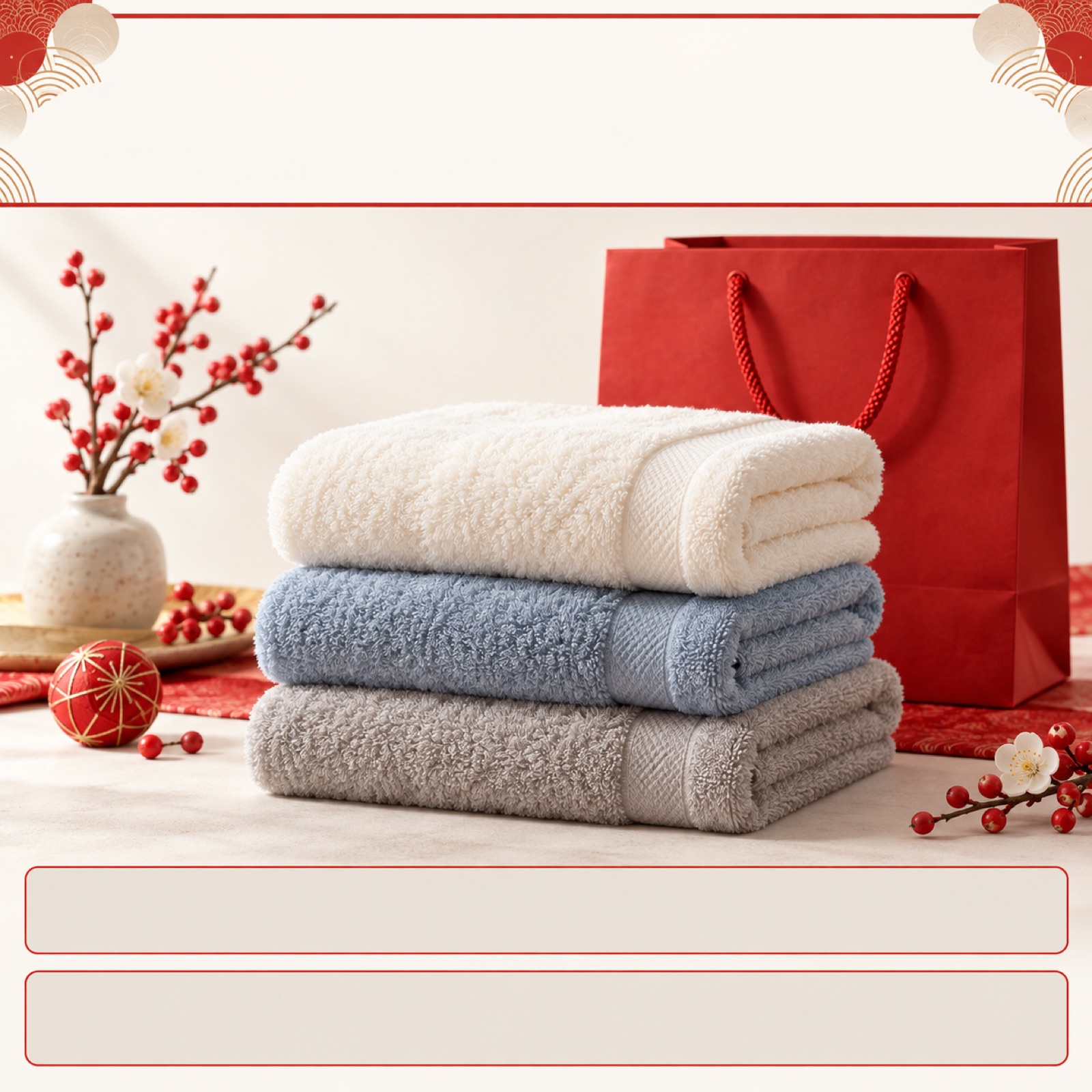
This hypothetical example is a preorder announcement ad for a New Year towel fukubukuro. Place 「福袋 予約受付中」 at the top, an actual photo of the folded and stacked towel set in the center, and the confirmed preorder window and expected shipping details at the bottom. Put the order window and shipping timing on separate lines to distinguish ordering now from receiving the products later. If the purpose is to announce preorders, keep the schedule and price needed to make an ordering decision easy to read instead of packing the ad with descriptions of the contents.
Here is the sequence for creating it in AdForge. On the ad discovery screen, search the Meta and TikTok ad libraries, then choose and save an image ad that clearly separates the schedule from the product photo. Review the saved ad’s layout and color analysis, then add your actual towel photo, product information, confirmed price, and Japanese preorder copy in the image ad creation step. Check the three drafts generated from the reference layout, review the contents, price, dates, and Japanese text, then download them. Set up the campaign and check performance in your existing ad management tools.
Key takeaways
For layouts that disclose the contents, show the included items. For featured-product layouts, show the reason to buy. For selectable sets, show how the sets differ. For preorder layouts, distinguish the order window from the shipping schedule. Create three drafts using a reference that fits the selling format and your actual photos, then choose accurate, easy-to-read candidates to test.
FAQ
Should the product photos or the price be larger?
Lead with photos if shoppers need to understand the contents before deciding whether to buy. If the contents have already been introduced and the creative is collecting preorders, you can give the price and order window more emphasis. Choosing the one piece of information people should read first makes the layout easier.
What Japanese copy should I prepare first?
First confirm the product name, the contents you can disclose, the selling price, the preorder window, and expected shipping details. Match the wording to the sales conditions: use 「中身が見える」 when disclosing the contents and 「選べる」 when buyers can actually choose. The Japanese in the finished image needs a separate review.
How many drafts can I create in AdForge using my own product photos?
For image ads, AdForge creates three drafts at a time using actual product photos and following the reference layout. Every account starts with 12 free image ads without registering a payment card, and this free allowance does not replenish.
Which of the three drafts should I choose to test?
Keep only drafts with accurate contents, prices, and schedules as candidates. Then choose candidates with differences you can clearly describe, such as one that emphasizes the product and another that emphasizes preorder details. When comparing them, keep the copy and price the same and start by examining the order of emphasis. Check performance in your ad management tools.
Make your next ad with AdForge
AdForge (ad-forge.io) is an ad remake app: pick an ad you like and rebuild it as a video or image ad for your own product. Find references in the Meta and TikTok ad libraries, let AdForge write the script, AI narration and captions, then review and download. Every account starts with 12 free image ads.