How to Create Facebook Image Ads for Clothing: Detail, Product, and Collage Layouts
If all you’re changing is the headline on an on-model photo, start by giving each photo a distinct role. Learn how to plan three layouts using existing clothing photos and add English copy to create image ad concepts.
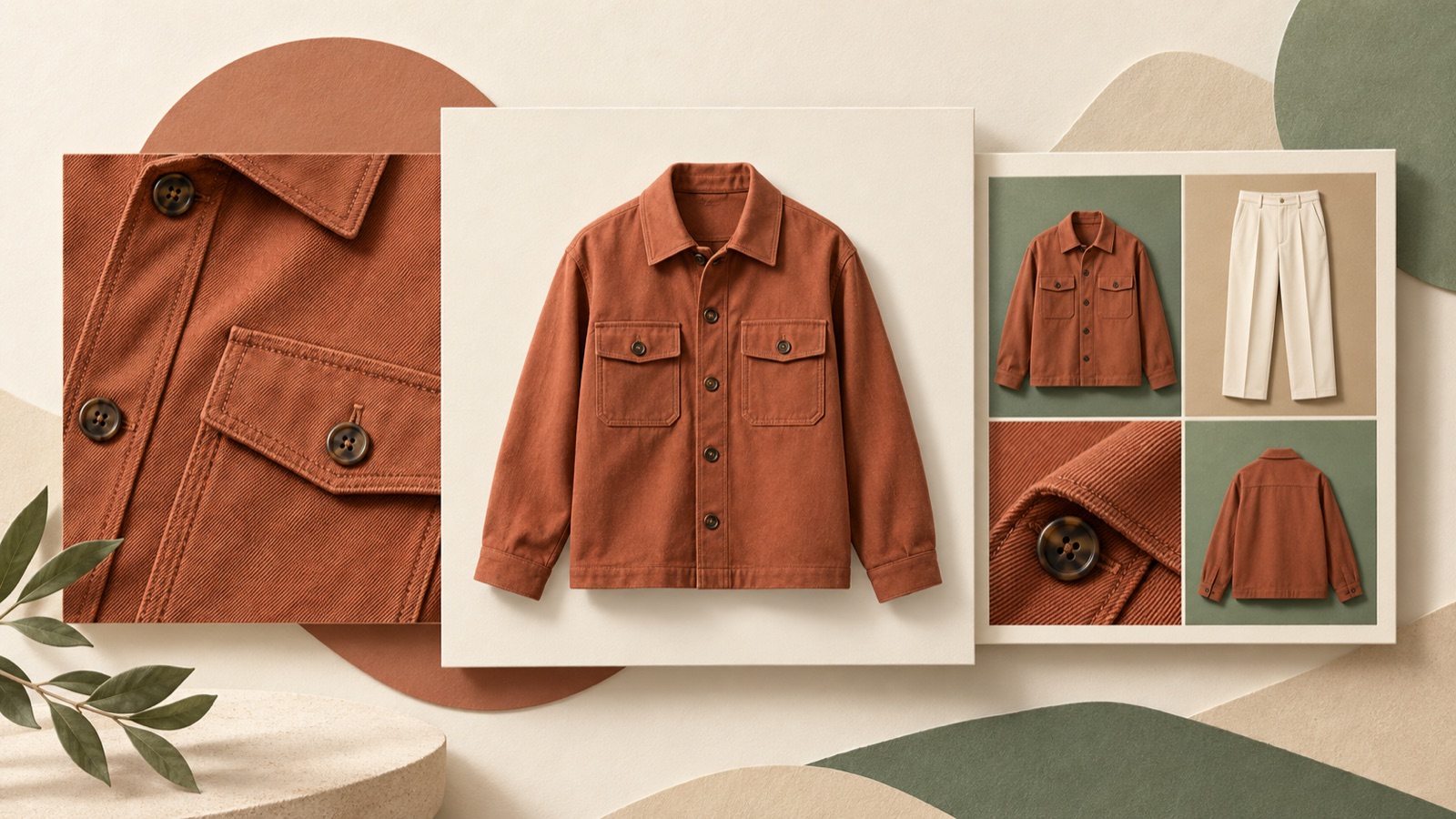
To create Facebook image ads for clothing, start by sorting your existing photos into full garment shots, fabric and stitching details, and on-model shots. Choose a detail-focused layout to explain texture, a product-focused layout to show the silhouette, or a collage to answer several purchase questions. Follow the steps below to organize your photos and English messaging so you can create distinct layouts instead of simply changing the headline on an on-model photo.
Sort your photos and choose references that fit what you want to show
First, divide photos of the same product into three groups. Full garment shots should show the outline of the clothing and its shape from the front and back. Detail shots should make the features you want to explain identifiable, such as fabric texture, stitching, or prints. On-model shots should let viewers check the shoulder line, sleeve length, and hem position. Exclude photos that do not reveal texture even when enlarged from your detail ad candidates. What your photos actually show is the starting point for your ad.
Next, look for references that can help you develop layouts you’re missing. In a public discussion about clothing ads, replies suggest trying collages after product-focused photos and browsing the ad libraries of brands in the same category.2 Search for clothing ads from the Meta Ad Library in AdForge and save your candidates. Use the layout and color analysis of the saved images to compare the space occupied by the product, the empty space, and the copy placement. Make enough room for your own photos a selection criterion.
Use one close-up to answer a purchase question in a detail-focused ad
For a hypothetical example, consider a streetwear T-shirt with distinctive stitching. Place an actual close-up of the stitching across a large part of the image, with a small photo of the full T-shirt in one corner. This layout connects the enlarged area to its location on the garment. Close-ups have also been suggested as a creative idea in a public discussion about static fashion ads. Use this as a starting point for using photos differently, rather than as evidence of performance.1
Make the English headline specific to what viewers can see, such as “Look closer at the stitching.” In the supporting copy, include only stitching methods confirmed by the product information. A photo alone does not prove durability, so avoid promises such as “clothing that lasts a lifetime.” To apply this to your own product, replace stitching with an actual feature, such as embroidery or a print. In AdForge, prepare a close-up and a full garment photo, choose a reference with a large detail area, and enter messaging about that feature.
Separate the garment’s outline from the copy in a product-focused ad
For a hypothetical example, let’s create a product-focused ad for a black T-shirt with a distinctive front graphic. Place a large photo of the actual product in the center of a light gray background, leaving enough space to keep the graphic and hem from being cropped. Put the headline at the top and the call to action at the bottom, apart from each other. Text over the product makes the graphic harder to see. If a new shoot is difficult, this layout uses an existing front-facing photo to communicate the garment’s shape and design first.
If the product actually has a boxy fit, you can use English copy that highlights its shape, such as “Your next boxy tee.” If the fit is difficult to judge from a front-facing photo alone, describe the confirmed graphic or color instead. There’s no need to force in a discount or new-arrival message. When adapting this to your own product, first check the difference in lightness between the background and the garment, and whether the sleeves or hem are cropped. Choosing an AdForge reference that shows the product at a large scale and keeps the copy area separate also gives you clear criteria for reviewing the result.
Give each photo a different job in a collage ad
For a hypothetical example, let’s present one hoodie in three areas. Put an on-model photo in the large area on the left, a product photo showing the hood’s shape in the upper right, and a sleeve detail in the lower right. The on-model photo explains overall proportions, the product photo explains shape, and the close-up explains the finishing. Arrange the layout so that each area answers a different question, rather than grouping three similar on-model photos. If the layout is hard to read at a glance, remove photos that repeat the same information instead of adding more small photos.
An English headline such as “See the fit. Explore the details.” can connect the two types of information. Instead of adding a long explanation to every photo, use short copy only where needed. When applying this to your own product, prioritize photos of the same item in the same color to make the relationship between the photos easier to understand. In AdForge, choose a collage reference with separate photo areas and add the corresponding assets. If the photos’ roles become mixed up or the product appears too small in the result, organize your review comments first, then adjust the creative direction.
Create concepts in AdForge and decide which layouts to compare
Find and save clothing references in AdForge’s ad search screen, then review the images’ layout and color analysis. In the image ad creation workflow, add actual product photos and English messaging to your selected reference. You can also paste a product page address to fill in product information automatically. After checking the information and selling points, generate three image ad concepts that follow the reference layout. Use the reference as a guide to the layout structure, and prepare the content using your own product information.
Review the three generated concepts to check that the product color, graphic, and stitching match the originals and that the English copy is accurate. You also need to confirm that you have the rights to use the uploaded photos. Do not assume that the three concepts will include one detail-focused, one product-focused, and one collage layout. To compare all three layouts, select a separate reference for each type and generate them individually. Download your chosen results and upload them directly to your ad account. Handle campaign settings and performance tracking in your existing ad management tools.
Key takeaways
Choose a layout based on the information your existing clothing photos can show. Use close-ups to communicate details, product-focused layouts to show the silhouette, and collages to show how the garment looks when worn and how it is finished. First, create the layout you have the strongest assets for in AdForge, then expand your comparison to other layouts for the same product.
FAQ
Can I start with just one front-facing product photo?
You can start with a product-focused layout. Show the garment’s outline and design at a large scale. Do not try to explain fabric or stitching features simply by enlarging an image if those features are not identifiable in the original.
Which of the three layouts should I create first?
Start with the question your clearest photo answers. A product-focused layout is a starting point if the graphic is clearly visible, a detail-focused layout if you have a photo of the actual texture, and a collage if you have full garment, on-model, and detail photos.
How should I choose copy for US and English-speaking customers?
Briefly describe one feature visible in the photo. Descriptions of fit or fabric must match the actual product information. The English copy in this article is hypothetical, so adapt it to your product’s features.
How can I compare the performance of new layouts?
Comparing layouts first while keeping the product and message the same makes differences easier to interpret. If you also change the copy, record that both the layout and message changed. Run ads and track performance in your existing ad management tools; AdForge does not run ads automatically.
Make your next ad with AdForge
AdForge (ad-forge.io) is an ad remake app: pick an ad you like and rebuild it as a video or image ad for your own product. Find references in the Meta and TikTok ad libraries, let AdForge write the script, AI narration and captions, then review and download. Every account starts with 12 free image ads.