How to Create Facebook Comparison Image Ads: From Comparison Points to English Ad Mockups
Comparison ads start with alternatives customers actually consider and differences you can verify. Learn how to choose comparison points, arrange product photos and English copy, and create image ad mockups.
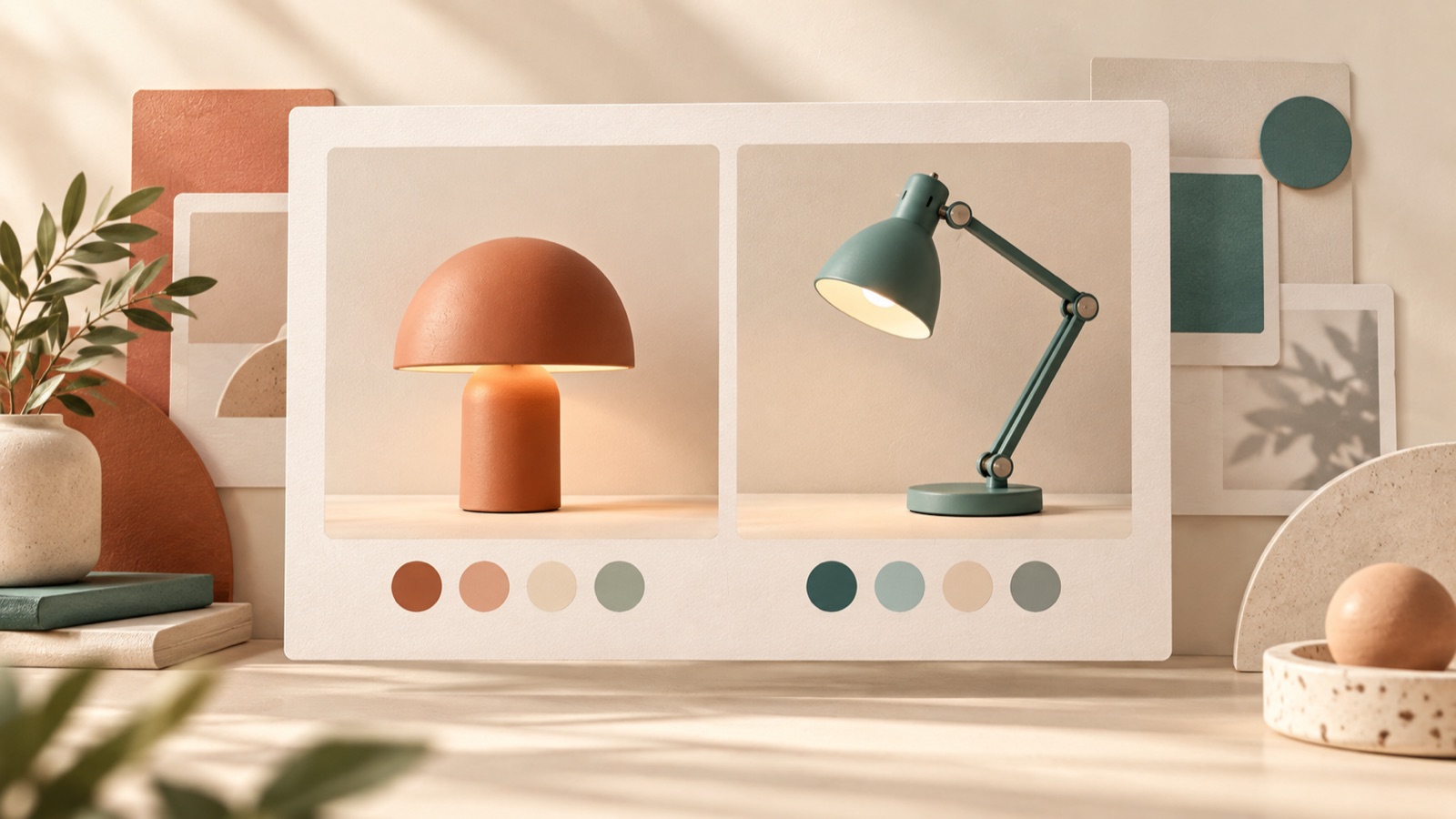
To start creating Facebook comparison image ads, choose one alternative your customers are considering and show two or three verifiable differences side by side using the same criteria. Before making the product photos larger, make sure viewers can immediately understand what is being compared. This article walks you through defining comparison points, arranging a side-by-side layout, writing English copy, and creating three image ad mockups with AdForge.
Choose an alternative customers would actually buy instead
Us vs Them ads contrast your product with another option. The reference material shows examples of split-screen layouts and copy that identifies the options being compared.1 Before creating the ad, decide what customers would buy instead of your product. It could be another product serving the same purpose or something they already use. Defining the alternative helps your photos and copy answer the same question.
For this article, we will use a hypothetical lunch box with movable dividers. The comparison will be with a specific container that has fixed compartments. Both product structures are assumed for illustration and do not represent actual brand examples. Narrow the customer's question from “Which is better?” to “Can I adjust the space to fit the food I pack?” In actual production, choose an alternative connected to the reasons customers give for their choices in inquiries or purchase consultations.
Write two or three verifiable differences in English
Before building a comparison table, record the comparison points, the facts about your product, the facts about the alternative, and supporting evidence in an internal working document. For our hypothetical example, we will compare whether the dividers can be moved and whether the inner tray can be removed. For actual products, verify both sides using product manuals, samples you have on hand, and other materials. Prioritize differences that photos and product structure can demonstrate, such as “Movable divider,” over claims that require interpretation, such as “More convenient.”
Make sure the English copy on both sides answers the same question. In the hypothetical example, the first row could read “Adjustable divider” and “Fixed compartments,” and the second row “Removable tray” and “One-piece base.” These phrases describe assumed product structures, so do not apply them directly to actual products. If you are comparing against a specific sample, do not broaden the claim to “All other lunch boxes.” State the name or scope of the selected alternative clearly in the ad.
Arrange the photos and comparison rows in the same reading order
For a side-by-side comparison, try placing the choice question at the top, the two product photos in the middle, and the comparison rows and call to action at the bottom. For the hypothetical lunch box ad, use “Need room for different lunches?” as the headline and place a photo of the product with its dividers repositioned on the left. On the right, place a photo that shows the alternative's fixed compartments. The reference material also shows layouts that combine side-by-side placement with comparison copy.1
Match the two photos as closely as possible in camera angle and the proportion of the layout they occupy. If the ad is not comparing size, adjust the photos so their scale does not make the containers appear to have different capacities. Align the comparison rows at the same height on both sides so viewers can easily follow each point. Even if you use an accent color for your product, maintain readable contrast for the alternative's copy. Match the call to action, such as “See the details,” to information viewers can actually find on the linked product page.
Turn a reference into a mockup for your product in AdForge
Search for Meta ads in AdForge's ad library and choose an image reference with a side-by-side comparison layout. Review the image layout and colors in the saved ad's analysis. List the elements you want to use, such as “question at the top, two product photos in the middle, comparison rows at the bottom.” Practitioner discussions also describe adapting references to your own industry or changing the copy and layout, but these production methods do not in themselves demonstrate performance.2
On the product information screen, populate the information using the product page address, then check that it matches the actual product. During the image ad creation process, add actual product photos, verified selling points, and an English message to use with your chosen reference. AdForge uses the reference layout as a guide to create three mockups with your actual product photos. On the results screen, check the product's appearance, comparison details, and English copy for accuracy before downloading. You also need to confirm that you have the rights to use the materials you upload.
Choose a mockup, then test different comparison questions
When choosing among the three results, first assess whether it is clear what is being compared, which row shows the difference, and whether the photos demonstrate that difference. Read the ad on a mobile phone screen as well, and shorten long sentences. If adjustable space is the main point of the hypothetical lunch box example, you might prioritize a photo that reveals the structure over an attractive photo that hides the divider positions. This is a production judgment, not a criterion that guarantees ad performance.
For follow-up creative, vary the customer's choice question rather than just changing colors. With the same product, you could lead with either “Can I adjust the space to fit my food?” or “Can I remove the inner tray?” To assess the effect of the comparison question, keep the target audience and other conditions as consistent as possible. Download the finished images and upload them directly to your ad account. AdForge does not offer automated ad delivery; campaign setup, delivery, and performance tracking take place in your existing ad management tools.
Key takeaways
Comparison ads start with one alternative customers consider and differences you can verify. Arrange photos and English copy using the same criteria, then review the three mockups created in AdForge to prepare your ad creative.
FAQ
Does the comparison have to include a competitor's brand?
No. You can compare products or ways of using them that customers consider as alternatives. Define the scope specifically, though. If you have checked a particular container, it is more accurate to avoid presenting its characteristics as those of all other containers.
Can I simply copy creative I find in an ad library?
Use the layout as a reference, but write fresh content based on verified information about your product. Meta's official material explains public access to active Page ads and searches by Page or keyword. An ad being publicly available does not mean its performance has been validated.3
What if there is only one difference to compare?
Do not force additional comparison points. You can use two product photos and a short explanation to show a single difference. If that difference matters to the customer's choice, a single comparison may suit the production objective better than a complex comparison table.
Which of AdForge's three mockups should I run?
Start by choosing a mockup that accurately presents the product's appearance and copy, with a clearly readable comparison target and key difference. The three generated mockups are not ranked by performance. Refine your final choice by reviewing delivery results in your existing ad management tools.
Make your next ad with AdForge
AdForge (ad-forge.io) is an ad remake app: pick an ad you like and rebuild it as a video or image ad for your own product. Find references in the Meta and TikTok ad libraries, let AdForge write the script, AI narration and captions, then review and download. Every account starts with 12 free image ads.