Creating Viral Video Ad Creative: How to Start Without Outsourcing Background Footage
Short on footage to pair with an AI voiceover? Start by breaking down the scenes you need. This guide explains how to choose between filming your own footage, stock video, and existing product photos, then turn them into your first ad.
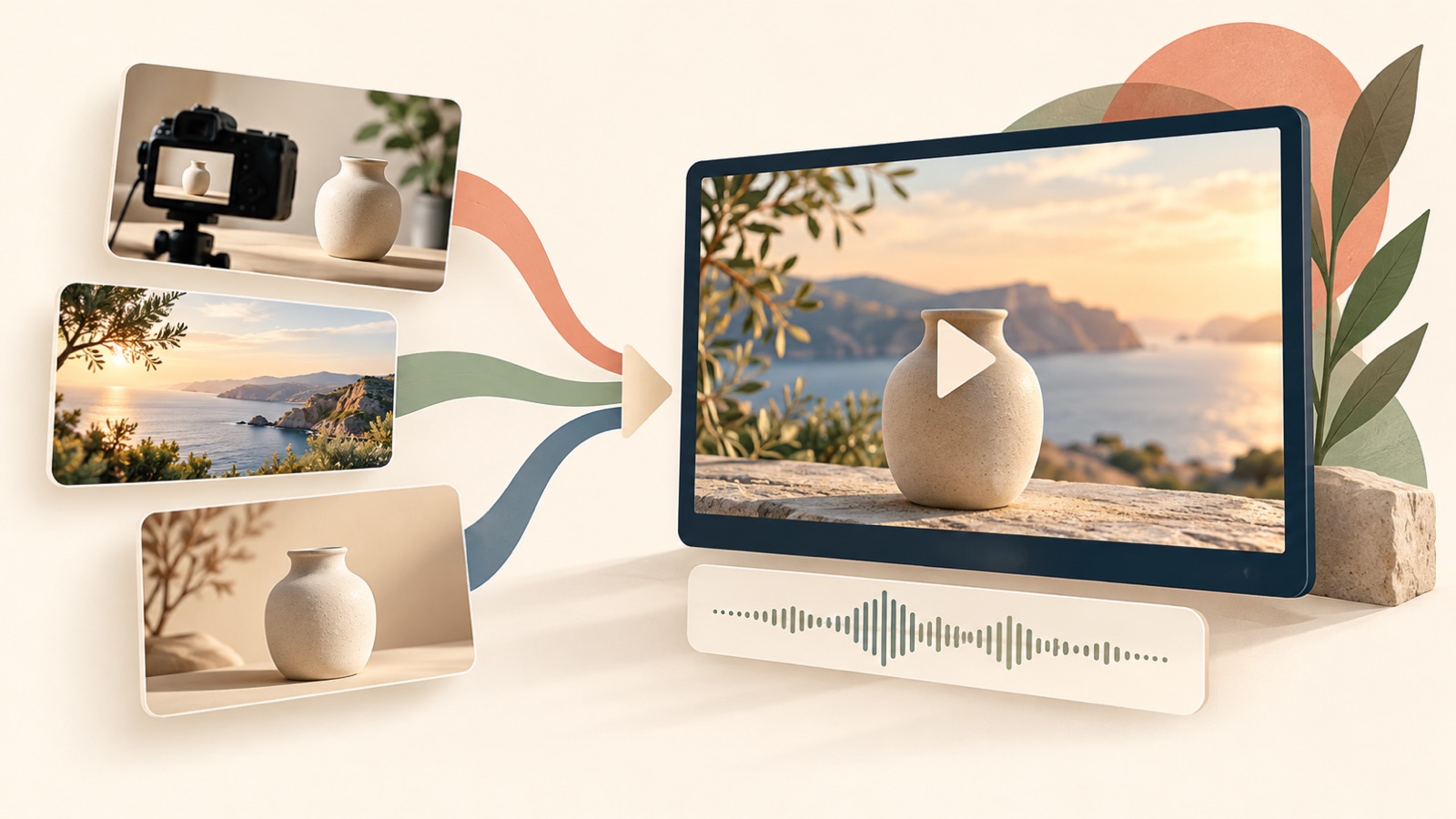
You do not need to outsource all the background footage for your viral video ad creative. Consider stock footage for scenes that establish an everyday setting, and start with existing photos for scenes introducing your product’s appearance and what it includes. If how the product is used or the results it produces are important to the purchase decision, it is better to film those parts. This guide walks through which assets to use where and how to combine them with an AI voiceover to create your first ad.
Decide what you need to show before choosing background footage
First, divide your narration into three categories: the customer’s situation, the product introduction, and actual use. The situation is the moment when someone needs the product; the introduction covers its appearance, contents, and features. Actual use means showing someone handling the product or the product in action. Making these distinctions reduces the need to find new footage for every sentence. Secure the scenes that answer pre-purchase questions first, then choose background footage that adds atmosphere.
Consider a hypothetical ad for a kitchen cleaner. You could pair “after washing the dinner dishes” with an everyday kitchen scene and “spray bottle” with an existing product photo. But to talk about the spray coverage or show how it wipes clean, you need footage verified using the actual product. Write down the visual you need beside each sentence. Once you distinguish sentences that a photo can support from those that require filming, the scope of any outsourced shoot becomes clearer.
Choose stock footage, product photos, or filming based on each scene’s role
Consider stock footage when you want to show an everyday situation or atmosphere rather than a specific product’s performance. Use product photos to show the appearance and contents of the item you sell, and reserve filming for demonstrating how it is used or how it works. Vrew is one tool you can look into for combining stock footage with voiceovers. Its official information lists AI voices, automatic captions, text-based video creation, and images, videos, and background music available for commercial use.1
For the hypothetical cleaner ad, use generic kitchen stock footage in the opening, then switch to photos of the actual item when introducing the product. Connecting stock footage of another cleaner in a way that presents it as a demonstration of your own product could give viewers the wrong impression. If the usage instructions are central to the ad, film only the necessary actions yourself or commission that footage. In your filming brief, specify the scenes you need, such as a hand holding the product, the direction of the spray, and the result to show, rather than simply requesting “kitchen footage.”
Match each AI voiceover sentence with a visual asset
Instead of completing a long AI voiceover first, build a draft by pairing one sentence with one visual. For example, match the hypothetical line “a spray cleaner to keep in your kitchen” with a product photo, and pair a sentence explaining verified usage instructions with an actual demonstration. If you have no asset to go with a sentence, shorten the wording or obtain the asset. Adding explanatory captions alone cannot show a usage process or result that is missing from the visuals.
If you also want to edit the scene sequence, you can refer to CapCut’s creation workflow. Its official page describes entering a script, arranging scenes, adding a voiceover, captions, and music, and exporting the video.2 Whichever tool you use, first check that the subject of the narration matches what appears on screen in the draft. Look for places where a photo changes before the product explanation finishes or where a related caption appears after the usage footage ends, and adjust them.
Create your first ad in AdForge using product photos and a reference ad
To build an ad around product photos, start with the ad reference selection screen in AdForge. Choose an ad whose opening hook, progression, and visual layout suit your product explanation. Then enter the product information and add your existing photos, videos, and selling points. You can also paste a product page address to fill in the information automatically. For the hypothetical cleaner, add photos of the actual bottle and verified features, and avoid carrying performance claims about a different product in the reference ad into your own message.
During video creation, review and directly edit the AI-generated script and storyboard. Check that the assets fit the product introduction and that claims requiring an actual demonstration have supporting evidence. Review the result, which includes AI narration, word-aligned captions, and background music, and regenerate only the scenes that need it. Finally, check the product visuals, copy, voiceover, and captions before downloading. Video ads require a paid plan, and users must verify that they have the rights to use the assets they upload.
Finish your first ad, then fill in only the missing scenes
Deciding whether to outsource filming after reviewing the first draft can help narrow down the assets you need. In the hypothetical cleaner ad, for example, photos might explain the bottle and its features while leaving the usage instructions unclear. In that case, add footage of the actual product being sprayed. Ask a reviewer to explain how to use the product. Areas where answers differ are candidates for improvement in the next round of production. You do not need to keep adding everyday footage simply because the visuals feel repetitive.
For follow-up creative used in testing, decide which element to change at a time. For example, you could create one version that opens with a product photo and another that opens with an everyday scene, while keeping the main explanation and call to action the same. Creative made in AdForge must also be downloaded and manually uploaded to your ad account. Use your existing ad management tools to set up and run campaigns and review performance. Rather than expecting an ad to spread because it is called “viral,” start by completing a first ad that helps people understand the product using the assets you have.
Key takeaways
Start by defining each scene’s role before deciding to outsource background footage. Consider stock footage for everyday situations, product photos for introducing the item, and actual filming for showing how it is used. Create your first ad with product photos and a reference ad, then add only the scenes where the explanation falls short.
FAQ
Do I have to outsource background footage of applying makeup or washing dishes?
You can consider stock footage if the goal is to establish an everyday atmosphere. If you need to show how your product is used or the results it produces, identify the scenes to film with the actual product. Choose outsourcing when those scenes are difficult to capture yourself.
Can I make an ad with an AI voiceover using only product photos?
In AdForge, you can create a video ad by choosing a reference ad and adding product photos and your message. AI generates the script and storyboard and adds narration, captions, and background music. However, photos alone cannot substantiate actual performance results, so check that the assets support the claims in the script.
Which tool should I look into for working with AI voices and stock assets together?
Vrew provides AI voices, automatic captions, text-based video creation, and images, videos, and background music that it describes as available for commercial use.1 Check whether you can obtain the everyday scenes you need before deciding on your production approach.
Can I run a video made in AdForge as an ad right away?
You need to download the finished video and manually upload it to your ad account. AdForge does not yet have a feature that automatically launches ads through your ad account. Use your existing ad management tools to configure delivery and review performance.
Make your next ad with AdForge
AdForge (ad-forge.io) is an ad remake app: pick an ad you like and rebuild it as a video or image ad for your own product. Find references in the Meta and TikTok ad libraries, let AdForge write the script, AI narration and captions, then review and download. Every account starts with 12 free image ads.