5 Facebook Ad Examples for Pet Products: Create English Ad Creative with Photos You Already Have
Explore five image ad layouts you can create with photos of pets using your products and standalone product shots. Go from choosing photos and writing English copy to creating drafts in AdForge.
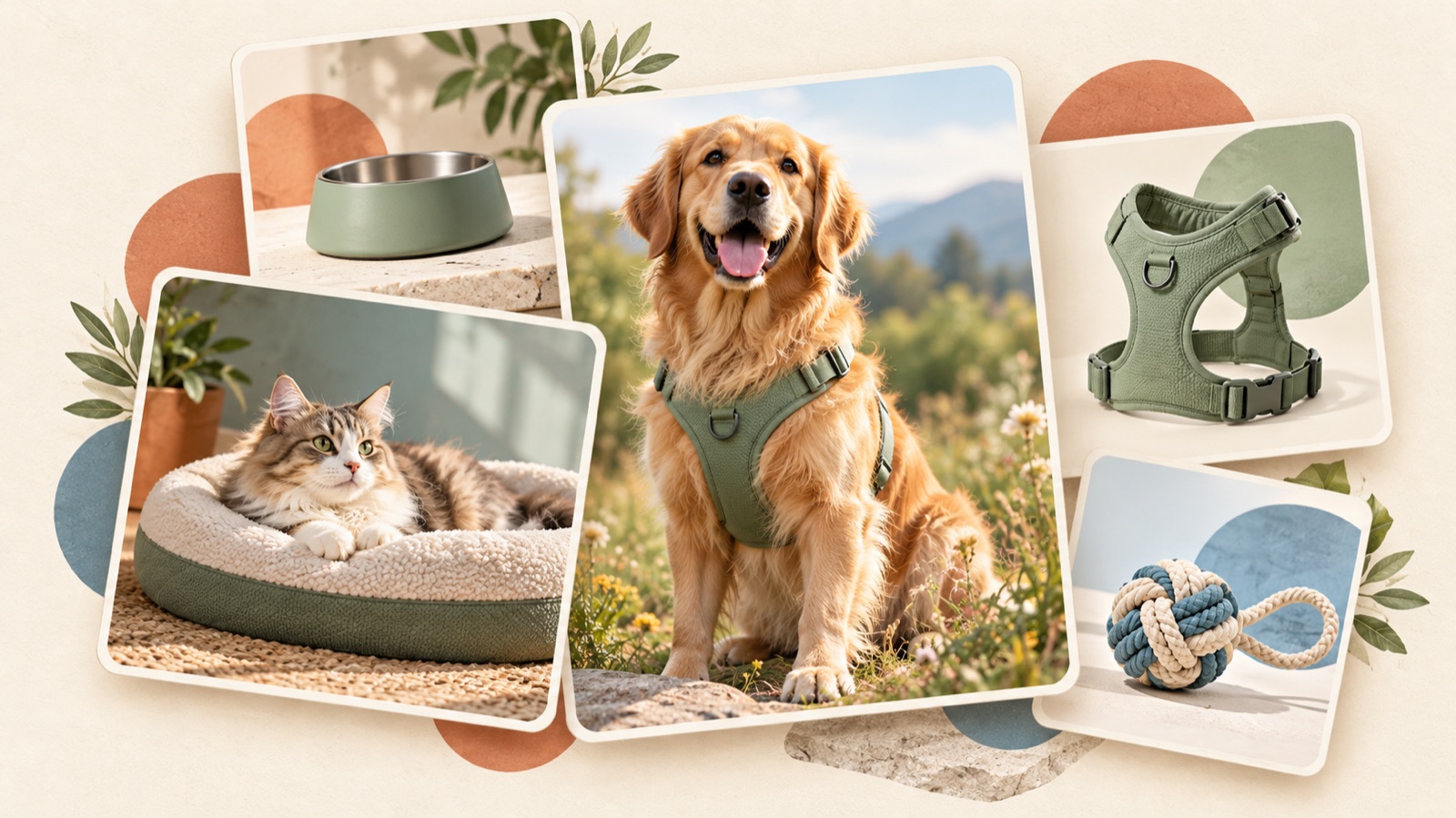
If you are looking for Facebook ad examples for pet products, start by choosing a purchase question your existing photos can answer. In-use photos are useful for showing size and use, while standalone product shots work well for showing structure and what is included. Advertiser communities also include questions about how to use product-in-use photos and explanatory images.1 All examples below are hypothetical. Each suggests photos, an English headline, product placement, and a call to action, so you can choose a layout that suits your available assets and turn it into a draft.
1. A bed in use: Show its size with a pet lying on it

This is a hypothetical example. Place a large photo of a dog lying on the bed in the lower part of a square canvas. Choose a photo that shows both the dog's body and the edges of the bed, and add “Room to stretch out” in the space above. Place “Find your size” in small text at the bottom right. This layout helps show how the product is used, which can be hard to tell from a product-only shot. However, do not use a photo of one dog to suggest that the bed fits every breed, and check the actual dimensions of the photographed product.
When adapting this layout to your product, look beyond how cute the pet is and check whether the photo clearly shows the bed's shape and how much space the pet's body takes up. If the pet obscures the product, choose another shot. In AdForge, select an image reference featuring both a pet and a product, then add your existing in-use photo, product information, and English messaging to create three drafts. Before downloading, check that the results have not altered the bed's edges or the pet's posture from the original.
2. Grooming brush feature callouts: Connect product structure to reasons to buy
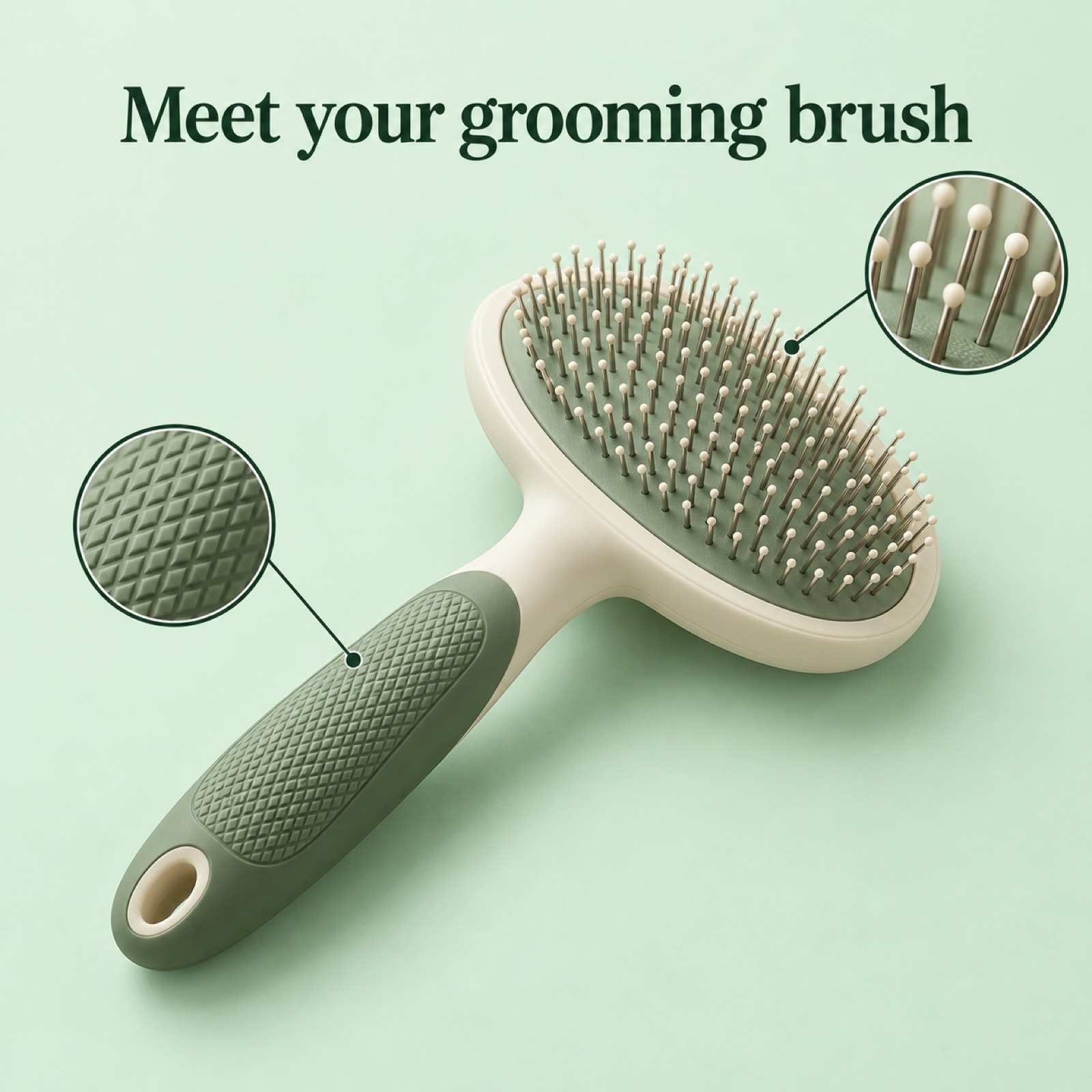
This is a hypothetical example. Place a large standalone photo of the brush in the center of a pale mint background, with short callouts near the handle and brush head. Use “Meet your grooming brush” as the headline and “See the details” as the call to action. Collections of pet ad examples also show layouts that highlight product features.2 This example is intended to make the structure of a small product easy to understand. Do not add claims that a photo cannot verify, such as hair-removal effectiveness or reduced skin irritation.
Choose about two features your product actually has. For example, you can use “Textured handle” if the handle has a textured surface, but you should not apply the same copy to a smooth product. In AdForge, use a feature-callout layout as a reference and add your actual product photo and verified selling points. Of the three generated drafts, choose the one that shows the product largest while making it clear which part each callout refers to. If a callout line points to the wrong place or the brush's shape has changed, do not use that draft as it is.
3. A two-photo toy layout: Show the full product alongside a play scene
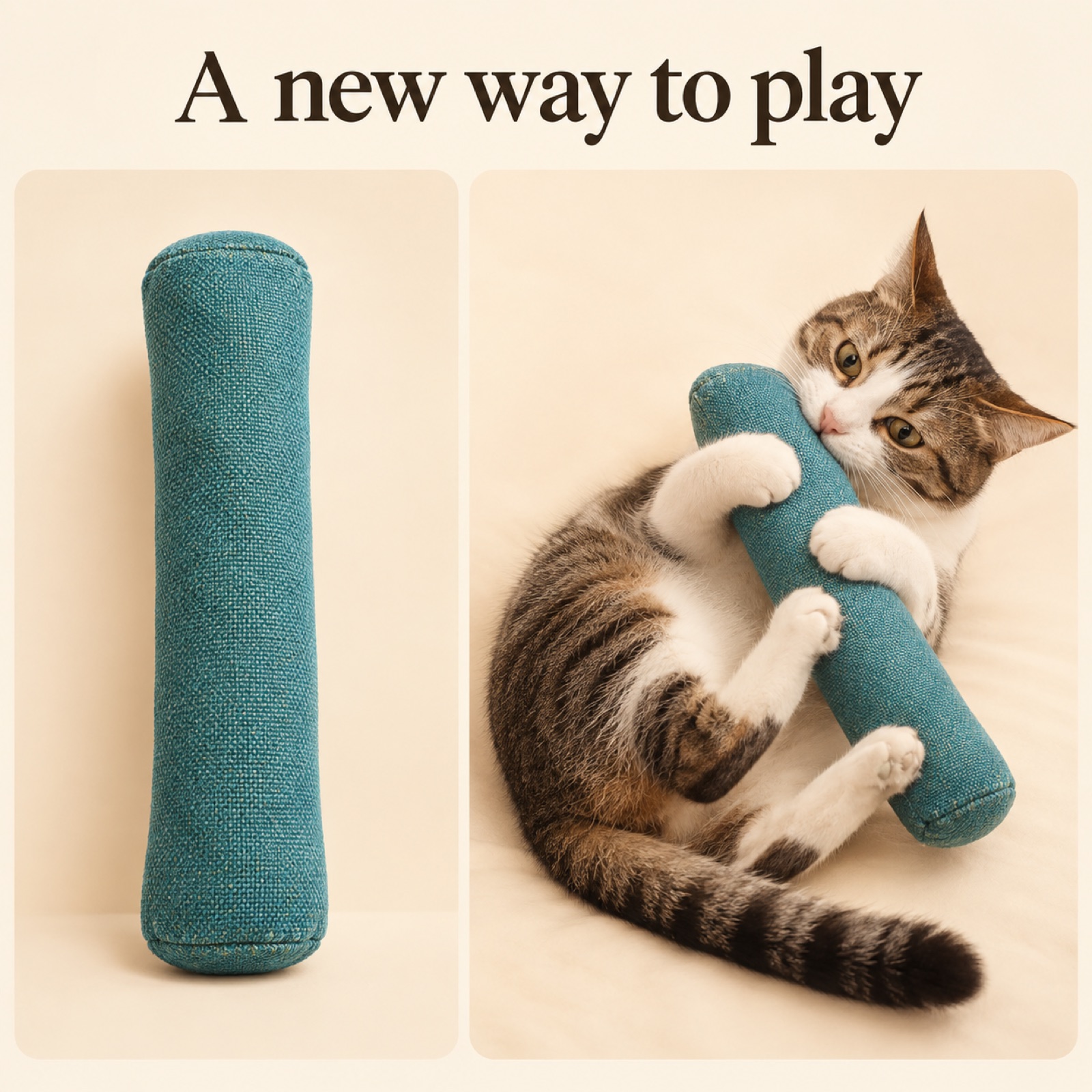
This is a hypothetical example. Place a product photo showing the entire toy on the left and an existing photo of a cat using that toy on the right. Use a cream background, with “A new way to play” at the top and “Explore the toy” at the bottom. The two photos serve different purposes. The standalone shot explains the shape of the item being sold, while the in-use photo shows a play scene. This layout helps avoid the problem of making the animal photo so prominent that it becomes unclear which product is for sale.
When creating this layout for your product, first make sure both photos show the same model and color. If other toys appear in the in-use photo, choose a shot in which the product being sold is easy to identify. In AdForge, select a reference with two photos in separate areas, then add your product photo, actual in-use photo, and English messaging to create drafts. Check the number of toys and the accessories in the results. If components absent from the original photos appear, or the way the pet uses the toy has changed, you will need to prepare a new result that matches your source assets.
4. A promotional banner for a mat: Make the actual offer readable beside the product
This is a hypothetical example. Center a photo of a pet mat on a beige floor, and place the promotional copy in a dark navy banner at the top. If you are actually offering a bundle discount, you can use “Bundle savings” and place “Shop the bundle” at the bottom. Promotional banners also appear in pet ad layout references.2 Here, the banner connects the product and the offer within a single image. Include a discount percentage or end date only when the actual sales terms have been finalized.
When adapting this to your product, match the quantity shown in the photo to the quantity covered by the promotion. If you sell a two-mat bundle, avoid making buyers infer that two mats are included from a photo showing only one. In AdForge, choose a reference with a promotional banner and enter your actual product photo and confirmed offer copy. When comparing the three generated drafts, check whether the banner obscures the product or makes the offer appear to apply to other products as well. If there is no promotion, you can replace the discount copy with a layout that presents an actual choice, such as “Choose your color.”
5. A bed detail layout: Create three English ad drafts in AdForge
This is a hypothetical example. Place a large photo of the entire bed without a pet on the left, with a smaller existing close-up of the fabric on the right. Use a warm gray background with “A closer look at their next bed” and place “Explore the details” at the bottom. This layout lets buyers examine the shape and surface even when few in-use photos are available. There are also production requests to turn existing product photos into ad creative.3 However, a close-up of fabric alone cannot establish water resistance or durability, so keep the copy within visible features and verified information.
Search for bed ads in AdForge's Meta Ad Library and choose a reference that separates a full-product photo from a detail photo. Review the layout and colors in the saved ad's image analysis, then upload your actual product photo and close-up to the image ad creation tool. Enter the product information, selling points, English headline, and call to action to create three drafts at once. When reviewing the results, check the fabric pattern, product shape, English copy, and your rights to use the assets. Download your chosen creative, then upload it directly to your Facebook ad account. Run the ad and review its performance in your existing ad management tool.
Key takeaways
If you have in-use photos, build the layout around size and use. If you have standalone shots, focus on structure and details. Choose one purchase question your existing photos can answer and add English messaging to prepare three image ad drafts suited to your product.
FAQ
Do I need a photo with a pet in it?
No. You can also build a layout with standalone product shots and detail photos. Actual in-use photos are suitable when you need to explain size or use, while standalone shots are a good starting point for explaining structure or what is included.
How should I choose English copy for US customers?
Focus on one thing the photo shows. If it shows size, guide buyers toward choosing a size; if it shows structure, invite them to view the details. Instead of translating abstract, emotional Korean copy at length, briefly state what the buyer should check next.
How should I compare the three image ad drafts?
Keep the product and offer copy the same, and choose one element to compare, such as the product's size in the image or the photo layout. Review the generated results for accuracy and readability first, then check actual ad response in your ad management tool.
Can I copy a reference ad if it has been running for a long time?
You cannot judge performance from its run time alone. Use the reference to understand the role and placement of the photos, then create fresh content using your own product information and assets you have permission to use.
Make your next ad with AdForge
AdForge (ad-forge.io) is an ad remake app: pick an ad you like and rebuild it as a video or image ad for your own product. Find references in the Meta and TikTok ad libraries, let AdForge write the script, AI narration and captions, then review and download. Every account starts with 12 free image ads.